
If the Sound Recorder app is not working on Windows 11 or Windows 10, follow these troubleshooting tips to make it work again. There could be several reasons why the Voice Recorder has stopped working. This article explains the most common causes, along with their solutions, so that you can resolve the issue quickly and start recording your voice again.
Sound Recorder not working in Windows 11/10
If Sound Recorder is not working on a Windows 11/10 PC, follow these steps:
- Verify microphone
- Check Microphone access
- Allow Voice Recorder to use Microphone
- Enable microphone
- Repair or Reset Sound Recorder app
- Reinstall audio driver
- Restart Windows Audio service
- Reinstall Sound Recorder app
To learn more about these solutions, continue reading.
1] Verify microphone
The first thing to check when the Voice Recorder is not working on your computer is… If the microphone is not working or has some flaws, you won’t be able to use the Voice Recorder app. Whether an integrated microphone or an external microphone, you can install any audio recorder software and verify it.
2] Check Microphone access
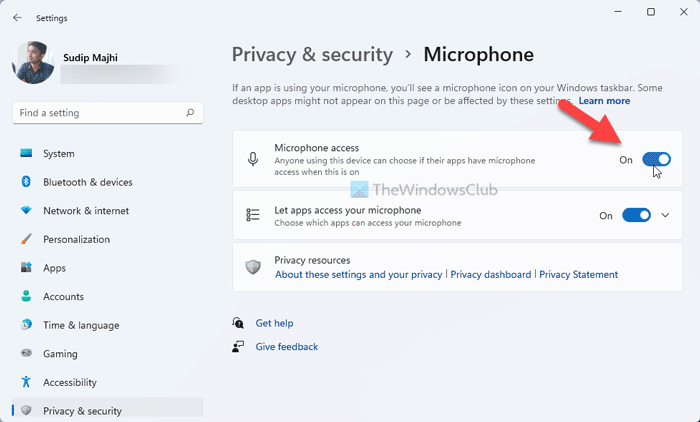
Windows 11 and Windows 10 allow users to enable or disable microphone access on their computers. It allows you to prevent any app from using the microphone, which indirectly helps you improve your privacy. However, if this setting is disabled, you won’t be able to use the Voice Recorder app. Therefore, follow these steps to verify the microphone access:
- Press Win+I to open Windows Settings.
- Go to Privacy & security > Microphone.
- Toggle the Microphone access button to enable it.
Then, check if the problem has been resolved or not.
Read: Voice access not working on Windows
3] Allow Sound Recorder to use Microphone
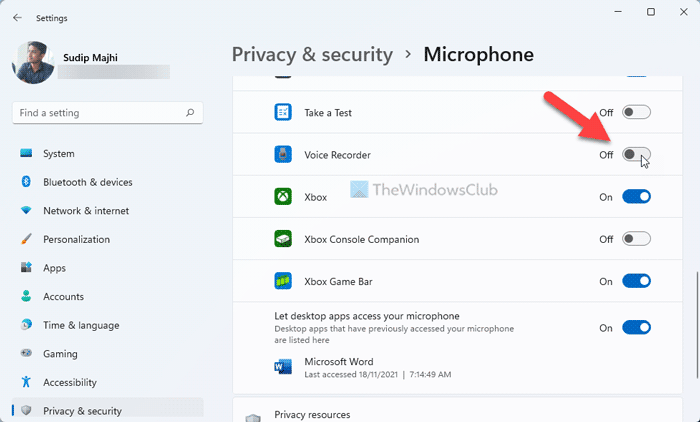
You can allow or block specific apps from using the microphone on your Windows 11 or 10 computer. If you have blocked Sound Recorder from using the microphone, it won’t work at all. Follow these steps to allow the Sound Recorder to use the microphone:
- Open Windows Settings.
- Go to Privacy & security.
- Click on the Microphone menu.
- Toggle the Sound Recorder button to turn it on.
After that, check if you can use Sound Recorder or not.
4] Enable microphone
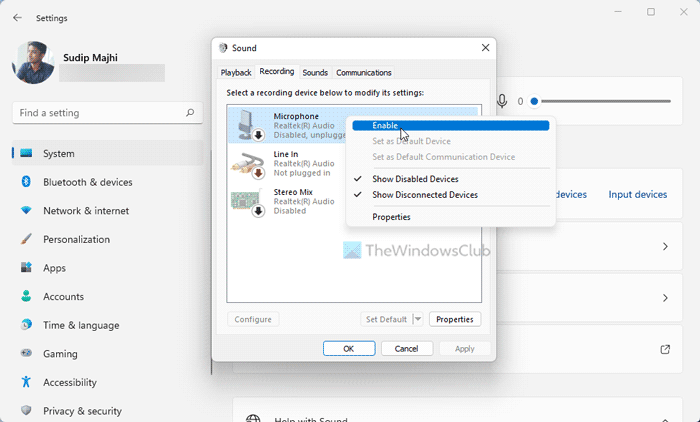
You can enable or disable specific audio devices on your computer. If the microphone is disabled on your PC, Sound Recorder might not work properly. Follow these steps to enable the microphone:
- Open the Windows Settings panel on your computer.
- Go to System > Sound.
- Click on the More sound settings option.
- Switch to the Recording tab.
- Right-click on the Microphone and select Enable.
- Click the OK button.
After that, the Sound Recorder should be working without any error.
5] Repair or Reset Sound Recorder app
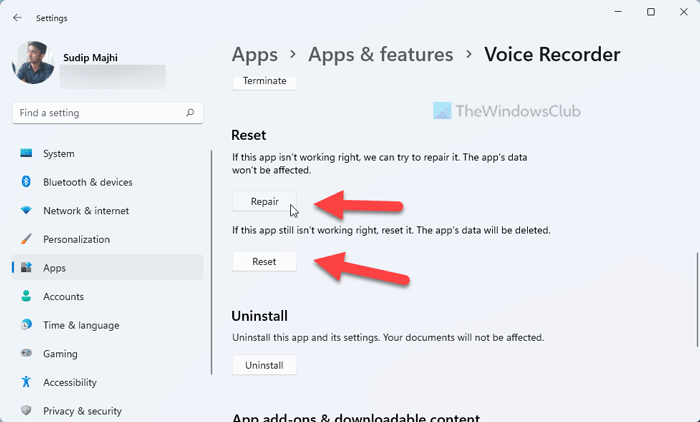
To repair and reset the Sound Recorder app, follow these steps:
- Press Win+I to open Windows Settings.
- Go to Apps > Apps & features.
- Click the three-dotted icon or Voice Recorder.
- Select the Advanced options.
- Click the Repair button.
- If it does not work, click the Reset button twice.
Now, you can use Sound Recorder without any issues.
6] Reinstall audio driver
If you use an internal microphone, you might not need to install any driver. However, if you use an external microphone, you may need to install the correct driver to make it more compatible with Windows 11/10 PC. Therefore, check if the manufacturer has given any driver media. If yes, it is recommended that the driver be installed.
However, if you have already installed it earlier, you can uninstall the corresponding driver and reinstall the latest version of it.
Read: How to download Audio driver for Windows
7] Restart Windows Audio service
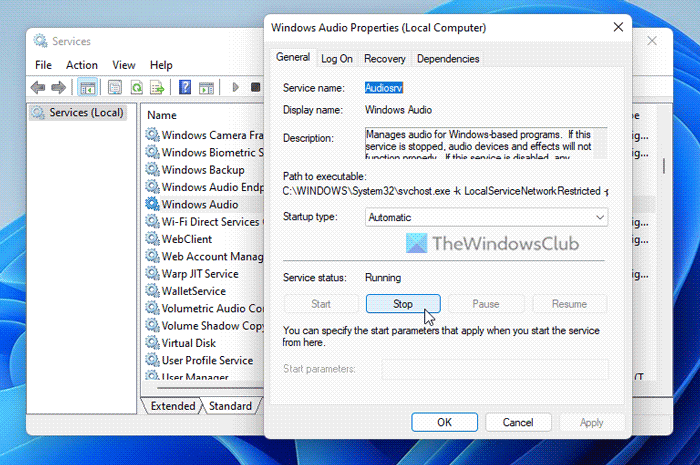
All input and output devices function only when the Windows Audio service is running in the background. If this service experiences any issues, you may encounter similar problems. Therefore, follow these steps to restart the Windows Audio service:
- Search for services in the Taskbar search box.
- Click on the search result.
- Double-click on the Windows Audio service.
- Click the Stop button.
- Click the Start button.
Next, check if you still have the problem or not.
8] Reinstall Sound Recorder app
If nothing else has worked for you, you need to uninstall the Voice Recorder app and reinstall it on your computer. It is possible to uninstall Voice Recorder app using Windows Settings and Windows PowerShell. You can follow any method to get it done. Following that, open the Microsoft Store, search for windows sound recorder, and install the app on your PC.
Read: How to stop hearing yourself on Mic on Windows
How do I fix my Sound Recorder on Windows?
To fix the Sound Recording on Windows 11 or Windows 10, follow the steps mentioned above. Reset the Sound Recorder and if if it does not help, reinstall it.
How do I get my microphone to work on Windows 11?
To get your microphone to work on Windows 11, you may not need to do anything extra. If your microphone is already working on Windows 10, you can also get it working on Windows 11. However, you may need to reinstall the driver if you encounter any issues. Nonetheless, if that trick doesn’t work, you may need to follow the solutions mentioned above.
