
If the Video card is not detected but the fan is spinning, then here are the suggestions to help you fix the paradoxical situation. There can be multiple reasons behind this problem. From physical damage to software issues, anything can be responsible for the problem. But among all, hardware damage is often the primary culprit. Nevertheless, here’s how to solve the problem.
GPU or Video card not detected but fan is spinning on Windows PC
Below are the solutions you can try if the Video card is not detected but the fan is spinning, on our Windows computer:
- Check the connection
- Check the GPU Slot
- Enable the Graphics Card
- Update the driver
- Use Command Prompt
- Reset BIOS
Now, let’s check out all these solutions in detail.
1] Check the connection
Before trying anything technical, the first thing you should check is the connection. In most cases, it has been noticed that the problem is mainly caused due to damaged or loose connection. If this is the case with you as well, reconnect the cables and check if it solves the problem. Alternatively, you can switch to a different cable if the previous one has been damaged. Use the new cables and check if it solves the problem.
If it fixes the issue, you know the culprit, and you are good to go. But if the problem continues, try the next solution on the list.
2] Check the GPU Slot
As you must know, graphics cards are inserted into different motherboard slots. But in case you have inserted it in a damaged slot, you are most likely to face the problem in question. In this case, open the back cover of your PC, and insert the graphics card into a different slot of the motherboard. Check if it solves the problem. If not, continue with the troubleshooting guide.
Read: The NVIDIA OpenGL driver detected a problem with the display driver
3] Enable the Graphics Card
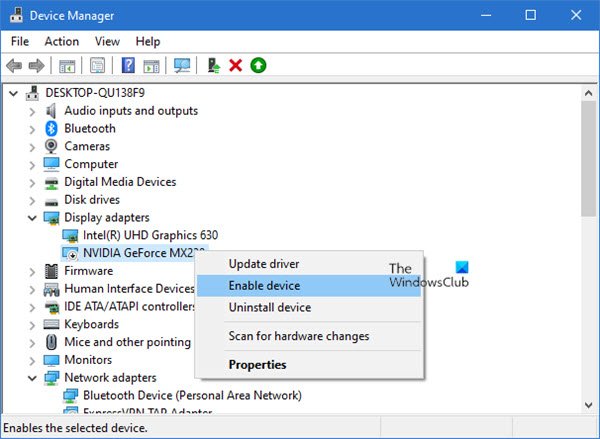
It has been observed that the issue mainly occurs when the graphics card is disabled in Device Manager. If this is the case with you as well, you will have to manually enable the graphics card to solve the problem. You can do so by following the steps below.
- To begin with, right-click on the Windows icon present in the Taskbar.
- From the context menu, choose the Device Manager option.
- Double-tap on Display adaptors to expand the option.
- Locate the installed graphics card.
- Right-click on it and select the Disable device option.
- Now, restart your PC, and open Device Manager again after restart.
- Right-click on the installed graphics card and choose Enable device option.
That’s it. Check whether it solves the problem or not. If not, try the next solution.
4] Update the driver
Not having the latest driver update can also be a significant reason behind the problem. You will need to download the latest driver update for your system to resolve the issue. You can do so by following the below steps.
- You can download the graphics driver update by visiting the manufacturer’s official website.
- Head over to Windows Update to check for available graphics drivers updates.
Once done, check if the problem is fixed or not.
See: Windows computer doesn’t recognize the second GPU
5] Use Command Prompt
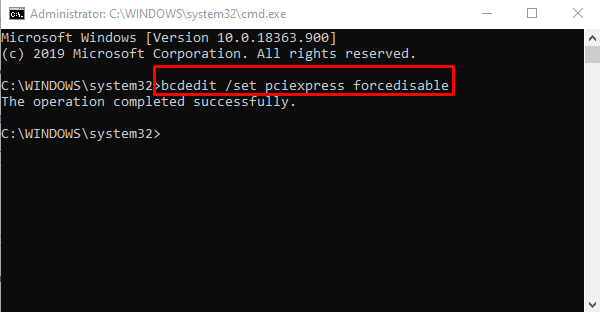
If updating the driver wasn’t helpful, the next thing you can try is to execute some codes in the command prompt. To do so, follow the steps below.
First off, open Command Prompt in the administrator mode.
Type the below-mentioned command and press the enter key.
bcdedit /set pciexpress forcedisable
Wait until the command is executed.
Once done, restart your Windows PC.
After restart, install the driver and check if the problem is fixed or not.
6] Reset BIOS
The mentioned issue can also be caused due to outdated BIOS. In this case, the best thing you can try is to update your BIOS and check if it solves the problem. If the problem persists, you will need to reset the BIOS to its default settings to resolve the issue.
Read: NVIDIA graphics card not detecting HDMI
Why is my GPU not being detected?
There can be multiple reasons why Windows struggles to detect the installed GPU. But among all, an outdated graphics driver is often the main culprit. You will have to download the latest driver update to fix the issue. Alternatively, the problem will occur if the driver is disabled in Device Manager.
Why is my GPU not showing up in Device Manager?
Device Manager features all the installed drivers on your system. But if it doesn’t display the installed GPU, then it indicates that there is an issue in the connection. Additionally, outdated graphics adapters and hardware issues can also be responsible for the problem in question.
Read Next: MSI Afterburner not detecting GPU.
