
Here is a full guide on how to fix Valorant error codes 5 and 6. Valorant is a first-person shooter gaming platform and is getting popular amongst gaming enthusiasts day by day. It is a great platform for gamers worldwide. However, it also contains various bugs and errors that users keep encountering while launching or playing games. We have covered a lot of Valorant errors in the past including error codes VAN 135, 68, 81, 128, 57, and some more. In this post, we will discuss error codes 5 and 6. What are these error codes and how to fix them on a Windows PC? Let us discuss this in detail now!
What is Valorant Error Code 5?
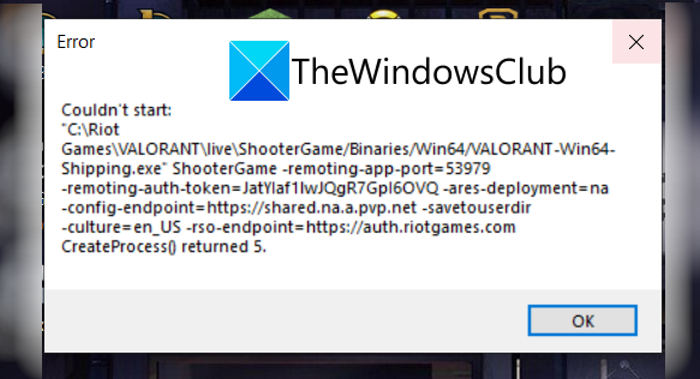
Error code 5 in Valorant is one of the many errors users encounter. It occurs when you are trying to launch a game. The error message that pops up when this error is encountered is something like the following message:
Couldn’t Start….
CreateProcess() Returned 5.
There is no clear reason for this error. However, according to some reports, this error might occur when the Riot game servers are under maintenance or when an update is introduced by Riot games. There can be some other unknown reasons for this error. Now, if you are one of those who encounter this error code in Valorant, this article is your stop. Here, we will be listing multiple fixes that you can try to resolve this error.
How to Fix Valorant Error Code 5
Here are the fixes that you can try to resolve the error code 5 on Valorant:
- Restart your PC.
- Uninstall Riot Vanguard.
- Reinstall Valorant.
- Contact Valorant Support.
Let us discuss the above methods in detail!
1] Restart your PC
First, try restarting your Windows PC. If there is a temporary glitch causing this error, you can try rebooting your PC and then relaunching the Valorant game. This should help you resolve the issue.
2] Uninstall and then Reinstall Riot Vanguard
If you are unable to resolve the error by simply restarting, try uninstalling Riot Vanguard. It is an anti-cheat system for Valorant, but errors often occur due to it. So, uninstall Vanguard and then reinstall it again on your PC. Verify if this method resolves the issue.
3] Reinstall Valorant
If the above solutions don’t work, uninstall and then reinstall the Valorant game client. In case some corrupted installation files or incomplete Valorant installation is the reason for this error, you should be able to fix it up by doing a fresh installation of Valorant. Uninstall the Valorant game client completely; it is recommended to use third-party uninstaller software. After that, download the latest version of Valorant and install it on your PC. See if this works for you.
4] Contact Valorant Support
The last resort to fix this issue is to contact the official support team of Riot Games. Go to the official website of Riot Games and submit a ticket to the support team. They will contact you and assist you in troubleshooting this Valorant error. Or, if the servers are under maintenance, they will inform you the same.
See: Fix VALORANT Error Code 31 and 84 on Windows PC
What does Error Code Van 6 mean in Valorant?
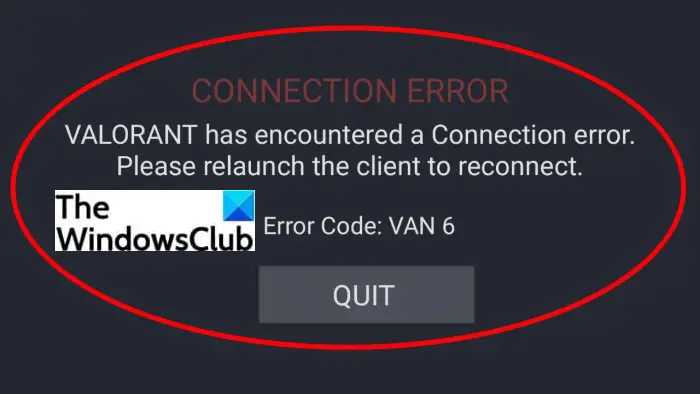
Another Valorant error that gamers encounter is the error code Van 6. It is an annoying error that stops you from joining the match. It was initially assumed as a server-side issue. However, it may have a deeper root cause and there can be other reasons for this error that are still not clear. The Van 6 error is prompted with the following error message:
VALORANT has encountered a Connection error.
Please relaunch the client to reconnect.
Error Code: VAN 6
If you are experiencing this error code and want to fix it up, continue reading the solutions we have discussed here.
How to Fix Valorant error code 6
These are the main solutions that you can try to fix error 6 on Valorant on Windows PC:
- Allow VALORANT through your Firewall.
- Turn on Vanguard service.
- Change your DNS server to Google.
- Change VALORANT priority to normal.
- Reinstall Vanguard.
Let us discuss the above methods in detail now!
1] Allow VALORANT through your Firewall
The first thing you should do is ensure that your firewall is not blocking your Valorant game. Generally, such error codes are linked with network issues. So, allow Valorant through your firewall and then see if the error is fixed or not.
If you are using Windows Firewall, here are the steps that you can use to allow Valorant through Windows Firewall:
First, open the Windows Defender Firewall from the search bar. Now, press the Allow an app or feature through Windows Defender Firewall option from the left panel.
Then, tap on the Change settings button and click on the Allow another app button.
Next, you need to provide the location where your Valorant game is installed. To know the exact game location, type Valornat in the search box and right-click on the Valorant app. From the context menu, click on the Open file location option and then copy the path of the game from the address bar in File Explorer.
After that, paste the path to the Valorant game in the “Add an app” window that was previously opened. When the path to the Riot Client is added, locate Riot Client in the list of the apps and enable it on Domain, Private, and Public networks.
Lastly, press the OK button.
You need to repeat the above process for other executables including VALORANT.exe and VALORANT-Win64-Shipping.exe. VALORANT.exe is available at the Riot Games > VALORANT > live location. And, you can find VALORANT-Win64-Shipping.exe at Riot Games > VALORANT > live > ShooterGame > Binaries > Win64. These are the default locations.
You can now relaunch the Valorant game and check if the issue has been resolved.
Read: Fix VALORANT failed to launch on Windows PC
2] Turn on Vanguard service
The anti-cheat system for Valorant called Vanguard is required to play the games. So, ensure that the Vanguard service is running. For that, follow the below steps:
- Open the Run dialog box using the Windows + R hotkey.
- Write msconfig in the Open field and hit the Enter button.
- In the System Configuration window, go to the Services tab and locate the vgc service.
- Enable the vcg service and click on the Apply > OK button.
- Finally, press the Restart button.
After restarting the PC, you will need to change the service type for Vanguard service to automatic type. To do that, open the Services Manager and location the vgc service. Right-click on it and select Properties. Then, select the Startup type as Automatic and hit the Apply > OK button. After that, press the Start button to start the vgc service.
Finally, relaunch your game and see if the error is fixed.
3] Change your DNS server to Google DNS
This error can be caused if your ISP’s default DNS server is slow or it might not be configured correctly for caching. In that case, it is recommended to change your DNS server, preferably to Google DNS. To do so, follow the instructions below:
- Press Windows + R to open up the Run dialog.
- Type Control and press the OK button.
- In the Control Panel, go to Network and Internet > Network and Sharing Center.
- Select your WiFi, Ethernet, or whichever connection you are using.
- Click on the Properties button.
- Now, select Internet Protocol Version 4 (TCP /IPv4) and then tap on the Properties button.
- Click on the Use the following DNS server addresses option and enter the following DNS server address:
Preferred DNS server: 8.8.8.8
Alternate DNS server: 8.8.4.4 - Enable the Validate settings upon exit checkbox and then press the OK button.
When the settings are applied, try relaunching the Valorant game that was previously throwing error 6 and see if the issue is fixed.
4] Change VALORANT priority to normal
If you have set your game’s priority to High to get the best gaming performance and boost FPS, it may result in some error codes. If this scenario applies to you, you can resolve the error by reverting the VALORANT priority back to normal. Here are the steps to follow:
- Launch Valorant game client.
- Open the Task Manager.
- Go to the Processes tab and look for Valorant.
- Right-click on the Valorant process and press the Go to details option.
- Again, right-click on the VALORANT.exe and click on the Set priority > Normal option.
Now launch your game and see if the error still persists.
See: How to fix VALORANT Error 29 and 59 on Windows PC
5] Reinstall Vanguard
If none of the above solutions work for you, the fault likely lies in the Vanguard. There may be some corrupted files associated with your Vanguard account. Hence, uninstall Vanguard and then reinstall it again. This should fix up the issue for you.
How do I fix Van error code 81?
The Valorant error code 81 is a connection error. To resolve this Valorant error, try restarting your PC and router, checking for network issues and troubleshooting them, ensuring the Valorant server is not down, and restarting the vgc service if it is not running. This guide shows how to resolve Van error code 81.
Hope this article enables you to fix error code 5 and 6 on Valorant.
Now read: Valorant Vanguard anti-cheat has encountered an error.
