
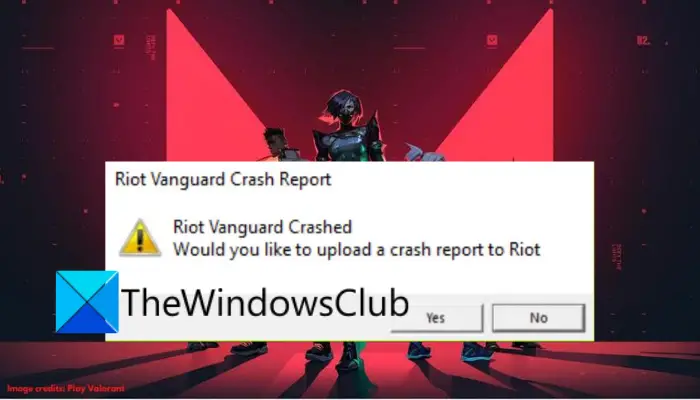
Are you getting the “Riot Vanguard Crashed” error on Valorant? Here are the fixes that you can try to get rid of the error. Several users have reported encountering an error that reads “Riot Vanguard Crashed” while playing Valorant. Now, the error might be triggered due to various reasons. In any case, you can follow this guide to fix the error without any hassle.
What causes Riot Vanguard Crashed error on Valorant?
Here are the potential causes of the Riot Vanguard Crashed error on Valorant:
- It can be caused by a glitch with the Vanguard service. You can try restarting the service to fix the error.
- Some Windows features, such as the Hyper-V feature, can also cause the error at hand.
- It can also be triggered by corrupted cache files associated with Valorant. Hence, clear the cache files and see if the error is fixed or not.
- An unverified graphics driver can also cause the same error. So, verify the graphics driver and then reinstall it to fix the error.
- Your antivirus or Windows Defender might be blocking the game and causing the error at hand. If the scenario is applicable, add Valorant to the Exclusion list to fix the error.
How do I fix Valorant Vanguard crash?
If you encounter a Vanguard crash error while playing Valorant, you can fix it by running the game as an administrator or restarting the Vanguard service. If that doesn’t help, you can try advanced solutions such as disabling Hyper-V, enabling Data Execution Prevention, disabling Windows Testing Mode, or verifying your graphics driver. There are many more fixes listed below; check them out.
How do I fix Driver crashed Valorant?
If you encounter the “Graphics Driver Crashed” error in Valorant, try updating your graphics driver. Besides that, you can also roll back the graphics driver, update DirectX, reset the graphics card, stop overclocking, disable VSync, etc.
Fix Riot Vanguard Crashed Error on Valorant in Windows 11
Here are the fixes that you can try to fix the Riot Vanguard Crashed or Encountered an error on Valorant:
- Reboot your PC.
- Run Valorant as an administrator.
- Restart the Vanguard service.
- Turn off the Hyper-V feature on Windows.
- Enable Data Execution Prevention.
- Disable Windows Testing Mode.
- Delete the cache files and temporary files.
- Verify and Reinstall your graphics drivers.
- Add Valorant to Exclusion.
- Reinstall Valorant and Riot Vanguard.
1] Reboot your PC
The first thing you should do when you encounter this error is reboot your PC. Most of the time, the error is caused by some temporary glitch in your system. Or there might be a temporary bug or error in Valorant causing the issue at hand. Hence, a simple restart should help you fix the error. So, reboot your computer and then check if the “Riot Vanguard Crashed” error on Valorant is fixed or not.
If the error persists, try the next potential fix.
Read: Valorant Download or Update Stuck at 0.1 kb/s or at 0%, 95%, 100%
2] Run Valorant as an administrator
The error might be caused due to a lack of administrator privilege to run the game. Hence, try running the Valorant game with admin rights. Just go to the Valorant application file and right-click on it. Then, from the appeared context menu, select the Run as administrator option to launch the game with admin privilege. If the error doesn’t appear again, you can try always running the game as an administrator to fix the error permanently.
3] Restart the Vanguard service
You are likely to experience this error if the Vanguard service is stuck in a limbo state. In that case, restarting the Vanguard service will resolve the error at hand. You can restart the Vanguard service using the below steps:
- Firstly, hit the Windows+R key to open the Run dialog box and enter services.msc in it to open the Services window.
- Now, scroll down and locate the “vgc” service. Select the service and if it is already running, click on the Stop button to stop it.
- After that, press the Start button to enable it again.
- Next, right-click on the vgc service and select the Properties option.
- Then, set the Startup type to Automatic and press Apply > OK button to save changes.
- Finally, relaunch the game and see if the error is fixed now.
If you still encounter the same error, move on to the next potential fix.
4] Turn off the Hyper-V feature on Windows
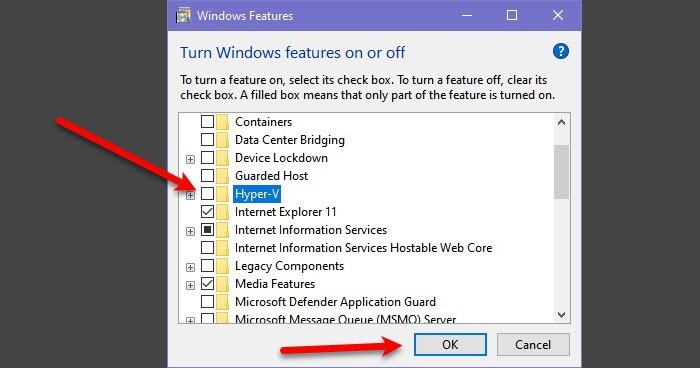
Hyper-V is a popular feature that enables the virtualization of a hardware server into several virtual servers. But, as per user reports, this feature might hamper gaming performance, and you end up receiving the error at hand. So, if you have enabled Hyper-V, turn it off and see if the error is resolved.
To disable the Hyper-V Feature on Windows, use the steps below:
- Firstly, open the taskbar search and type Turn Windows feature on or off in it; simply open the first result.
- Now, uncheck the Hyper-V feature and then click on the OK button to apply changes.
- Finally, reboot your PC and check if the error is fixed or not.
5] Enable Data Execution Prevention
DEP, aka Data Execution Prevention, is used by most anti-cheats to prevent hackers/cheaters from injecting malicious DLLs into games. You might encounter the error at hand if DEP is disabled. So, if the scenario is applicable, try enabling Data Execution Prevention to resolve the error. Here is how you can do that:
Firstly, start Command Prompt as an administrator.
Now, enter the below command:
bcdedit.exe /set {current} nx OptIn
Once the command executes successfully, check whether the error is fixed.
6] Disable Windows Testing Mode
To run unverified drivers on Windows PC, Test Signing mode is used. It might conflict with Vanguard, causing the error at hand. Hence, to fix the error, you will need to turn off Windows Testing mode. Here is how you can do that:
First, open Command Prompt with admin rights.
Now, enter the commands below one by one:
bcdedit -set TESTSIGNING OFF
bcdedit -set NOINTEGRITYCHECKS OFF
Once done, reboot your PC and launch Valorant to see if the error is fixed or not.
If the error still persists, try the next solution.
Read: Valorant Download or Update Stuck at 0.1 kb/s or at 0%, 95%, 100%
7] Delete the cache files and temporary files
This error might occur if you are dealing with corrupted cache files associated with Valorant. So, clearing the cache files might help you fix the error. Here are the steps to do so:
- Firstly, evoke the Run dialog box using Win+R hotkey and enter AppData in it.
- Now, open the Local > VALORANT > Saved folder.
- Next, select the Crashes folder and press the Delete button to clear it.
- After that, open the webcache folder, and delete the GPUCache folder.
- Then, delete the Cache folder.
- Finally, relaunch Valorant and see if the error is gone now.
In addition, you can try running disk cleanup to delete temporary files, and then check if the error is fixed or not.
8] Verify and Reinstall your graphics drivers
This error might be triggered by unverified graphics drivers, as Valorant does not support them. So, verify your graphics drivers, and if any are unverified, reinstall them. To verify graphics drivers, follow the steps below:
- First, open the Run dialog box using Win+R hotkey and then enter sigverif in it to open the File Signature Verification window.
- Now, press the Start button to initiate the signature verification process.
- In case an unverified driver is detected, it will show you the filename. Simply search the web to see whether the filename belongs to your graphics driver.
If the filename is associated with your graphics driver, you can reinstall it to fix the error.
9] Add Valorant to Exclusion
There is also a chance that the error is caused by Valorant being blocked by Windows Defender. Hence, if applicable, you can try adding Valorant to the Exclusion list so that Windows Defender doesn’t detect it as malicious or a threat. Follow the steps below to do so:
- Firstly, open the Settings app using Windows + I hotkey and navigate to Privacy & security > Windows Security > Virus and threat protection.
- Now, press the Manage settings option which is present below the Virus & threat protection settings section.
- Next, locate the Exclusions section and click on the Add or remove the exclusion > Add an exclusion button.
- After that, browse and select the Valorant executable file and RiotClientServices.exe file to the exclusion list one by one.
- Finally, reopen the game and see if the error is fixed or not.
10] Reinstall Valorant and Riot Vanguard
If the error still pops up even after trying the above solutions, the last resort is to reinstall Valorant and Riot Vanguard. Simply uninstall Valorant and Riot Vanguard from your PC by going to Settings > Apps > Apps & features. After that, you can download Valorant from its official website and install it on your PC. Riot Vanguard will be installed with the game.
Hopefully, this guide helps you fix the error.
Now read: Fix VALORANT Vanguard error codes 128 and 57 on Windows PC.
