
Here is a complete guide on how you can fix the error VAN9001 on Valorant in Windows 11/10. Valorant is a free and popular first-person hero shooter by Riot Games. It is loved by millions of gaming enthusiasts worldwide. While you are likely to have a good experience playing it, it is not uncommon to run into different error codes. One such error code is VAN9001. Many users have reported experiencing the VAN9001 error code when trying to launch the Valorant game. When triggered, the users experience the following error message:
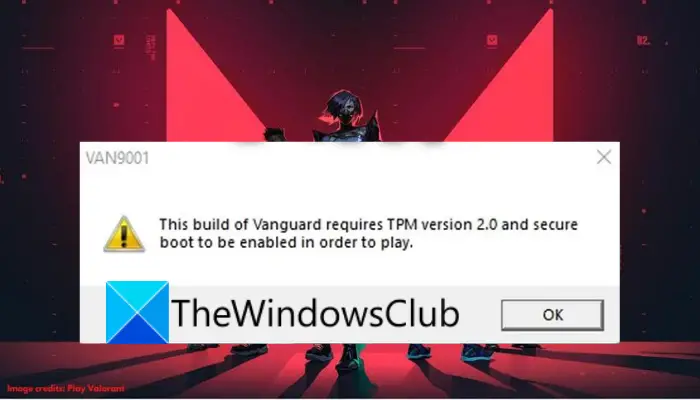
VAN9001, This build of Vanguard requires TPM version 2.0 and secure boot to be enabled in order to play.
If you are one of those who are facing the same error, we’ve got you covered. You can learn various fixes that will help you resolve the error.
What causes the error VAN9001 on VALORANT?
Windows 11 has some built-in security requirements including enabled Secure Boot and TPM 2.0. Now, Valorant is also enforcing the same security requirements to make sure you are on a trusted platform. You are required to have TPM 2.0 and secure boot enabled on your BIOS configuration to open the game. So, when you are on the latest Windows 11, Valorant’s anti-cheat system called Vanguard will check for the competitive integrity of the game using the TPM module.
This can occur if an update modifies your BIOS settings and disables the Secure Boot option. So, users might think that they have secure boot enabled, while in fact, a Windows update has turned it off in the background. This issue affects Valorant, and you may encounter the VAN9001 error when attempting to launch the game. The same goes for TPM. In case it is disabled, you will encounter the same error when launching the game.
Do note that to enable secure boot, you need to have UEFI. In case your hard drive is partitioned in MBR, you can convert MBR to GPT before you go ahead with enabling secure boot.
Now, letus take a look at the solutions that can help you resolve the error.
Does Valorant need Secure Boot?
Yes, Valorant requires a secure boot to run without error. As reported by many users, the error VAN9001 is triggered when secure boot and TPM 2.0 are not enabled. Ensure that both requirements are enabled before attempting to play the game.
How do I check my TPM in Windows 11?
To check whether your PC has a Trusted Platform Module (TPM) chip, you can verify this through TPM Management, your BIOS, or UEFI. Additionally, you can do so using the Security Node in Device Manager. You can also WMIC command in the Command Prompt to check if you have a TPM chip.
Valorant Error Code VAN9001, TPM and Secure Boot needs to be enabled
Here are the methods that you can try to fix error VAN9001 on Valorant in Windows 11/10:
- Enable Secure Boot and TPM.
- Edit Group Policy.
- Restore Factory Keys.
- Delete Valorant Cache and Temporary Files.
Let us explain the above methods in detail!
1] Enable Secure Boot and TPM
When you encounter this error, the first thing to do is ensure that secure boot and TPM are enabled in the BIOS settings page. There have been instances where certain Windows updates have disabled secure boot and TPM in the BIOS configuration. Some users have reported experiencing the problem after installing Windows update KB5006050. Now, if the scenario applies, you should be able to fix the issue simply by enabling secure boot and TPM in BIOS configuration.
The process of enabling secure boot and TPM may differ for individuals based on your motherboard manufacturer. Also, do remember that you will be required to enable UEFI mode to be able to enable secure boot.
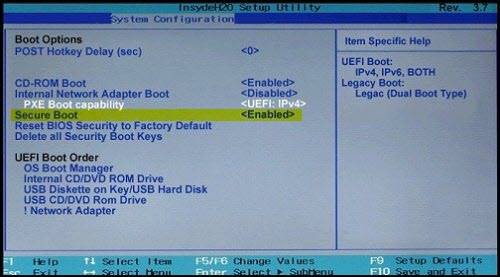
Secure Boot is usually enabled in almost all systems that support it; however, an update or third-party software can sometimes disable it without your knowledge. Let’s start by enabling Secure Boot, as mentioned in the error code itself.
Here is the step-by-step procedure to enable Secure Boot on your Windows PC:
- First of all, press Windows + I hotkey to launch the Settings app and then go to the System > Recovery section and tap on the Restart button associated with the Advanced startup option.
- Now, on the advanced startup screen, click on the Troubleshoot option and then select Advanced options.
- Next, click on the UEFI Firmware settings option and press the Restart button.
- You can now go to the advanced, security, or boot settings page (depending upon your motherboard) and then enable the Secure boot option.
- Look for Secure Boot, it will be under Security / Boot / Authentication Tab (It depends on the OEM).
- Now, Enable Secure Boot and save changes, but make sure to not exit
After enabling Secure Boot, we need to enable TPM or Trusted Platform Module.
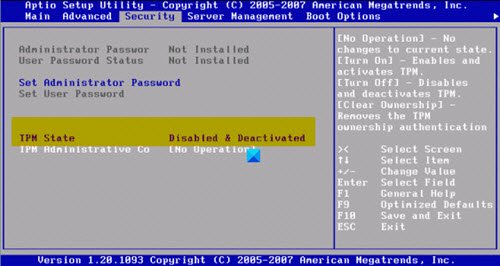
- So, while you are in the BIOS you can navigate to the advanced, security, or boot settings page and make sure the TPM or TPM State option is enabled.
- When done, restart Windows and then try playing VALORANT and see if the error in hand is now fixed.
In case you have TPM and secure boot enabled on your BIOS and still, receive the same error, there might be some other underlying issue that is causing the error. Hence, move on to the next potential fix the get rid of the error.
See: Fix VALORANT connection error codes VAN 135, 68, 81.
2] Edit Group Policy
As per some users, the error can also be fixed by enabling the Require additional authentication at Startup policy in Group Policy Editor. You can also try this approach and see if it helps you resolve the error.
Here are the steps to make a Group Policy tweak to get rid of error VAN 9001 on Valorant:
- Firstly, press the Windows + R key to evoke the Run dialog box and then enter gpedit.msc to launch Group Policy Editor.
- Now, simply move to the Computer Configuration > Administrative Templates section.
- After that, click on Windows Components and then expand the BitLocker Drive Encryption option present under it.
- Under the BitLocker Drive Encryption drop-down, you will find the Operating System Drives option; simply double-click on it.
- You will now see various policies at the right-side panel. From available policies, double-click the Require additional authentication at startup policy.
- In the next dialog window, select the Enabled option and also ensure the Allow BitLocker without a compatible TPM (requires a password or a startup key on a USB flash drive) is selected.
- Finally, click on the Apply > OK button to save changes.
After enforcing the above policy, restart your PC and then launch VALORANT. Hopefully, you won’t see the error VAN 9001 anymore.
Read: VALORANT: This game is not available on your Operating System.
3] Restore Factory Keys
In case the above methods fail to fix the error for you, you can try restoring your secure boot keys in your BIOS configurations to check whether or not the issue is gone. You should be able to find the option to restore keys under the Secure Boot option in your BIOS configuration. On newer motherboards or BIOS versions, the option might be hidden under the Key Management list. After resetting the keys, apply and save changes and then reboot your system. On the next startup, try playing VALORANT and see if the error is now fixed.
Read: Error VAN9003, This build of Vanguard requires secure boot to be enabled in order to play
4] Delete Valorant Cache and Temporary Files
You may also see the error code in question if Valorant game cache files are corrupted. In that case, we need to flush them and allow the game to create new ones. To do the same, follow the prescribed steps.
- Hit Win + R, type “AppData”.
- Go to Local > Valorant > Saved.
- Next, select the Crashes folder and press the Delete button to clear it.
- After that, open the webcache folder, and delete the GPUCache folder.
- Then, delete the Cache folder.
Finally, restart Valorant and see if the issue persists.
See: How to fix Valorant Vanguard Not initialized error?
How do I fix my Van 1067?
To resolve the error 1067 on Valorant, ensure that secure boot and TPM 2.0 are enabled. Other than that, you can select Windows UEFI in BIOS, reset Secure Boot Keys in BIOS, disable CSM, or reset BIOS/UEFI settings to fix the error.
Read: Fix VALORANT DirectX Runtime error.
Can I play Valorant on Windows 11 without TPM?
No, you cannot play Valorant on Windows 11 without TPM. More specifically, you must have TPM 2.0 to play Valorant on your computer. However, if an error occurs, you must enable TPM and Secure Boot. But this has not been the case for most users, they have enabled the feature but still were not able to play the game. You should review the solutions mentioned in this article to resolve the issue.
Read Next:
