
If you want to create images using generative AI, we have an amazing tool for you, Freepik. The best part is that it is free! Therefore, in this post, we will see how to use Freepik to create images.
How to use Freepik free AI Image Generator to create images
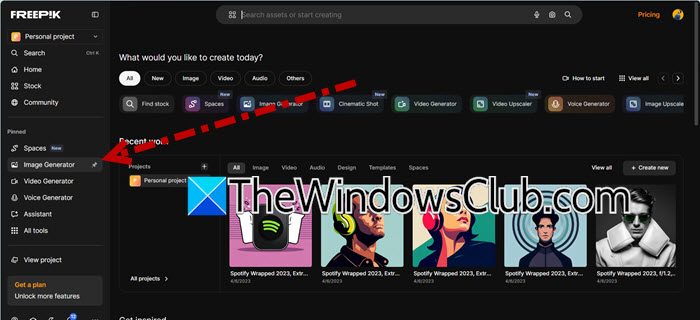
Freepik offers a multi-model approach with its credit system, allowing you to try different styles and models until you find what fits your needs. While the quality of photorealistic images can vary, the AI sometimes has trouble creating natural-looking poses, especially in group photos. You generally get better results with more abstract images that show a single subject, which is easier to separate from the background. A key benefit is how easily you can use these generated images within Freepik’s ecosystem. You can quickly edit them with available tools, blend them with stock assets, or export them for presentations.
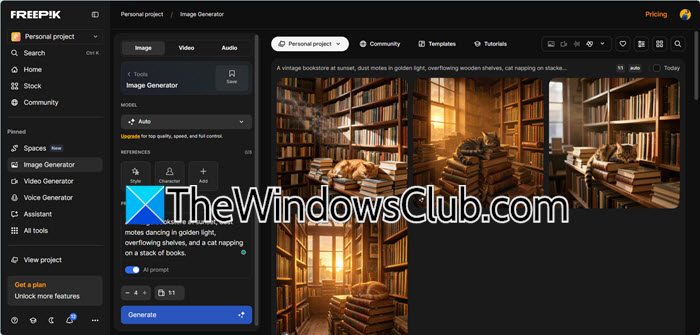
To use Freepik to create images, follow the steps mentioned below.
- Go to freepik.com.
- Sign in to your account or sign up using a Google or Apple account.
- The prompt fields are on the left. In the text‑prompt box (the lower one), write a specific, detailed description of the image you want. For instance: “A vintage bookstore at sunset, dust motes dancing in golden light, overflowing shelves, and a cat napping on a stack of books.”
- Pick your AI model. This is where Freepik really offers a lot of models, though most require a Premium subscription.
- Choose the style for your image. Notably, this is one of the few sections available to free users. You’ll find a wide variety of styles, such as different types of drawings, photorealism, illustrations, and even simple line art.
- Select how many images you want, then click Generate and wait for the results.
- Freepik’s AI will automatically adjust the prompt to include details related to the chosen style, then slowly generate the images. You can view the full image generation history on the right.
Keep in mind that while the generator shows 20 images per day for free accounts, this actually means 20 credits; different AI models and styles consume credits faster. In most cases, you’ll end up with 5–10 images per day.

However, Freepik does have a steep learning curve due to the sheer number of options available. Feel free to make use of the free account limits, but the key is to be as specific as possible. Not only with the subject and background, but also with the overall look and style of the image. Fortunately, you’ll improve over time by testing what types of prompts work best for each image model available on Freepik.
That’s it!
Read: Top 5 Vertical Video Editors for Windows, Powered by AI
How many images can I generate with Freepik for free?
Free accounts get 20 credits per day, but different AI models and styles consume credits at different rates, so you typically end up with 5-10 actual images. The images come with watermarks, and if you use less credit-intensive options, you can stretch the limit further, though most premium models cost more per generation.
Read: Best free AI Image Generators to generate AI Images
What is better, Canva or Freepik?
It really depends on your workflow. Canva is a full design suite with templates, collaboration, and ease of use, making it ideal for quick, polished graphics without a learning curve. Freepik shines in AI image generation and its massive stock library, giving you more control over output quality and model choice; many creators use Freepik to generate assets and then refine them inside Canva for the best of both worlds.
Also Read: Use AI in Canva.
