
If you have installed Microsoft Teams on your computer or mobile and want to uninstall it completely, here is how to do it. We have seen how to remove Microsoft Teams from Startup, now this article shows how to uninstall Microsoft Teams from Windows and Android. We have listed more than one method so that you can use any one of them according to your choice.
How to uninstall Microsoft Teams in Windows 11/10
To uninstall Microsoft Teams from Windows 11/10 completely, follow these methods-
- From Windows Settings
- From Control Panel
- Use uninstaller software
- Using UninstallTeams PowerShell script
To know more about these steps, keep reading.
1] Uninstall Microsoft Teams via Windows Settings
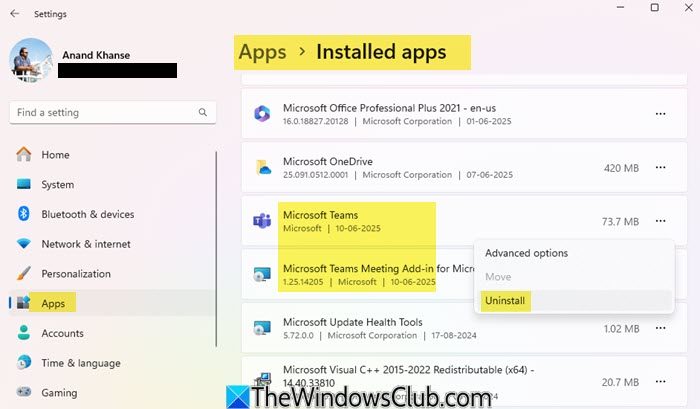
If you wish to uninstall Microsoft Teams completely from your Windows 11 system, then the procedure is as follows:
- Right-click on the Start button and select Settings from the menu that pops up.
- In the settings menu, select Apps from the list on the left-hand side
- In the right pane, click on Apps and Features.
- Now, the list of apps installed on your system will get displayed.
- Expand the list for Microsoft Teams.
- You will find 3 dots at the right of the Microsoft Teams software.
- Please click on it and select Uninstall.
This will remove Microsoft Teams from your system.
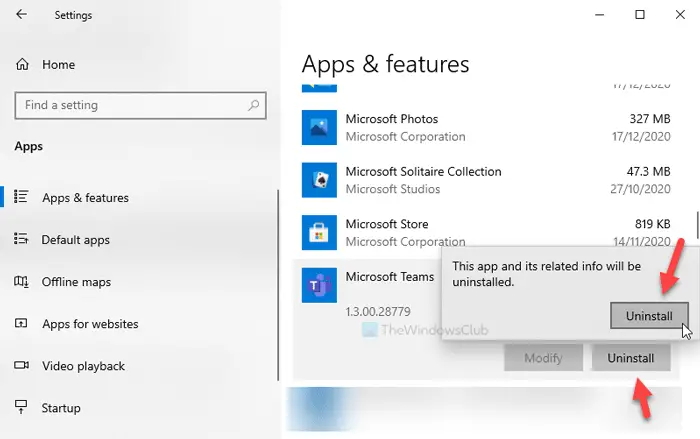
In Windows 10, you will see the setting here:
2] From Control Panel
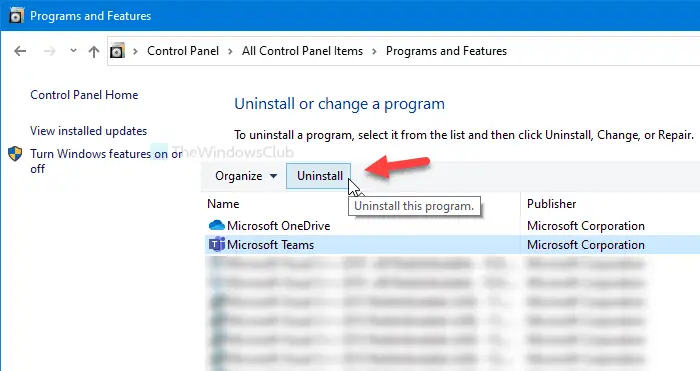
Although several options have been migrated from Control Panel to Windows Settings, it is not dead yet. You can uninstall any installed software from the Control Panel. The only problem is that you cannot delete the leftovers. If you can consider that, go ahead to follow these steps.
Open the Taskbar search box, search for “Microsoft Teams,” and click the Uninstall button on the right-hand side after getting the search result.
It will open the Control Panel’s Programs and Features window directly. Alternatively, you can open the Control Panel and click on Programs and Features as well.
After that, select Microsoft Teams from the list, and click the Uninstall button.
Next, follow the screen instructions to get the job done.
3] Use uninstaller software
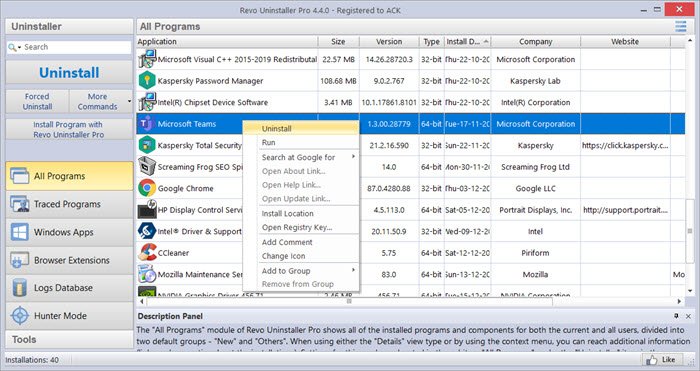
Program uninstaller tools are made for this job, and they can delete all the leftover files from your computer after uninstalling software. Therefore, if you want to delete all the leftover files from File Explorer and Registry Editor, it is recommended to opt for a program uninstaller software like Revo Uninstaller.
4] Using Uninstall Teams PowerShell script
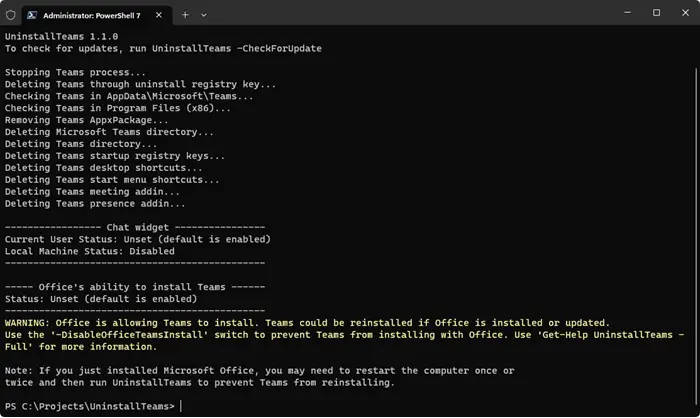
UninstallTeams is a PowerShell script that lets you quickly uninstall Microsoft Teams from all locations on your Windows machine. The Desktop and Start Menu shortcuts are also removed. You can download it from Github.
We have shown screenshots of a stock Android device. However, the process is almost the same on other mobiles as well.
How to uninstall Microsoft Teams from Android
To uninstall Microsoft Teams from Android completely, follow these steps-
- Tap on the Microsoft Teams icon and hold it.
- Select App info.
- Tap on the Force stop button.
- Go to Storage & cache.
- Tap on the Clear cache and Clear storage buttons.
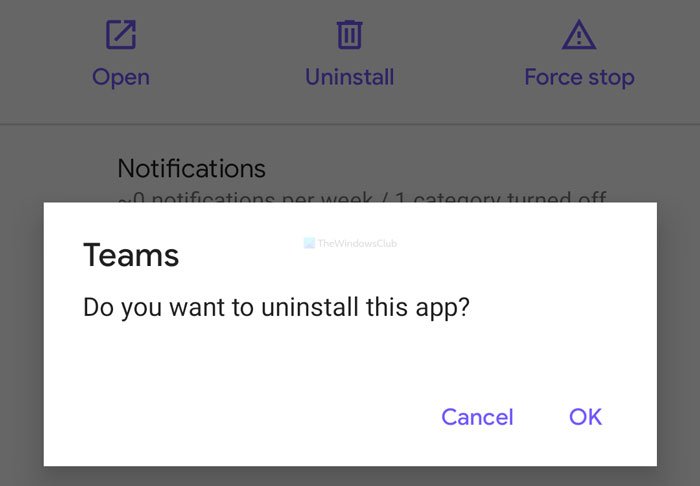
- Tap the Uninstall button.
- Click on the OK button.
Let’s delve into these steps in detail to know more.
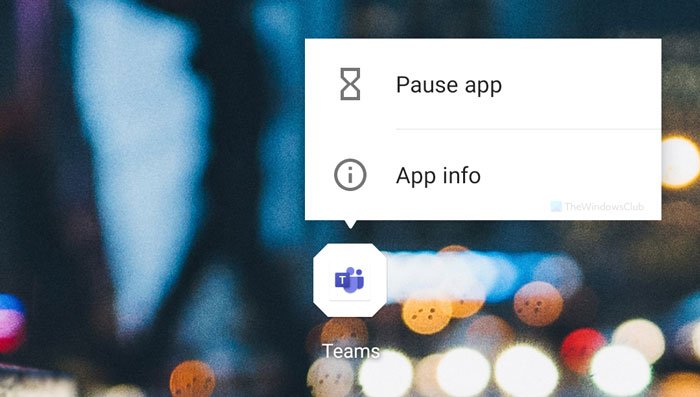
First, you have to open the pane from where you can uninstall the app. There are two ways to do this. First, you can tap on the Microsoft Teams icon and hold it until you get the popup menu. From here, select the App info button.
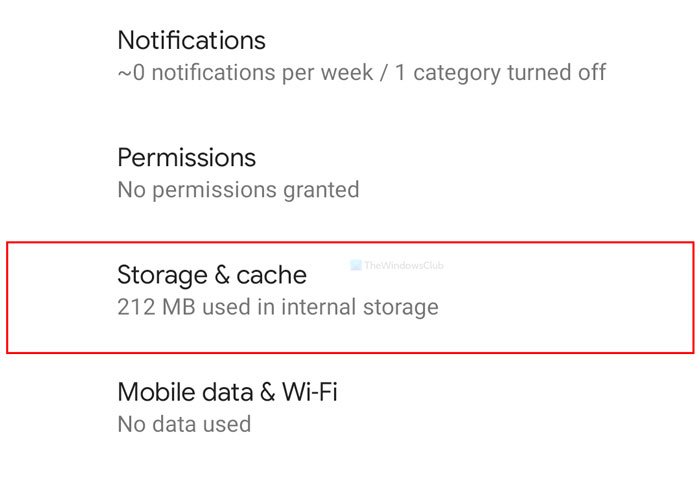
Second, open the Settings app, go to Apps & notifications > See all n apps, and select Microsoft Teams from here. Once you open the window, tap on the Force stop button and go to Storage & cache.
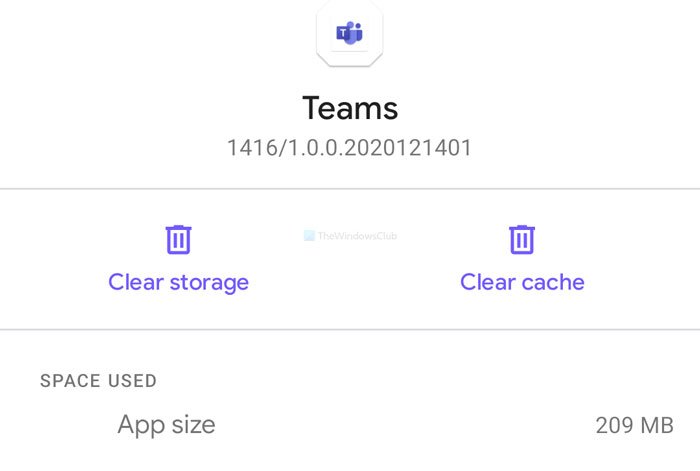
Next, tap the Clear cache and Clear storage buttons one after one.
Once done, come back to the main screen, tap the Uninstall button, and select OK to confirm.
Now that Microsoft Teams is removed from your mobile, it is suggested that you check the internal storage for any possible folder related to Microsoft Teams. If you find anything, delete it.
I hope this guide helps you.
Read: How to enable Noise Cancellation on Microsoft Teams.
