
Microsoft Teams is an excellent software and rather a very important one for end-users as well as business users. However, if you have no use for it then this post may interest you. We will show you how to quit Microsoft Teams, stop Microsoft Teams from starting automatically or remove Microsoft Teams from Startup.
Why does Microsoft Teams keep opening on startup?
If Microsoft Teams is set to start every time Windows boots, then you need to either remove it from the startup list, disable it from running automatically or uninstall Teams. We show you how to do it here.
How to quit Microsoft Teams in Windows 11
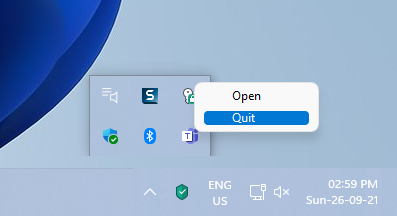
First of all, if you wish to quit the Microsoft Teams application, find the Teams icon in the system tray. If you don’t see it, click on the upward-pointing arrow to open more icons.
Now, right-click on the Microsoft Teams icon and select Quit.
How to stop Microsoft Teams from starting automatically
While quitting Microsoft Teams is an excellent temporary solution for the problem, the software would launch again upon rebooting your system. To stop Microsoft Teams from starting automatically, the procedure is as follows:
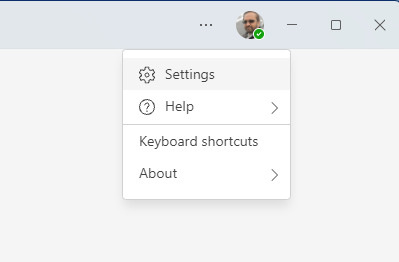
Please click on the three dots on the Microsoft Teams screen. In the menu that pops up, select Settings.
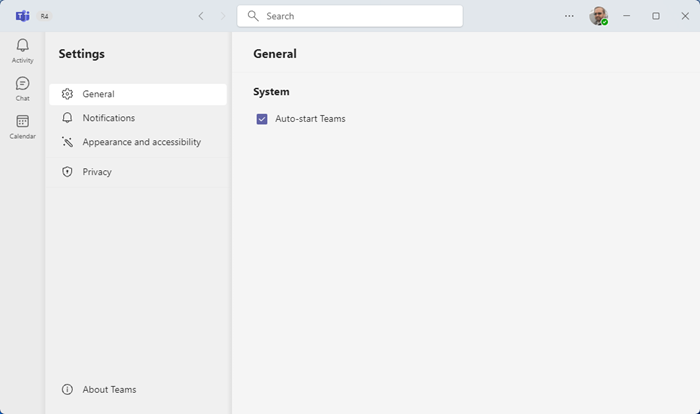
In the Settings window, go to the General tab on the list on the left-hand side.
Now, uncheck the checkbox associated with Auto-start Teams.
How to disable Microsoft Teams Auto-start using Windows Settings
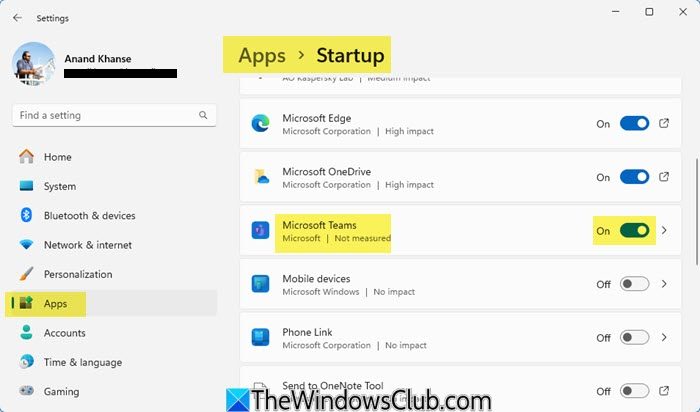
If you wish to disable Microsoft Teams from auto-starting with Windows, then the procedure is as follows:
- Right-click on the Start button and select Settings from the menu that pops up.
- In the settings menu, select Apps from the list on the left-hand side
- On the right side, click on Startup
- In the list, locate Microsoft Teams
- Turn the toggle to the Off position.
This will stop Teams from auto-starting.
How to disable or remove Microsoft Teams from Startup in Windows 11 via Task Manager
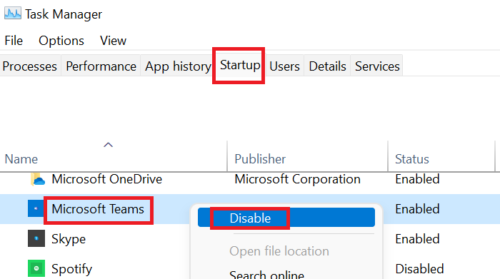
The procedure to remove Microsoft Teams from the Startup items list in Windows 11 is simple:
- Search for Task manager in the Windows search bar.
- Find Task Manager in the list and open it.
- In the Task Manager window, go to the Startup tab.
- Find Microsoft Teams in the list. Right-click on it and select Disable.
Stop Teams from opening or starting automatically using the Registry Editor
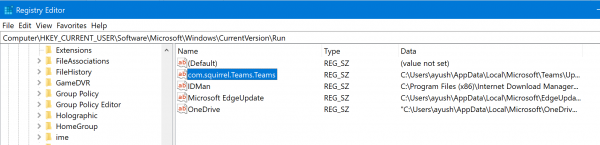
Open the Registry Editor and navigate to the following location:
Computer\HKEY_CURRENT_USER\Software\Microsoft\Windows\CurrentVersion\Run
Delete the DWORD entry for com.squirrel.Teams.Teams.
Exit the Registry Editor.
Reboot your computer to see changes taking effect.
TIP: This post will show you how to uninstall Microsoft Teams completely from your Windows 11/10.
If you have any further doubts, please let us know in the comment section.
