
You try to join a Teams meeting inside your virtual desktop session, and a small banner keeps nagging you with Not optimized. Restart Teams to optimize. You restart Teams, but you get to see the following error message. This essentially means your Teams calls will be choppy, your CPU will spike, and screen sharing will feel like a slideshow until you fix the underlying issue.
We’re unable to optimise your virtual desktop
We’re experiencing an issue that could affect your audio and video. Find out about connection errors in the New VDI solution for Teams article.
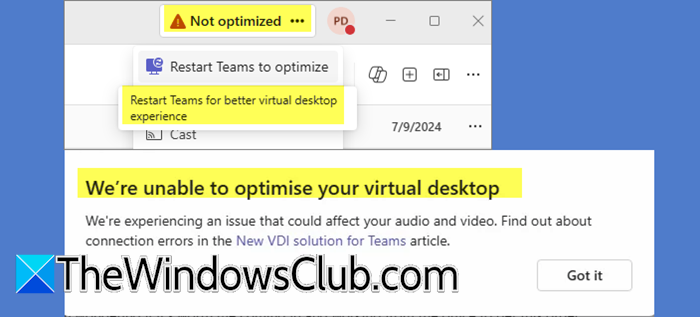
Microsoft Teams is supposed to offload all the heavy audio and video processing to your local computer when you are inside a virtual desktop environment. That feature is called media optimization. Now, when you see the Not optimized message, it means Teams failed to activate that offloading mode and silently fell back to a less efficient method. The error appears surreptitiously because your local VDI client is outdated, the Teams installation on the virtual desktop is not the correct VDI version, or a group policy is blocking WebRTC redirection. Sometimes, even a firewall between your local machine and the virtual desktop gateway can block the required UDP ports.
We are unable to optimize your virtual desktop experience in Teams
If you see Not optimized; Restart Teams for better virtual desktop experience or We’re unable to optimise your virtual desktop error, follow the solutions mentioned below.
- Update your local VDI client software
- Reinstall Teams using the official VDI installer
- Enable WebRTC redirection via Group Policy
- Allow required UDB port in your firewall
Let us talk about them in detail.
Not optimized, Restart Teams to optimize
1] Update your local VDI client software
The local client, such as the Remote Desktop client or the workspace app, is the primary bridge that delivers optimized media from your virtual desktop to your physical hardware. An older version of this client simply does not understand the new WebRTC redirection commands that Teams needs. Updating it forces the client to support the optimization protocol.
Follow the steps below to update your local VDI client software.
- First, close your virtual desktop session completely, but keep the local computer turned on.
- Then, open your VDI client application. For Azure Virtual Desktop, open the Windows App or the Remote Desktop client. For Citrix or any other VDI, open the corresponding workspace app.
- Now, go to the Settings or About section of that client and look for an option that says Check for Updates.
- If an update is available, download and install it. Then restart your local computer.
After restarting, reconnect to your virtual desktop and launch Teams again. The error should disappear.
2] Reinstall Teams using the official VDI installer
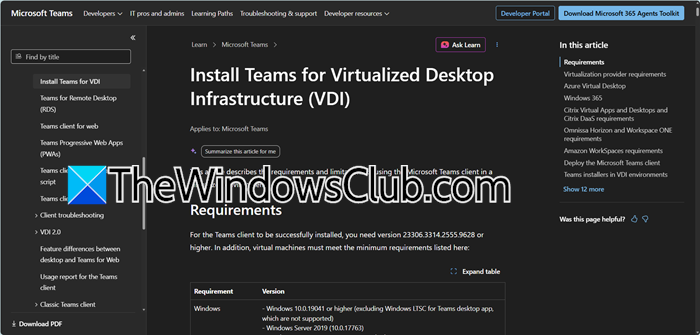
The standard Teams installer that users download from the web is designed for physical desktops and installs per user. Inside a virtual desktop, you absolutely need the machine‑wide VDI installer because it preloads the optimization hooks and registry keys that tell Teams to look for a local media engine. Switching to the correct installer forces Teams to start in optimized mode.
First, uninstall your current Teams installation. Then, go to learn.microsoft.com to download and install Teams for VDI. Once you install it on your computer, you will be able to use Teams.
3] Enable WebRTC redirection via Group Policy
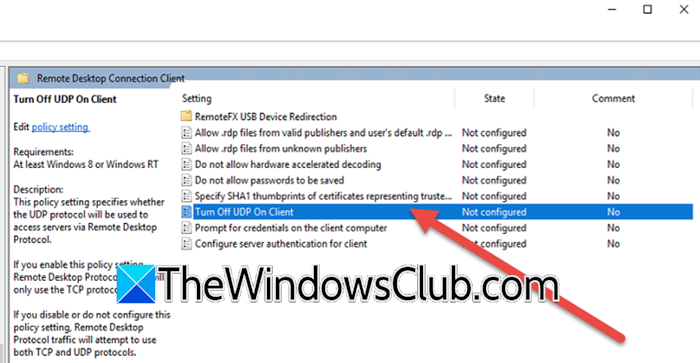
Some IT administrators intentionally disable UDP or WebRTC redirection through group policies to save bandwidth. The problem is that Teams optimization absolutely requires these policies to be enabled. When you turn them on, you explicitly tell the operating system to allow the local client to handle the media streams.
Follow the steps mentioned below to do the same.
- Inside your virtual desktop, hit Win, type gpedit.msc, and hit Enter.
- Now, go to Computer Configuration > Administrative Templates > Windows Components > Remote Desktop Services > Remote Desktop Session Host > Remote Session Environment.
- Look for Turn off UDB for Client.
- Double-click on it, and set it to Not Configured or Disabled.
- Click Apply > OK.
Now, open CMD as an admin and run gpupdate /force.
Now, log off from your virtual desktop and log back in. Now launch Teams and see if the optimization is working.
4] Allow required UDP ports in your firewall
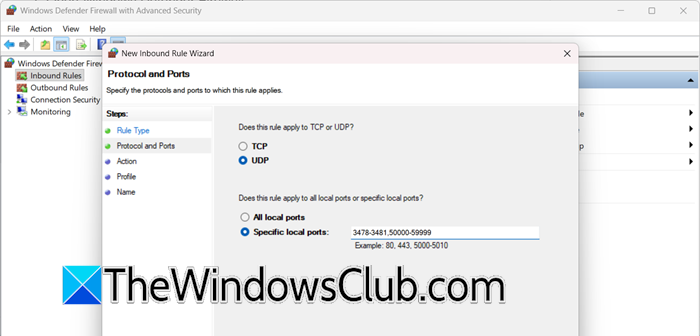
Media optimization does not happen over the regular HTTPS port 443. Instead, your local client and the virtual desktop exchange real‑time audio and video packets using UDP ports in the range of 3478-3481 and 50000-59999. If your corporate firewall or the local Windows Firewall blocks these ports, Teams silently falls back to unoptimized mode. Opening these ports forces the UDP traffic to flow, and the optimization kicks in.
Now, follow these steps to allow these ports on your local computer.
- Open Windows Defender Firewall.
- Click on Advanced Settings > Inbound Rules.
- Click on New Rule, select Port, and click Next.
- Choose UDP and then under Specific local ports, enter 3478-3481,50000-59999. Then click Next.
- Allow the connection, then click Next. Check all three profiles – Domain, Private, and Public – then click Next.
- Give the rule a name like Teams VDI UDP ports and click Finish.
- Now, repeat the same steps to create an Outbound Rule with the same port ranges.
Then restart your local computer. Then reconnect to your virtual desktop and test Teams.
That’s it!
Read: Right-click not working in Teams
How do you optimize virtual desktop in Teams?
To optimize virtual desktop in Teams, you must install the machine-wide VDI version of Teams instead of the standard per-user installer. Then update your local VDI client to the latest version so it supports WebRTC redirection. Enable the necessary group policy, specifically “Turn Off UDP On Client,” and set it to Not Configured or Disabled. Finally, allow UDP ports 3478, 3481, 50000, and 59999 through your local firewall. These steps together force Teams to offload media processing to your local device.
Read: Microsoft Teams Error Code 2.211 on Mac [Fix]
How to fix not optimized issues in Teams?
First, restart Teams completely because the plugin sometimes needs a restart to fully activate optimization. If that does not work, clear the Teams cache by deleting everything inside %appdata%\Microsoft\Teams. Then restart the Teams VDI service or your entire virtual desktop session. Make sure your local VDI client is updated and that you installed Teams using the VDI-specific MSI installer. For Citrix, verify that MsTeamsPluginCitrix.dll is loaded inside wfica32.exe. If all else fails, reinstall the Teams VDI plugin.
Also Read: Microsoft Teams No internet connection was found.
