
Trying to use Microsoft Teams but getting the “No internet connection was found. Please reconnect and try again” error? This is a common issue with Microsoft Teams. Even when your internet works just fine, the app can throw a tantrum. However, getting rid of the error isn’t complicated, and there are a few quick ways to fix the issue. And the same has been discussed below.
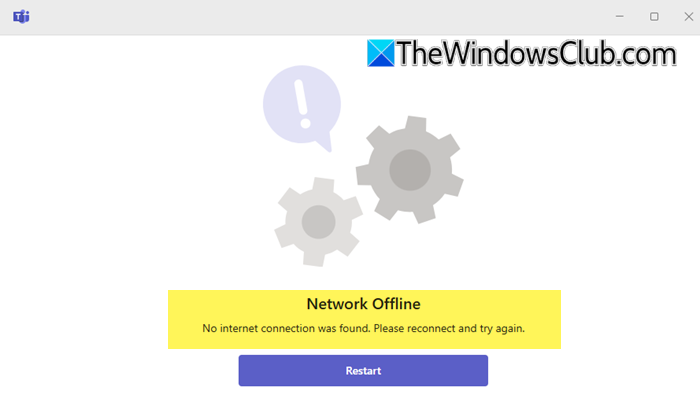
No internet connection was found, Please reconnect and try again error in Microsoft Teams
Below are some of the quick ways to fix the No internet connection was found please reconnect and try again error in Microsoft Teams:
- Edit Registry Settings
- Restore Advanced Internet Settings
- Clear Microsoft Teams Cache
- Repair & Reset Microsoft Teams
- Clear ICP/TP, DNS cache and Winsock
- Use the Web Version.
Before you proceed, restart your PC and the router and see if that helps.
1] Edit Registry Settings
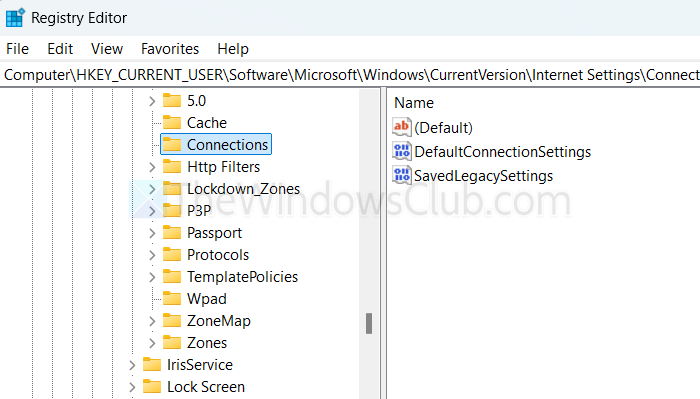
One of the suggested solutions in form is to delete the Connections registry settings.
- Open regedit and navigate to the following path
Computer\HKEY_CURRENT_USER\Software\Microsoft\Windows\CurrentVersion\Internet Settings\Connections
- Delete the following keys:
\DefaultConnectionSettings and \SavedLegacySettings
- Reboot.
2] Restore Advanced Internet Settings
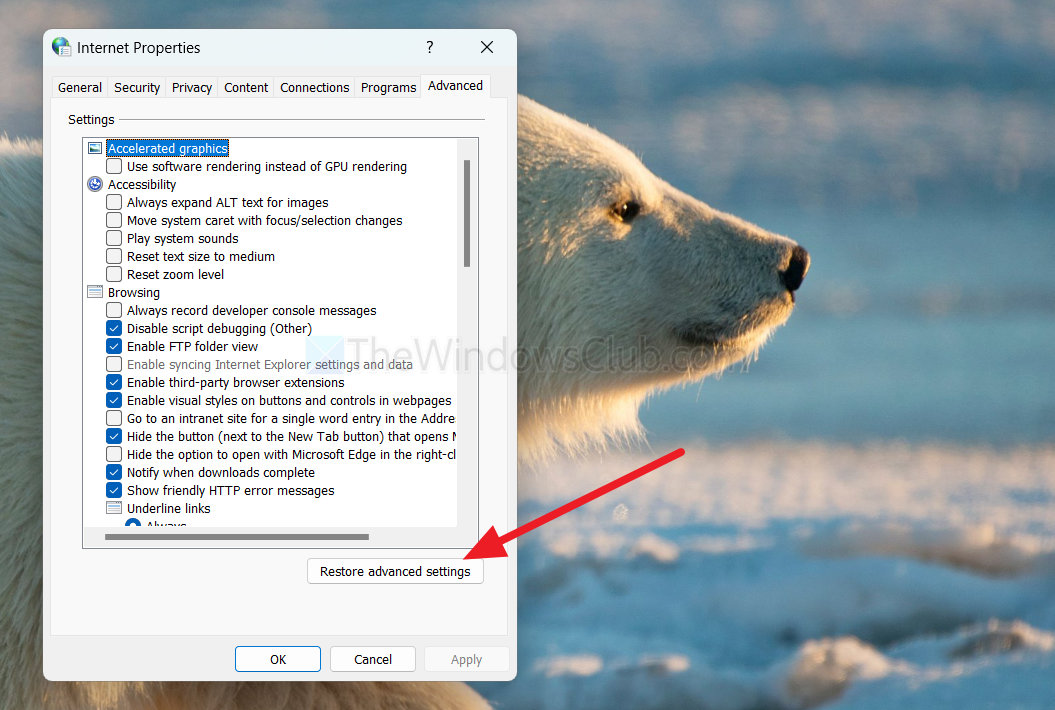
- Search and open Internet Options
- Go to Advanced
- Click on the Restore Advanced Settings button.
- Click on Apply and Ok.
- Restart your computer, and it should fix it.
3] Clear Microsoft Teams Cache
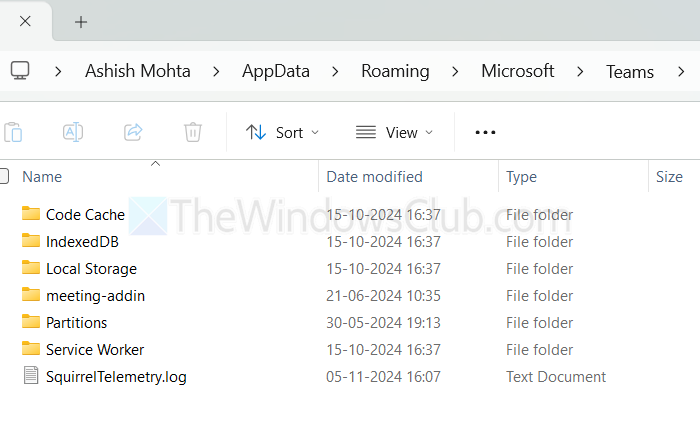
A corrupted cache is another culprit that can cause connection errors. Here’s how to clear it:
- First, quit Teams by right-clicking on it from the Taskbar.
- Next, press Windows Key + R to open Run.
- Paste the following and press Enter: %appdata%\Microsoft\Teams
- Select everything inside the folder and delete it.
- Relaunch Teams and see if it fixes the issue.
Note: Teams will recreate it automatically the next time you launch the app. However, you will be signed out of your Teams account. No chats, files, or teams are deleted.
Read: Teams crashes or freezes when turning on camera
4] Repair & Reset Microsoft Teams
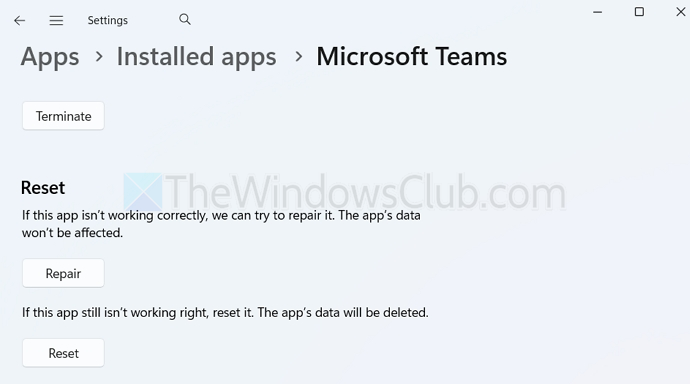
There is a good chance that Teams itself is broken. But it can be fixed by following the steps below.
- Press Windows key + I to open Settings.
- Go to Apps > Installed Apps.
- Over here, search for Teams, then click on the three dots icon and select Advanced options.
- Scroll down and click on the Repair button, and let the process get completed.
- Once done, relaunch Teams and check if it worked. If it didn’t, click on the Reset button.
5] Clear ICP/TP, DNS cache and Winsock
Download and use our free portable tool FixWin to clear ICP/TP, flush DNS cache and repair Winsock with a click.
6] Use the Web Version
Even after all the fixes, if the issue doesn’t get fixed, you could use the web version by going to teams.microsoft.com. Although it won’t offer you the same experience as a desktop app, if you are looking for a quick solution, it works.
Overall, those were a handful of ways to get rid of the Microsoft Teams No internet connection was found. Please reconnect and try again. Apart from these, you could also try reinstalling the app or check if Teams servers are down and try again after some time.
Can antivirus or firewall software cause the issue?
Third-party antivirus programs and firewalls can sometimes block Teams from accessing required network services, even when your internet connection is working normally. This usually happens due to overly aggressive security rules, SSL inspection, or blocked background services, which prevent Teams from properly validating connectivity.
Can this Microsoft Teams error occur due to issues with a work or school account?
Account-related issues such as expired credentials, restricted tenant policies, or temporary authentication failures on a work or school account can trigger this error. In such cases, Teams may incorrectly report a lack of internet connection when the real problem lies with account sign-in or Microsoft service authentication rather than actual network access.
