
Microsoft is well known for integrating its products across other products. One such scenario is the ability to create Microsoft Teams meeting info from Outlook. It makes it easy for users as they don’t have to go to Teams and then create a new one. However, some users have reported missing the ability to do that. This post will help you if you cannot add Teams meeting info from Outlook.
Teams link not showing in Outlook when creating meeting
There are three ways to fix the problem, including adding Teams meeting info from Microsoft Outlook.
- Enable Add Online meeting to all meetings option
- Add or Reinstall Microsoft Team Meetings Add-in for Microsoft Office
- Re-register Microsoft.Teams.AddinLoader.dll
- Verify Registry Settings
- Check Policies (IT Admin)
Unable to add Teams meeting info from Outlook
Make sure you have a Microsoft Teams account linked to the same account as your Outlook account. Also, ensure the company does not limit you to doing that if you are using a corporate account.
1] Enable Add Online meeting to all meetings option
In Outlook, go to Calendar and enable the option to add an online meeting to all meetings. You can also configure the default duration, shorten appointments and meetings, etc.
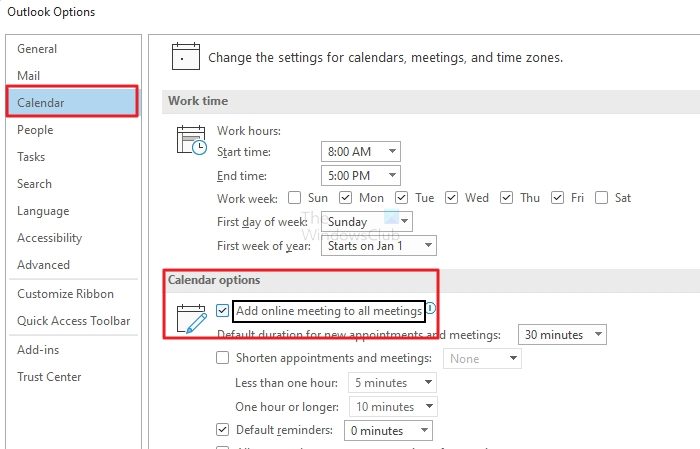
- Open Outlook and click on File, and then click on the Options menu
- In the options window, click on Calendar.
- Locate the Calendar option, and check the box that says: Add online meeting to all meetings.
- Save the change, and now try creating the Microsoft Teams meeting from Outlook.
2] Add or Reinstall Microsoft Team Meetings Add-in for Microsoft Office
When you install Microsoft Teams on your PC, it installs the Microsoft Team Meetings Add-in for Microsoft Office. It allows you to create meetings from Outlook. Check if it’s installed.
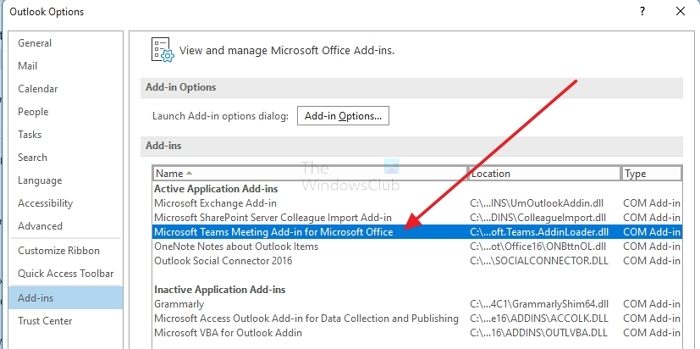
- Open Outlook, and go to Options > Add-ins
- Locate add-in with the name: Microsoft Teams Meeting Add-in for Microsoft Office.
- If you can’t find it, click on the Go Button next to the COM Add-ins dropdown at the bottom of the section.
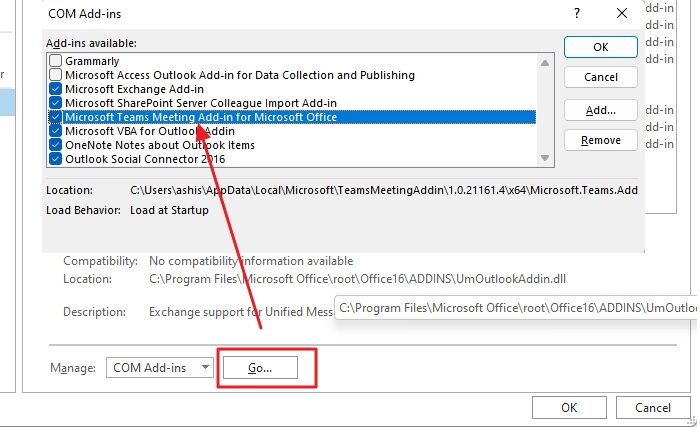
- Select Microsoft Teams meeting Add-in for Microsoft Office and click on the Add Button
- Once done, restart Outlook, and check if you can create the meeting.
3] Re-register Microsoft.Teams.AddinLoader.dll
While enabling and disabling the Add-in should also register the DLL, you can do it manually to be doubly sure.
Execute the following command from the Run prompt or elevated Windows Terminal
64 Bit Office:
%SystemRoot%\System32\regsvr32.exe /n /i:user %LocalAppData%\Microsoft\TeamsMeetingAddin\1.0.18012.2\x64\Microsoft.Teams.AddinLoader.dll
32 Bit Office:
%SystemRoot%\SysWOW64\regsvr32.exe /n /i:user %LocalAppData%\Microsoft\TeamsMeetingAddin\1.0.18012.2\x86\Microsoft.Teams.AddinLoader.dll
The path may differ on your PC. So make sure to pick the highest build number i.e. \TeamsMeetingAddin\1.0.18012.2\. Here the number 1.0.18012.2 is the build number.
Restart Microsoft Teams Desktop and Outlook, and check if the issue is resolved.
4] Verify Registry Settings
Here we will change the registry setting, which is risky if you accidentally delete anything. Hence if you are doing this, make sure first to create system restore.
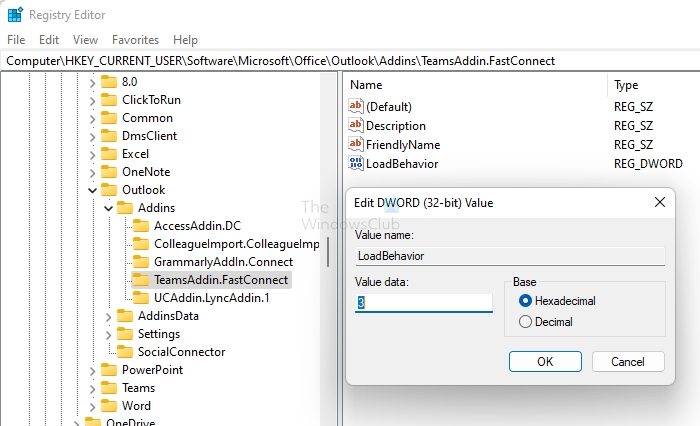
These steps will fix if the add-in doesn’t display even if installed.
- Open Run Prompt, type regedit.exe, and press the Enter key to open the Registry Editor
- Navigate to
HKEY_CURRENT_USER\Software\Microsoft\Office\Outlook\Addins. - Check whether TeamsAddin.FastConnect is displayed.
- Under TeamsAddin.FastConnect, make sure LoadBehavior is displayed and is set to 3.
- If LoadBehavior has a value other than 3, change it to 3 and restart Outlook.
Restart Teams and Outlook, and check if the issue persists.
5] Run Microsoft Support and Recovery Assistant
Microsoft offers Microsoft Support and Recovery Assistant. The recommended solution is to perform automated troubleshooting steps and make the required fixes.
The consumer version of Microsoft Support and Recovery Assistant (SaRA) has been deprecated. Microsoft officially ceased support for the tool in November 2024. Despite the deprecation, the Enterprise version of SaRA which is a command line tool is still available for download from Microsoft’s official site, for now. This post will show you how to use command-line version of Microsoft Support and Recovery Assistant (SaRA CMD).
6] Check Policies (IT Admin)
If you are an IT admin unable to install the Teams Meeting add-in, you need to verify two policies.
- Teams Upgrade policy which enables scheduling meetings in Teams (More on this)
- Teams Meeting policy that permits the Outlook add-in to be installed. (More on this)
I hope the post was easy to follow and that you were able to resolve the issue where you could not add Teams meeting info from Outlook. It is usually the Add-ins issue, and we have suggested a couple of solutions to fix it.
Do Microsoft Teams meetings sync with Outlook?
Yes, they do. If you are using the Microsoft Teams meeting Add-in for Microsoft Office, it will automatically sync all the Teams meetings with Microsoft Outlook Calendar. It works across devices.
How do you attend a meeting in Outlook?
You can do it from the Calendar. Find the meeting entry in the calendar, and then open the meeting you want to join. Then, in the meeting request, click Join online meeting.
