
Gamers who are experiencing crashes regarding the Tiny Tina’s Wonderlands game might be wondering if there are ways to get things under control. We are here to say yes, this crashing problem can be solved, but the solution could depend on a variety of factors. Worry not, though; we’ll discuss how to use each method. Go through them one after another to find what works for you.
Tiny Tina’s Wonderlands keeps crashing frequently on PC
From what we can tell, the reason why Tiny Tina’s Wonderlands is crashing may have a lot to do with corrupted save files, third-party interference, external peripherals, graphics drivers, and more. There is no exclusive reason, which is why these issues are so complex and cause a lot of headaches for gamers.
- Delete the saved files
- Remove all external peripheral devices
- Update your graphics card drivers
- Replace DirectX12 with DirectX11
1] Delete the saved files
We’ve learned from several players that the game’s saved files are the main culprit. This usually happens when the saved files are corrupted, therefore, the best course of action is to delete these saved files from your computer. But how do we get this done? Let’s have a look.
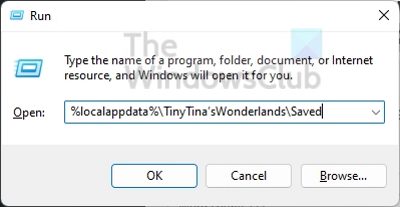
- Begin by pressing the Windows key + R to open the Run dialog box.
- Type %localappdata%\TinyTina’sWonderlands\Saved into the box and hit Enter.
- From within the Saved folder, you must delete all three files that exist.
Launch the game to see if the issue is now resolved.
2] Remove all external peripheral devices
Some folks who have encountered Tiny Tina’s Wonderlands crashing regularly say you can fix the issue by removing all external peripherals. These devices include your game controller, mouse, keyboard, USB drives, etc.
After removing them, plug them in one by one to find the root cause. If the mouse is the culprit, for example, then you may have to buy a different mouse.
3] Update your graphics card drivers
The issue you are facing right now could be because your graphics card driver needs an update. You should avoid running outdated graphics card drivers because they can cause problems in your games.
In order to update your graphics card driver, you should visit the official website of the manufacturer, and locate the download page that contains all available drivers. After you’ve downloaded the correct driver version for your card, install it then restart your computer.
Some of you may want to use free Driver Update software or tools like AMD Driver Autodetect, Intel Driver Update Utility or Dell Update utility to update your device drivers. NV Updater will keep NVIDIA Graphic Card Driver updated.
4] Replace DirectX12 with DirectX11
By default, Tiny Tina’s Wonderlands runs on DirectX12 by default, as do most modern games. However, games can crash depending on the DirectX version they run on. If that is the case for Tiny Tina’s Wonderlands, we’ll need to run it on DirectX 11 instead.
- Launch the Epic Games Launcher on your Windows computer.
- Click on your profile icon once the launcher is up and running.
- From the dropdown menu, please select the Settings option.
- Scroll down from within the Settings window.
- Under Manage Games, expand Tiny Tinas Wonderlands.
- Tick the box that reads, Additional Command Line Arguments.
- Finally, type -dx11 in the text area, and that’s it.
Check right now to see if the game is crashing or not. We hope it isn’t because this is the end of the road.
Read: Tiny Tina’s Wonderland won’t launch or not loading
Is Tiny Tina’s Wonderlands a DLC?
Some might wonder whether Tiny Tina’s Wonderlands is DLC for the newest Borderlands game, and they are right to ask. Unfortunately, it is not, because it is a full-fledged game with its own DLC.
Can you play Tiny Tina’s Wonderlands offline?
Yes, it is possible to play this game offline with both the Epic Game Store and Steam versions. However, you will need to verify ownership with a one-time Internet check.
Which platforms support Tiny Tina’s Wonderlands?
Right now, the game is available on PS4, PS5, Xbox One, Xbox Series X/S, and PC via the Epic Games Store and Steam.
