
In this post, we will show you how to fix the error message “This feature has been blocked by your system administrator” in the Phone Link app on Windows 11/10. Phone Link lets you seamlessly connect your Android or iPhone to your Windows PC, making it easier to view notifications, send messages, and transfer files. However, some users have reported encountering an error when attempting to set up or use the app. The complete error reads:
This feature has been blocked by your system administrator.
Contact your system administrator for more info.
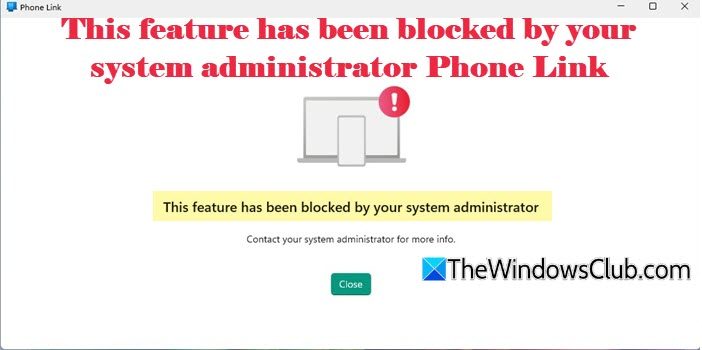
This error appears even on personal devices where the user is the only administrator, leaving them confused about why the feature is disabled.
Fix This feature has been blocked by your system administrator Phone Link app error
To fix the Phone Link error message, This feature has been blocked by your system administrator in Windows 11/10, use these solutions:
- Fix via Group Policy Editor
- Fix via Registry Editor
- Undo third-party tool restrictions
- Repair or Reset Phone Link
Let us see this in detail.
1] Fix via Group Policy Editor
Certain restrictions, often applied by organizations or specific system configurations— can block features like the Phone Link app, Microsoft Store, or other consumer experiences, triggering the error. If you are using Windows 11/10 Pro, Enterprise, or Education, you can use the Group Policy Editor to lift restrictions that may cause the error to pop up.
Press Win + R, type gpedit.msc, and press Enter. In the Group Policy Editor window, check and modify these policies:
A] Phone Link restriction
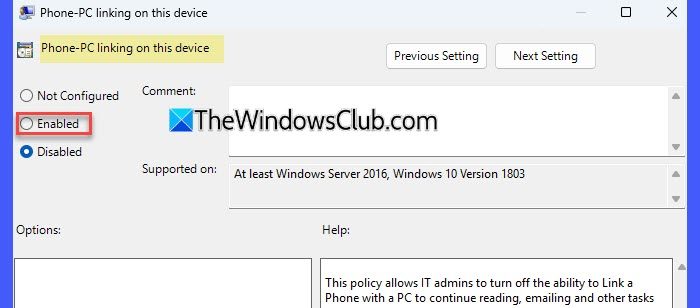
- Path: Computer Configuration > Administrative Templates > System > Group Policy
- Policy: Phone-PC linking on this device
- Set it to Enabled.
B] Consumer Features restriction
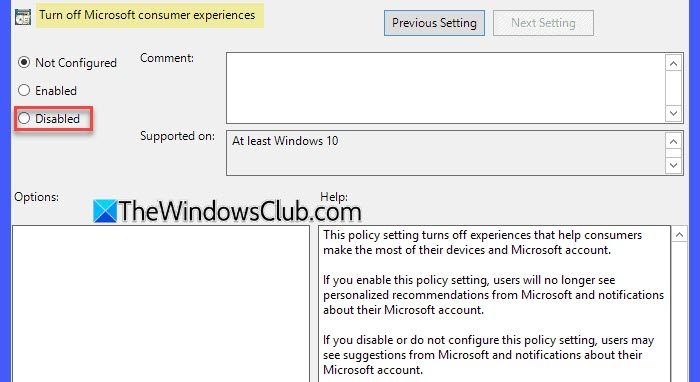
Windows includes “consumer features” like Microsoft account integration, app suggestions, and cross-device experiences. If these features are turned off (common in enterprise policies or after running debloat tools), Phone Link may get blocked as a side effect.
- Path: Computer Configuration > Administrative Templates > Windows Components > Cloud Content
- Policy: Turn off Microsoft consumer experiences
- Set it to Not Configured or Disabled.
C] Microsoft Store restriction
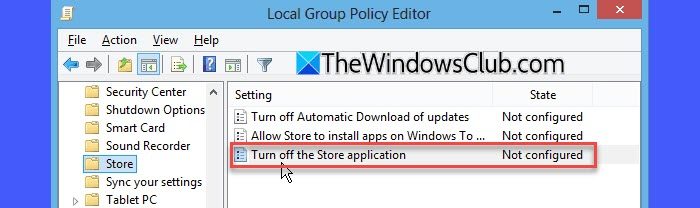
Phone Link requires the Microsoft Store to be enabled. Microsoft tightened the app’s integration with the Store for app validation, runtime dependencies, and background services & updates. If the Store is disabled, Phone Link interprets that as an administrative restriction.
- Path: Computer Configuration > Administrative Templates > Windows Components > Store
- Policy: Turn off the Store application
- Set it to Not Configured or Disabled.
D] Microsoft Account Sign-In restriction
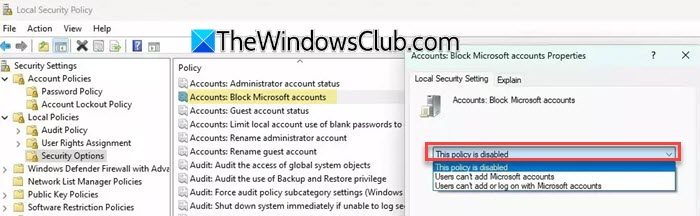
Some debloat/privacy tools can block Microsoft Account sign-in, forcing only local accounts). Since Phone Link requires a Microsoft Account to sync with your phone, this restriction can trigger the error.
- Path: Computer Configuration > Windows Settings > Security Settings > Local Policies > Security Options
- Policy: Accounts: Block Microsoft accounts
- Set it to This policy is disabled
Run gpupdate /force in an elevated Command Prompt or restart the PC.
2] Fix via Registry Editor
If you’re on Windows 11/10 Home edition, you can apply the same fixes using the Registry Editor.
Note: Editing the Registry incorrectly can cause system issues. Always back up the Registry or create a System Restore point before making changes.
Press Win + R, type regedit, and press Enter. Click Yes in User Account Control prompt. The Registry Editor will open up. In the Registry Editor window, check and modify these entries:
A] Phone Link restriction
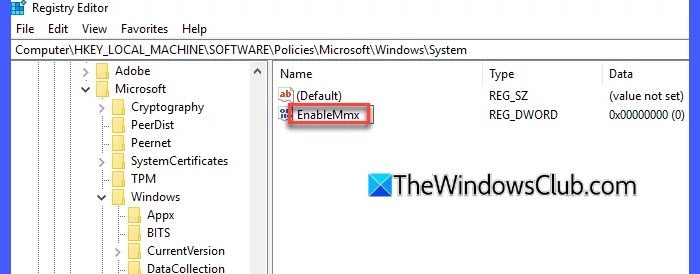
- Path:
HKEY_LOCAL_MACHINE\SOFTWARE\Policies\Microsoft\Windows\System - DWORD: EnableMmx
- Set it to 1 (enabled) or delete the value if present as 0.
B] Consumer Features restriction
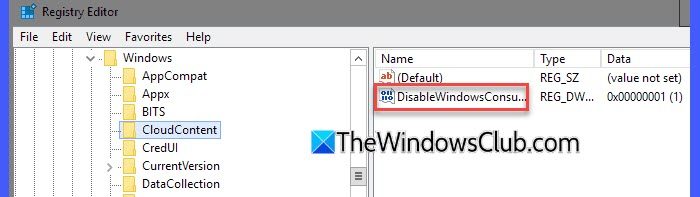
- Path: HKEY_LOCAL_MACHINE\SOFTWARE\Policies\Microsoft\Windows\CloudContent
- DWORD: DisableWindowsConsumerFeatures
- Double-click it and change the Value data to 0.
You may also turn it on by configuring MDM (for InTune managed device) by flipping the value for Experience/AllowWindowsConsumerFeatures to 1.

C] Microsoft Store restriction
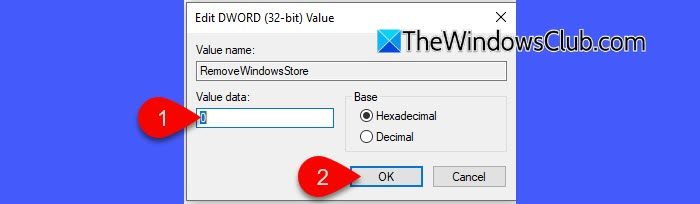
- Path: HKEY_LOCAL_MACHINE\SOFTWARE\Policies\Microsoft\WindowsStore
- DWORD: RemoveWindowsStore
- Double-click the DWORD and change the Value data to 0.
D] Microsoft Account Sign-In restriction
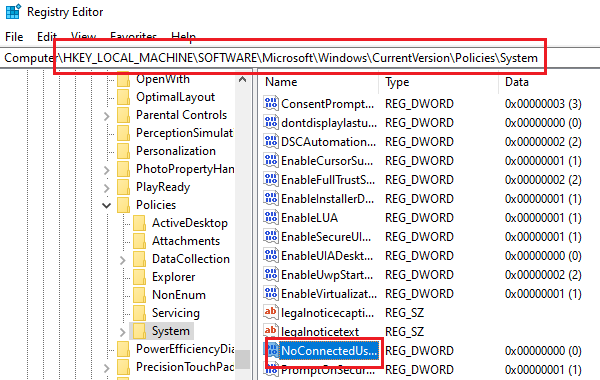
- Path: HKEY_LOCAL_MACHINE\SOFTWARE\Microsoft\Windows\CurrentVersion\Policies\System
- DWORD: NoConnectedUser
- Double-click the DWORD and change the Value data to 0.
Note: If any of these DWORDs don’t exist, right-click in the right pane, choose New > DWORD (32-bit) Value, and name it accordingly.
Close the Registry Editor and restart your PC to apply the changes.
3] Undo third-party tool restrictions
Some users have reported that the error occurred after running Windows debloat or privacy tools (like Chris Titus Tech’s Utility). These tools often include an option to block mobile device connections, which can also disable Phone Link.
If you’ve used such a tool, open it and restore the default or recommended settings. You may also look specifically for options related to Mobile Device Connections, Microsoft Store, or Consumer Experiences.
Once done, restart your PC. If the issue persists, you may need to uninstall the tool.
4] Repair or Reset Phone Link
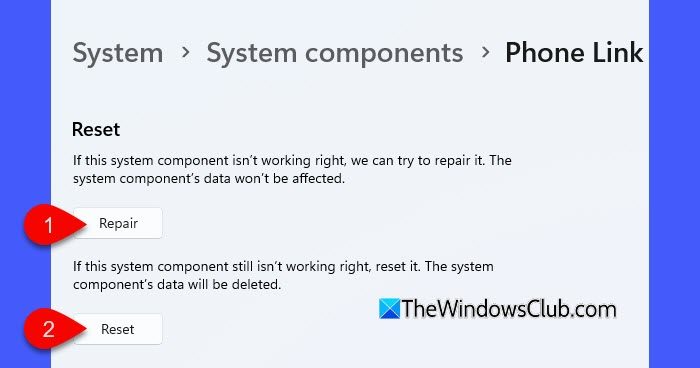
Sometimes the error appears to be an admin block, but in reality, the Phone Link app itself is malfunctioning. To fix this, follow these steps:
Press Win + I to open the Windows Settings. Go to System > System components.
Search for the Phone Link app. Click the three-dotted icon and select Advanced options.
Scroll down and click Terminate. Then click Repair. If the error continues to appear, click the Reset button.
If repair/reset doesn’t work, uninstall and reinstall the app from the Microsoft Store.
I hope this helps.
Read: Unable to remove old devices from Phone Link.
How to fix This feature has been blocked by your system administrator?
You can fix the “This feature has been blocked by your system administrator” error by checking for restrictions set via Group Policy, Registry settings, or third-party tools and removing them. If the issue persists, repairing or reinstalling the affected app can help restore access.
How do I unblock a program that is blocked by administrator?
If the administrator blocks a program, you can request that the system administrator grant access or adjust the policy. Otherwise, right-click the file, go to Properties, and select Unblock if available.
Read Next: Phone Link Stuck on connecting Android or iPhone.
