
In this guide, we are going to discuss the things that you can now do in Windows 11 that you couldn’t do in previous versions of Windows. Windows 11 is officially released and you must have got your hand on it by now. If not, you can get the full version of Windows 11 for free NOW.
With every new OS, there are several improvements in comparison to the previous builds. The same is with Windows 11. There are various new cool features that Microsoft has incorporated into the new OS. Here, we will bring to your attention some of the latest features available in Windows 11 that you may not have had access to before. Let us check out.
What to do before upgrading to Windows 11?
Before upgrading to Windows 11, make sure your PC meets the minimum requirements to run Windows 11. Apart from that, you should enable TPM 2.0 in the BIOS, enable Secure Boot in the BIOS, back up your important data, ensure you have sufficient disk space, uninstall conflicting and non-essential apps, resolve system errors, etc. There are some more tips that you should take care of before installing Windows 11.
Is Windows 11 free?
Windows 11 is free for everyone provided that they are eligible to get Windows 11 on their system. You can install the same edition of Windows 11 that you are currently using for free.
Things you can do in Windows 11 that you couldn’t do before
Here is a list of things you can do in Windows 11 that you couldn’t do before:
- Access Built-in Snap Layouts.
- Manage Multiple Desktops Faster.
- Open Files directly from the Start Menu.
- Run Android Apps.
- Get more stats on Battery Usage.
- Quickly connect to Microsoft Teams in a few clicks.
- Access & Manage Widgets from Taskbar.
- Enjoy a better and modern look and feel in Windows 11.
- Keep Your Focus with the improved Clock app.
1] Access Built-in Snap Layouts
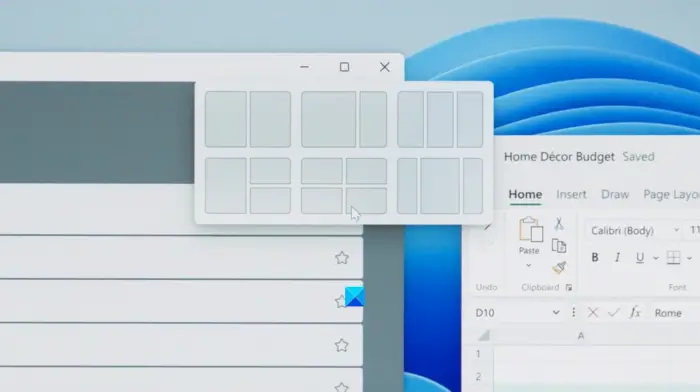
One of the prominent new features in Windows 11 is the Snap Layout feature. This feature enables you to access four predefined Windows snap layouts to arrange multiple windows at a time. It basically brings a smooth task switching function in the new OS i.e., Windows 11.
Earlier, in Windows 10, you had to drag open windows to the side or the corner of your screen to snap them. With the Snap Layout feature, you can simply hover the mouse over maximize or minimize option present at the top right corner of the application window and select a snap layout to arrange multiple windows. You can also press Windows + Z hotkey to access the snap layouts.
2] Manage Multiple Desktops Faster
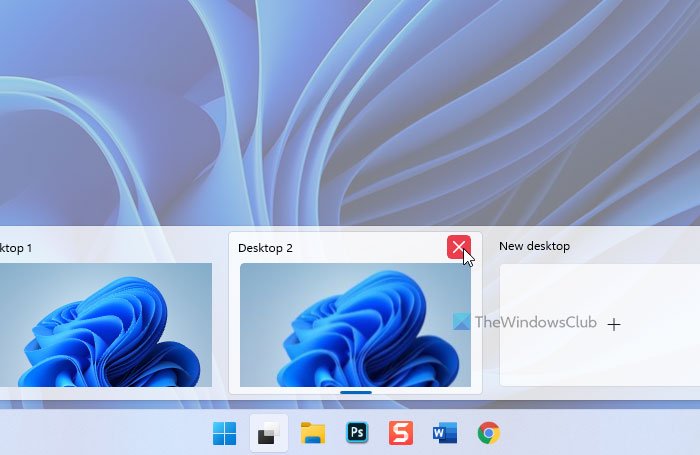
Multiple virtual desktops were are already supported in Windows 10. However, you can access multiple desktops a lot faster and more easily in Windows 11. When you install Windows 11, you can access and manage multiple desktops right from the taskbar. Click the Task View button on the toolbar, and then create, access, and manage multiple virtual desktops directly from the taskbar. It is indeed a great addition to Windows 11.
However, Microsoft provides you the flexibility to disable the task view option from the taskbar in case you don’t want to use it. To do this, right-click on the taskbar and select the “Taskbar settings” option. From here, you can remove the Task View option from the taskbar.
Read: How to customize Windows 11 Quick Settings.
3] Open Files directly from the Start Menu
Microsoft has redesigned the Start menu in Windows 11. You can quickly search and open files from the Start menu. Plus, you can now directly access recently accessed files directly from the Start menu. The files are present under the Recommended section in the Start menu. To configure the feature according to your preference, open the Windows 11 Settings and navigate to the Personalization > Start section.
4] Run Android Apps
You can now run Android apps directly in Windows 11. The new and improved Microsoft Store comes with support for Android apps, including the Amazon Appstore. You can download and install Android apps just like any other Windows apps, and then start using them. Additionally, nearly all popular apps are now available on the Windows Store, including VLC Media Player, Zoom, TikTok, Adobe Creative Cloud, Discord, and many more.
Read: Windows 11 Taskbar lost these features
5] Get more stats on Battery Usage
In Windows 11, you get some additional statistics with a graph on battery usage. You can open the Settings app using Windows + I hotkey and then go to the System tab. After that, click on the Power & battery option from the right panel. Then, scroll down to the end and locate the Battery Usage option, and expand this option.
See: How to customize the Windows 11 Lock Screen.
6] Quickly connect to Microsoft Teams in a few clicks
Microsoft Teams can now be accessed right from the taskbar in Windows 11. When you install the new OS, there is a Chat icon on the taskbar. You can click on this option and access your Microsoft Teams chats. It also provides an option to directly open the Microsoft Teams app. You can log in to your Teams account and then start chatting up with your colleagues, friends, and family. For those who use Microsoft Teams regularly, it is a great add-on.
Read: How to use the new Tips app to explore Windows 11.
7] Access & Manage Widgets from Taskbar
Microsoft has added a direct option on the taskbar to launch widgets in Windows 11. Simply tap the Widgets icon to access a variety of tools and functions, including news, weather, upcoming calendar appointments, family safety, entertainment, and more. You can also use its add widgets option to launch and customize new widgets. So, it is another nice feature for widgets lovers.
Related: Best Free Widgets and Gadgets for Windows 11.
8] Enjoy a better and modern look and feel in Windows 11
The new and improved look of the new Windows OS is completely suitable for modern users. You can enjoy a revamped look of desktop, taskbar, Settings app, File Explorer, and more in Windows 11. It is completely refreshing with a nice color combination, fonts, and icons. Personally, the overall look of Windows 11 is more appealing than Windows 10 and other previous versions.
Must read: Windows 11 Tips and Tricks.
9] Keep Your Focus with the improved Clock app
The built-in Clock app in Windows 11 is now all improved with the Focus Sessions feature. This new feature helps you focus on your work for an extended period and enhances your overall productivity. You can set a timer using it and check your daily progress and review Todo tasks. To further enhance your experience, you can also link your Spotify and listen to your favorite music and podcast while focussing on your work.
NOW READ: Things you can do in Windows 10 that you can’t do in Windows 11.
What are some cool things you can do with Windows 11?
There are numerous things you can do with Windows 11. For example, you can snap a window instantly using the in-built options, i.e., Snap Layouts. Additionally, you can run Android apps on your Windows 11 computer using WSA. The best thing is that you can use Widgets from your Taskbar.
What can you not do on Windows 11?
Although Windows 11 introduced numerous new features, it also removed many of the older options. For example, now the Taskbar position is fixed, and there is no option to change it. Apart from that, you cannot ungroup opened windows, no expanded context menu for Taskbar, no option to lock the Taskbar, etc. You can check out this article to learn more about the deprecated features of Windows 11.
