
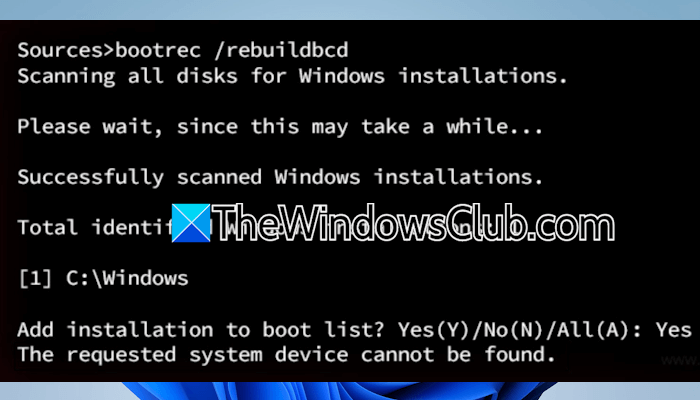
Boot issues on Windows 11/10 can occur due to several causes, such as a corrupt BCD file. In such cases, repairing the corrupt BCD file helps. However, some users cannot repair the BCD file due to the “The requested system device cannot be found” error. If you encounter this error, the solutions provided in this article will help you.
The requested system device cannot be found in Windows 11/10
You may see the “The requested system device cannot be found” error on Windows 11 while repairing your BCD file or using the Diskpart utility in a non-bootable condition. This error means your system cannot find the required boot or recovery partition. Another cause of this error is selecting an incorrect firmware mode for a particular hard disk partition style.
Use the following fixes for this error:
- Make the correct partition active
- Change the firmware mode
- Create a new partition
- Reinstall Windows
All these fixes are explained below in detail.
All of these fixes require you to boot into Windows Recovery Environment. Since you cannot access Windows UI, you have to interrupt the normal boot process of Windows to enter WinRE. To do so, press and hold the power button to turn off your computer. Now, press the power button to turn it on. Press and hold the power button immediately when the manufacturer’s or Windows logo appears on the screen. Repeat this process until you see the Preparing Automatic Repair message on your screen.
1] Make the correct partition active
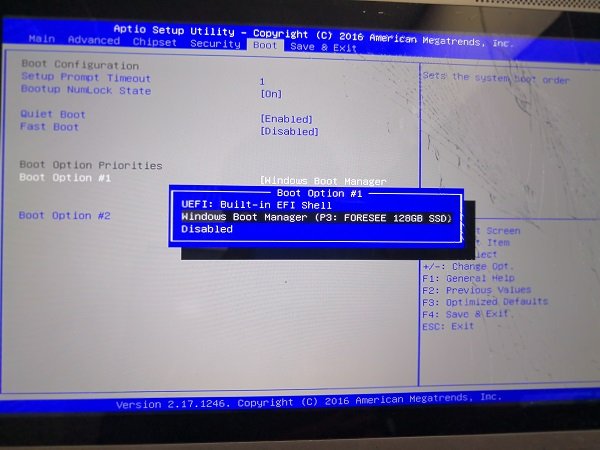
The first step is to make the correct partition active. Enter Windows Recovery Environment. If you cannot enter WinRE by using the method explained above, use a bootable USB flash drive. You need a working computer to prepare a bootable USB flash drive with Windows 11 ISO. Boot with the USB flash drive. If your system does not detect the bootable USB flash drive automatically, you need to change the boot order.
After booting from the installation media, click Next and then click Repair your computer. Now, click Troubleshoot > Command prompt.
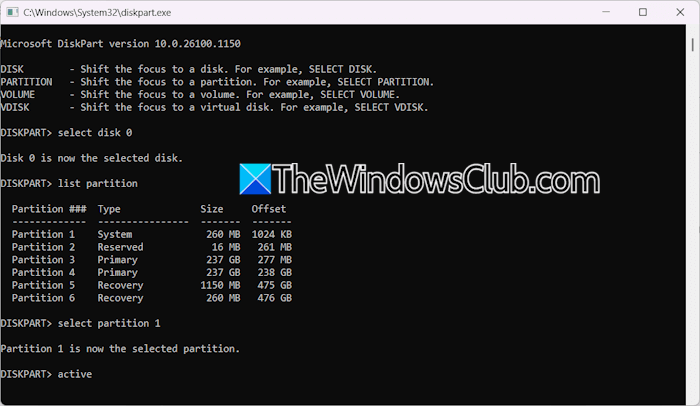
Now, type the following commands and press Enter after typing each command:
diskpart

list disk

select disk #

list partition
In the above command, type the correct disk number in place of #. Now, you have to select the system partition and mark it as the active partition. Use the following commands:
select partition #

active
Restart your PC and see if the issue persists.
2] Change the firmware mode
If the wrong firmware mode is active on your system, you may encounter this error. For example, the GPT partition works in UEFI firmware mode. When you convert an MBR partition to a GPT partition, it is necessary to switch from the legacy mode to UEFI mode. Check this and change the firmware mode (if applicable).
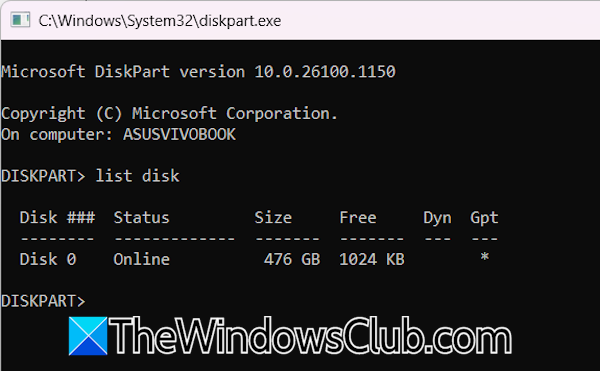
First, check the partition style of your hard disk. Enter Windows Recovery Environment and open the Command Prompt. Now, type the following commands and press Enter after each command:
diskpart

list disk
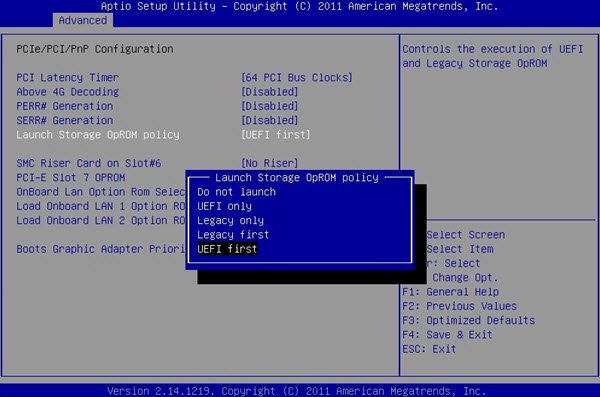
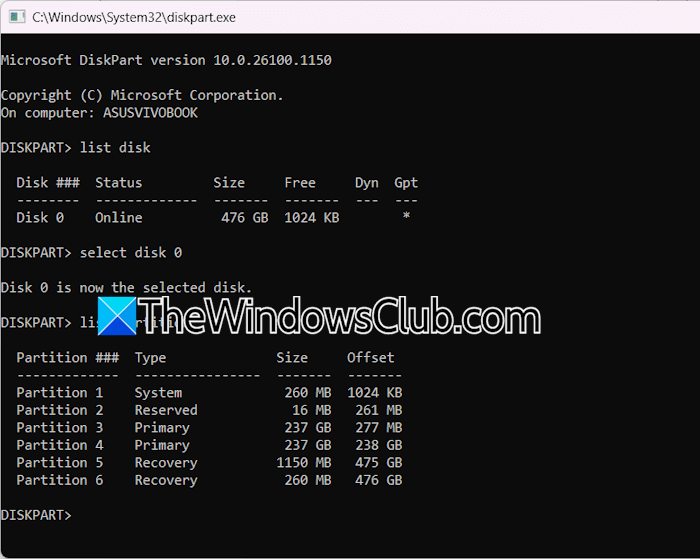
The above command will show you all the available disks. If you see the asterisk below GPT, your hard disk partition style is GPT. Otherwise, it is MBR. Now, based on your hard disk partition style, change your firmware to legacy or UEFI.
3] Create a new partition
If the issue persists, create a new partition. For this, you have to delete the existing System Partition. Sometimes, more than one System Partitions exist on a computer. In such a case, delete all the System Partitions and create a new one.
First, boot with a bootable USB flash drive and open the Command Prompt. The first step is to find your Boot drive and Windows drive. For this, execute the command bcdedit.
Type the following commands and press Enter after typing each command:
diskpart

list disk

select disk #

list partition
Replace # with the correct disk number. Now, select the System Partition by using the following command:
select partition #
Replace # with the correct partition number. Now, delete the partition by using the following command:
delete partition override
Similarly, delete other System Partitions (if they exist). After deleting the System Partitions, create a new EFI System Partition by using the following command:
create partition EFI
Execute the list disk command to see whether the EFI System Partition is selected. If not, select the EFI System Partition. Format the new EFI System Partition and assign a new drive letter to it:
format fs=fat32 quick label=boot

assign letter=k

exit
The last command will exit DIskpart.
Now, use the following command to create boot files:
bcdboot c:\windows /s K: /f all
In the above command, C is the drive letter where Windows is installed, and /s is the instruction that tells bcdboot to copy boot files to the destination partition K. Once the command is executed successfully, exit the Command Prompt and boot into Windows. The issue should be fixed.
4] Reinstall Windows
If none of the above fixes work, reinstalling Windows is the last option. This is the clean installation of Windows. Therefore, all your data will be lost. But still, you can copy important files from an unbootable PC. Follow these steps:
- Boot into Windows Recovery Environment using the bootable USB flash drive.
- Open the Command Prompt.
- Now, press the Ctrl + O keys. This will open the File Explorer in WinRE.
- Open each folder one by one and look for your important files.
- Connect another storage device to your system. Now, right-click on the files you want to back up and select Send to > Storage device.
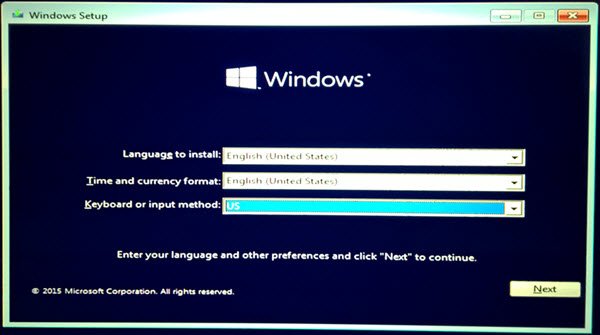
After backing up your important files, you can perform the Clean Installation of Windows.
That’s it. I hope this helps.
The requested system device could not be identified due to multiple indistinguishable devices
“The requested system device could not be identified due to multiple indistinguishable devices” error means your system is unable to distinguish between the right boot partition. This condition occurs if your system has multiple System Partitions. To fix this error, mark the correct System Partition as the active partition. If you cannot do that, delete all the existing System Partitions and create a new one. Now, copy all the required boot files to the new partition.
How to fix the boot configuration data store could not be opened, the system cannot find the file specified?
A corrupt BCD file can trigger this error on Windows: “The boot configuration data store could not be opened. The requested system device could not be found.” To fix this error, you need to rebuild the corrupt BCD file.
Read next: Boot Device Not Found.
