
In this post, we will show you how to make links to any Microsoft Teams elements open directly in the Teams desktop app instead of the browser. Microsoft Teams is supported on all platforms, including the browser. Some users on the PC want to always use the app, but when they click on a link on the PC, it opens Teams in the browser. It also means they will need to sign in with their Microsoft account and so on. It’s a bit annoying, but you can stop Teams from opening in the browser and make it open in the app instead.
Why do the Teams link open in the browser and not the app?
The answer is simple: it’s a link, and browsers are built to handle such requests. When you click on any link, the OS will send that to the default browser to handle it. However, the OS can also send the link to a different app if that app is registered to handle it. That’s what we need to change.
Stop Teams from opening in browser and make it open in app instead
Apart from Team links that users click from outside the app, some users also report that links within the Teams app open in the browser. That’s a problem, and we will offer solutions to help resolve it.
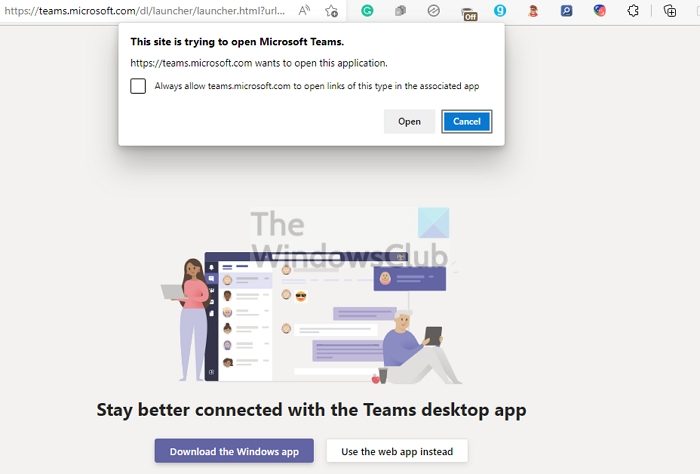
- Open the team link such that it opens in the browser
- You should get a prompt asking to download teams, continue in the browser, or Open Teams
- Select Open Teams, and a popup should appear
- Check the box next to Always allow teams.microsoft.com to open links of this type in the associated app
- Click on the Open Microsoft Teams
- The next time you open any Microsoft Team link that opens in the browser will be redirected to the Teams App.
If you can’t see this option, then see which one of the following suggestions helps you. Microsoft may changed the location for these settings, soplease see which one helps you.
1] Change Default Protocol Handler in Windows
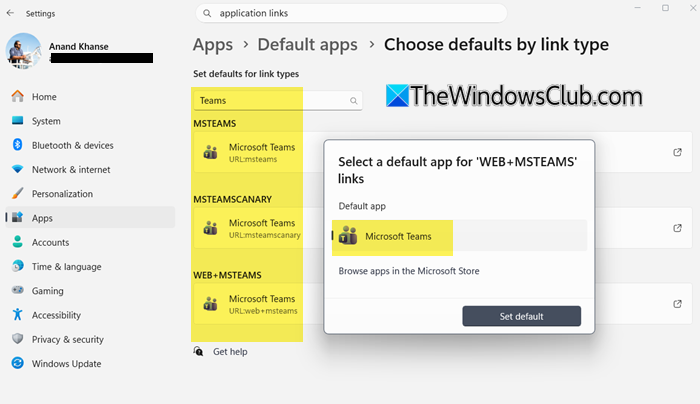
- Open Windows Settings > Apps > Default app.
- Scroll down and click Choose defaults by link type.
- Find “Teams” in the list.
- Set them all to open with Microsoft Teams.
- Start the default and restart your computer.
2] Reset the application link association in Browser
Follow the steps below to reset the application link association in Browser.
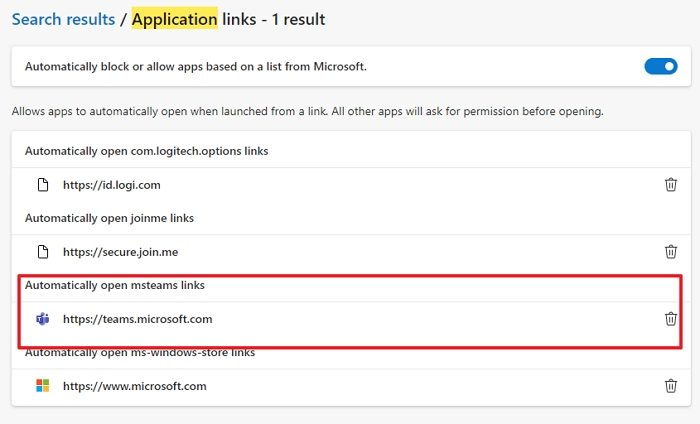
- Open Edge Brower and go to Settings
- In the search box, type Teams
- Locate search results for Application links
- It should say— https://teams.microsoft.com | Automatically open ms-windows-store links.
- Look for a delete button next to it, and click on it.
- Open any team link in the browser again, and you should see the prompt this time.
The settings in Edge may have changed. So try this.
In Edge Settings, go to Cookies and site permissions and then select Protocol handlers.
If Teams is listed as “Handled by browser,” remove it so Windows defaults back to the app.
3] Use Teams Settings
Open the Teams Settings and in General, look for an option like “Register Teams as the chat app for Office” or “Open application links in Teams”.
4] Teams Files and links settings
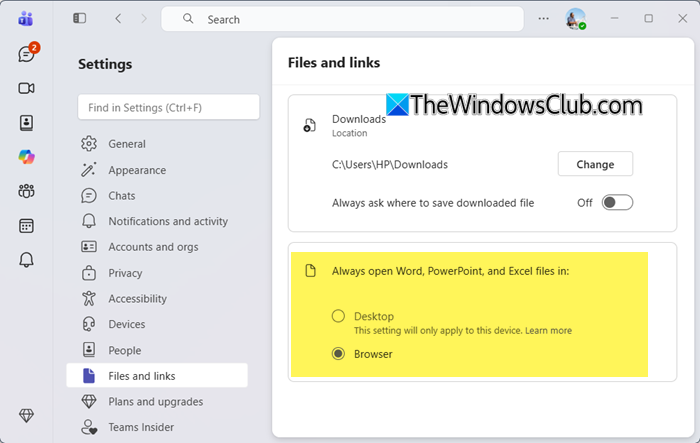
Open Teams Settings > Files and links
Locate Always open Word, PowerPoint, and Excel files in.
The choices offered are: Desktop or Browser.
This controls how Office file links behave when opened from Teams chats or channels.
Select the one you want.
5] Via Meeting links in Browser or Outlook
When you click a Teams meeting link in Outlook, it opens in your browser first.
To force it into the Teams desktop app, in the browser prompt, check “Always allow teams.microsoft.com to open links of this type in the associated app”.
Then select Open Microsoft Teams.
This ensures future meeting links bypass the browser and launch directly in the app
How to Open Files in Tab instead of App?
Microsoft Teams can open files within the app. It will allow you to preview the content without launching it in a specific app. If that’s not how it works on your PC, right-click the file, expand the Open in menu, and select Teams. Click on the Change Default menu and select Teams to change the default behavior. If you want to open it in-app, you can always select the option available in the menu.
Fix: Arrow keys are not working in Teams
How to disable Microsoft Teams auto start?
Open the Teams app, click on the three-dot menu, and click on Settings. Uncheck the Auto-start application. This will make sure the app doesn’t start on its own. You can also choose to disable it from running in the background.
