
While using Microsoft Teams, some users have noticed that the Arrow keys are not working. To check if it was a hardware issue, they tested their keyboards in other applications, such as Notepad and Word, and the arrow keys worked fine. This post offers suggestions that may help affected users resolve this issue.
Arrow keys are not working in Teams
If the Arrow keys are not working in Teams, try the solutions below. But before you begin, check your Windows OS and Microsoft Teams for updates and install them if any are available:
- Relaunch Microsoft Teams
- Clear Microsoft Teams cache
- Disable GPU Hardware Acceleration in Teams
- Troubleshoot in the Clean Boot
- Repair or Reset the Microsoft Teams app
Below, we have explained all these fixes in detail.
1] Relaunch Teams
Sometimes a minor glitch causes the problem. Therefore, we suggest you close and relaunch Teams, then check whether the issue persists. Follow the steps below:
- Exit Microsoft Teams.
- Click on the System Tray, right-click on Teams, and select Quit.
- Press the Win + R keys, type
taskmgr, and click OK. - When the Task Manager appears, select the Processes tab and see if Teams is running in the background. If yes, right-click on it and select End Task.
2] Clear Microsoft Teams cache
A cache is a temporary storage for apps and software. This storage is used by apps and software to temporarily store data. When a user performs a task in an app or software, it retrieves data from the cache to complete the task quickly.
If cache data is corrupted, it also affects the performance of the corresponding app or software. In such a case, deleting the cache fixes the problem. The problem you are currently experiencing may be due to a corrupted Teams cache. Delete the Microsoft Teams cache and see if it helps.
3] Disable GPU Hardware Acceleration in Teams
Sometimes, performance issues occur in Teams due to the GPU hardware Acceleration. If you have enabled this feature in Teams, turn it off and see if it brings any changes.
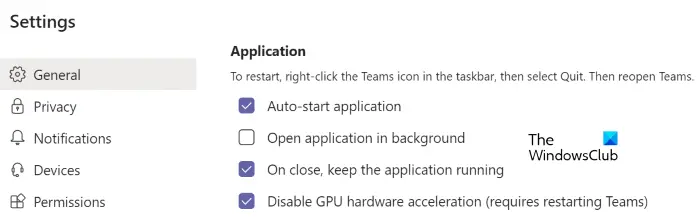
The instructions to disable GPU Hardware Acceleration in Teams are provided below:
- Launch Microsoft Teams and open its Settings.
- Select the General category from the left side.
- Select the Disable GPU Hardware Acceleration checkbox.
- Restart Teams.
4] Troubleshoot in Clean Boot
The Clean Boot starts your computer in a basic state with only a limited set of files and drivers. This state will help you troubleshoot the problem occurring in your system. After entering Clean Boot State, launch Microsoft Teams. If the arrow keys work in Teams, there might be a startup or background application causing the problem. Now, exit Clean Boot State and uninstall the recently installed software. In addition, disable startup programs to see if any of them are causing the problem.
Read: Arrow keys are not working in Windows 11
5] Repair or Reset the Microsoft Teams app
If nothing helps, reset the Microsoft Teams app. The way to reset programs in Windows 11 is a bit different than the way to reset programs in Windows 10.
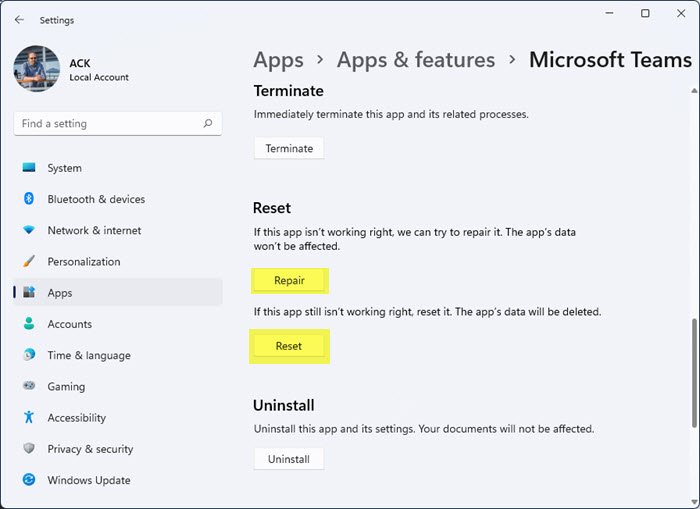
Follow the instructions given below:
- Open Windows 11/10 Settings app.
- Go to “Apps > Apps & features.”
- Locate the Microsoft Teams app in the list of installed programs.
- In Windows 10, select the Teams app and click on the Advanced options link.
- In Windows 11, click on the three vertical dots next to Microsoft Teams and select Advanced Options.
- Now, click Reset.
Hope this helps.
Related: Arrows keys not working in Excel
Why are my keyboard arrows not working in Teams?
There might be many reasons your arrow keys on your keyboard are not working in Teams, such as a conflicting background or startup application, or a corrupted Microsoft Teams cache. You can try some fixes to resolve this issue, such as clearing the Teams cache, disabling GPU hardware Acceleration in Teams, and troubleshooting in Safe Mode. If nothing fixes the problem, resetting the teams may help.
Read: Keyboard shortcuts and Hotkeys are not working in Windows
How do I fix my arrow keys not working?
If your keyboard’s arrow keys are not working, the first thing that you should try is to connect your keyboard to another computer (if available) and test your arrow keys. This will let you know if the problem is with your hardware or not. If your keyboard works fine on another computer, you can try some fixes, like running the Hardware and Devices Troubleshooter, Running the Keyboard Troubleshooter, updating, rolling back, or reinstalling your keyboard drivers, etc. Sometimes, problems occur due to a background program conflict. To check this, you can troubleshoot your system in a Clean Boot State.
Read next: Fix Microsoft Teams Login issues: We couldn’t sign you in.
