
At times, the Arrow keys might not be working in Windows 11 or Windows 10 PC. If this problem appears on your computer, you can follow the suggestions in the article. Whether one or all four arrows on your laptop keyboard are not working, the guide would be the same.
Fix Arrow keys are not working in Windows 11/10
If the Left. Right, Up, Down Arrow keys are not working on Windows 11/10 PC keyboard, follow these suggestions:
- Verify keyboard
- Reinstall keyboard driver
- Run Keyboard Troubleshooter
- Disable Scroll Lock for Excel
- Use On-Screen Keyboard
Before you begin, make sure that the space around the keys is physically clean.
1] Verify the keyboard
It is the very first and the most important thing you need to do when the arrow keys are not working. Whether you have a new or old keyboard, wired or wireless, you must check a few things to fix this issue. At times, it could be a hardware issue, and as a result, the arrow keys might not be working as usual. Therefore, follow these points to get into the troubleshooting process:
- If you have an old keyboard, try connecting it to another computer and check whether it works properly.
- If your keyboard accumulates a lot of dust, it is recommended that you clean it. Whether you have an external or internal laptop keyboard, you need to clean it properly.
- If you have a wired keyboard, make sure the keyboard’s ports and plug are working correctly. For that, you can plug the keyboard into another computer to verify.
- If you have a wireless keyboard, make sure the batteries are charged. If you have a rechargeable battery, you can try charging it before trying again.
2] Reinstall the keyboard driver
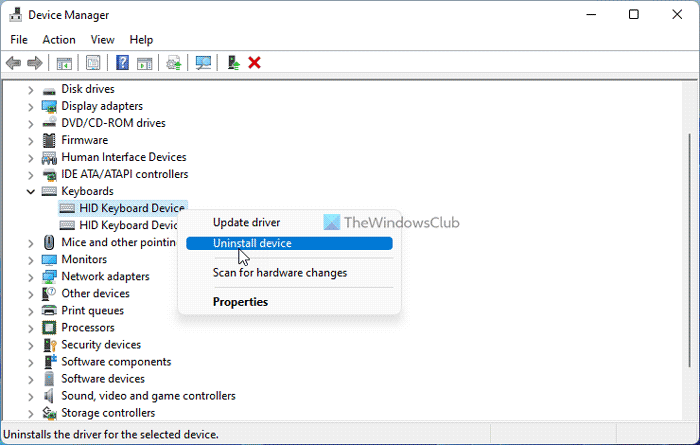
Although a wired keyboard might not require a driver, wireless keyboard users sometimes need to download and install a driver to use the hardware. Therefore, follow these steps to uninstall the existing driver:
- Press Win+X to open the WinX menu.
- Select Device Manager from the menu.
- Expand the Keyboards section.
- Right-click on the keyboard driver and select Uninstall device option.
- Click the Yes button.
Then, download the driver from the official website or insert the given CD to reinstall the driver.
3] Run Keyboard Troubleshooter
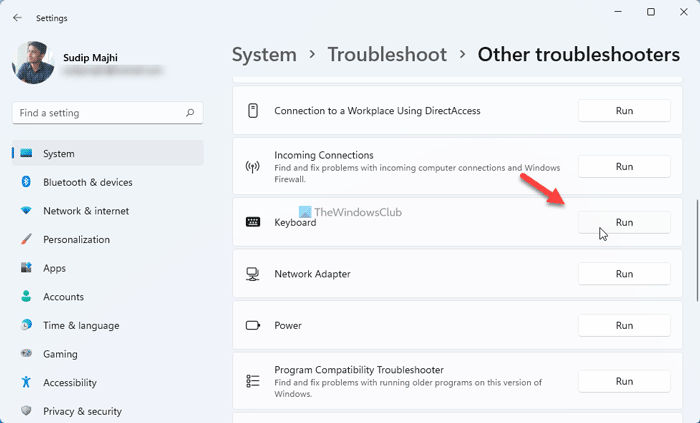
When your keyboard is not functioning correctly, you can try running the Keyboard Troubleshooter. For your information, you do not need to download anything since Windows 11 comes with an in-built troubleshooter for this purpose.
To run Keyboard Troubleshooter, follow these steps:
- Press Win+I to open Windows Settings.
- Go to System > Troubleshoot > Other troubleshooters.
- Find the Keyboard Troubleshooter.
- Click the Run button.
Then, you need to follow the screen instructions to get the job done.
4] Disable Scroll Lock for Excel
If you are not able to use the arrow keys in Excel, you need to disable the Scroll Lock. Scroll Lock helps you stop the scrolling when you press the arrow keys in Microsoft Excel and some other similar programs. Therefore, you can disable the Scroll Lock on your keyboard and check if it resolves the issue or not.
Read: Arrows keys not working in Excel
5] Use On-Screen Keyboard
If none of the aforementioned solutions work, you can use the On-Screen Keyboard to get things done quickly. For that, you can search for the on-screen keyboard and click on the individual search result to open it.
Read: How to reset Keyboard settings to default in Windows.
Why are my arrow keys not working in Windows 11?
There could be several reasons why the arrow keys are not working in Windows 11 or Windows 10 computers. However, you can follow the steps above to resolve this issue. First, try to verify the keyboard in as many ways as possible. Then, you can use the Keyboard Troubleshooter and disable the Scroll Lock.
Read: Cant scroll, Arrow keys not working in Chrome browser
How do I fix my keyboard arrow keys not working?
To fix the keyboard arrow keys not working issue on Windows 11/10, the above suggestions may help. You must check the connection, port, USB plug, etc., first. Then, you can reinstall the driver, run the troubleshooter, or use the On-Screen Keyboard.
Read: Arrow keys are not working in Teams.
Arrow keys not working after Windows Update
If the Arrow keys are not working after a Windows Update, you should consider installing the recent Update after which the issue has appeared. Once done Hide the update or Pause Windows Update for a while, till Microsoft resolves the issue. You should also see if any of the suggestions given above in this post help you.
