
Some Steam users are facing connectivity issues while using the Steam Client. According to them, the Steam Client connects to and disconnects from the internet randomly which makes Steam unusable. As a result, some users lose their current game progress when the Steam Client disconnects from the internet while playing. If Steam keeps disconnecting and reconnecting on your gaming rig, while playing or downloading, the solutions provided in this article may help you fix the problem.
Steam keeps disconnecting and reconnecting on Windows PC
The following solutions will help you fix the connection issues with the Steam Client. But before you proceed, we recommend switching from Wi-Fi to a wired connection. You can use an Ethernet cable to connect your computer to your router. Because wired internet connections are more stable than wireless ones, switching from wireless to wired internet fixes most internet connection issues. If your internet connection is working fine but Steam keeps disconnecting and reconnecting, repair the Steam Client and see if it helps.
If Steam keeps disconnecting and reconnecting while playing or downloading here are some suggestions that may help you fix the issue.
- Clear your web browser cache
- Clear Steam browser cache
- Switch to another internet connection (if available)
- Add the Steam folder as an exception to your antivirus software
- Change the DNS Server
- Troubleshoot in a Clean Boot state
- Uninstall and reinstall Steam
Below, we have described all these fixes in detail.
1] Clear your web browser cache
If you are experiencing connectivity issues with the web version of Steam Client, clearing your web browser cache can fix the issue. In addition to this, you can try one more thing, open Steam in another web browser and see if this brings any changes.
2] Clear your Steam Browser cache
This solution is for users who are facing connectivity problems on Steam Client. Open your Steam Client and clear its browser cache. The steps to do this are written below:
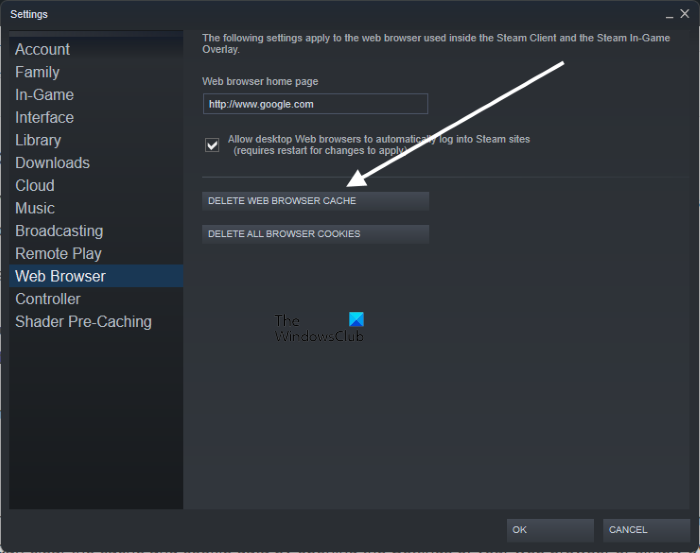
- Open the Steam Client.
- Go to “Steam > Settings.”
- Select Web Browser from the left side.
- Click DELETE WEB BROWSER CACHE. Also, delete all the browser cookies.
3] Switch to another internet connection (if available)
Some users connected their computers to another internet connection, after which the Steam Client started working properly. You can also try this if another internet connection is available to you. If this works, contact your Internet Service Provider.
4] Add the Steam folder as an exception to your antivirus
Sometimes, antivirus software blocks some genuine apps from accessing the internet due to which users face internet connectivity issues with those apps. This is a false positive flag from antivirus. This might be the case with you. To check this, temporarily disable your antivirus, then launch Steam. Now, monitor Steam for some time and see if it disconnects from the internet. If not, the problem is with your antivirus software. If you are using Windows Defender, you can add the Steam folder as an exception to Windows Security. Also, temporarily disable your Firewall.
If you are using a third-party antivirus or Firewall, refer to its user manual to add Steam as an exception to it or you can contact its customer support team.
5] Change the DNS Server
If the issue persists, changing the DNS Server can resolve it. go through the following instructions to change the DNS Server.
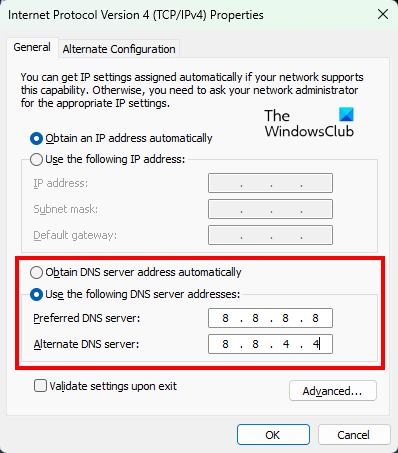
- Open the Run command box (Win + R hotkey).
- Select Category in the View by mode.
- Click Network and Internet.
- Now, select Network and Sharing Center.
- Click on your Wi-Fi or Ethernet connection. It will open the Status window of your internet connection.
- Now, click Properties.
- Select Internet Protocol Version 4 (TCP/IPv4) and click on the Properties button.
- In the IPv4 properties window, select the Use the following DNS Server address option.
- Now, enter 8.8.8.8 in the Preferred DNS Server and 8.8.4.4 in the Alternate DNS Server. These are the Google DNS Servers.
- Click OK to save the changes.
After changing the DNS Servers, you have to register them. To do so, open the Command Prompt as an administrator and type the following commands. Press Enter after typing each of the following commands.
ipconfig /flushdns

ipconfig /release

ipconfig /renew
Now, open the Steam Client. The problem should get fixed this time.
6] Troubleshoot in a Clean Boot state
If the problem persists, a third-party app might be causing it. Some software or apps ask us to run at system startup. If we allow them, they run in the background as we turn on our computer. Sometimes, background applications conflict with other apps or software, causing issues on a user’s system. To identify such apps or software, you can troubleshoot your computer in a Clean Boot state.
In a Clean Boot state, only the necessary services remain enabled, and all other services and startup apps remain disabled. This helps a user identify the culprit program. After starting your system in Clean Boot, launch Steam and monitor it for some time to see if it disconnects randomly as before. If not, some of your startup apps are the culprit. To identify the problematic app or software, enable some startup applications in Clean Boot and restart your computer in normal state. Now, launch Steam and see if the problem appears again. If so, one of the programs you just enabled is the culprit. Now, disable the enabled apps one by one and monitor the Steam Client for some time after each app or program is disabled.
Once you find the problematic app, uninstall it or check for its updated version on the official website.
7] Uninstall and reinstall Steam
If nothing helps you, uninstall the Steam Client from your system. Visit the official website of Steam and download the latest version of the Steam Client. Now, install the Steam Client on your system.
Read: Fix Steam doesn’t recognize installed games.
Why does Steam keep losing connection?
One of the reasons why Steam keeps losing connection is an unstable internet connection. To fix this problem, connect your computer to your Wi-Fi router via an Ethernet cable and check if the problem persists. In addition, you can try other fixes, such as clearing your web browser and Steam Client cache and cookie data, repairing the Steam Client, etc.
In some cases, a firewall or antivirus flags a particular app or software as a false positive and prevents it from accessing the internet. To confirm this, we suggest you temporarily disable your antivirus or firewall and check whether this makes any difference. If the problem disappears after disabling the antivirus or Firewall, add the Steam folder as an exception to your firewall or antivirus.
Why does my PC Wi-Fi keep disconnecting?
Getting disconnected from the internet is among the most common Wi-Fi problems that occur on a Windows PC. This usually happens when the signal strength of your internet connection is too weak. To confirm this, connect your computer to another internet connection (if available). You can use your mobile data for this purpose. Connect your PC to your mobile data via mobile hotspot and see if the issue occurs. If not, contact your ISP to fix the problem. One more thing you can try is switching to a wired internet connection. You can use an Ethernet cable for this purpose.
Another cause of this problem is outdated or malfunctioning network drivers. A driver is a piece of software that helps an operating system connect with a hardware device. Therefore, updating the network driver can fix this problem.
Read next: Steam Cloud not syncing, uploading, or working properly.
