
A Solid State Drive (SSD) is a common storage space for offline use. We can store, transfer, and work on our data without compromising on speed. With regular usage of SSDs or any device for that matter, some issues pop up at times. For an SSD or any storage device, we can format the drive and fix the issue. Formatting drives helps us use their full storage space when the drive is filled with unnecessary files. If you have formatted your SSD and it shows 0 bytes of free space afterward, this guide is for you.
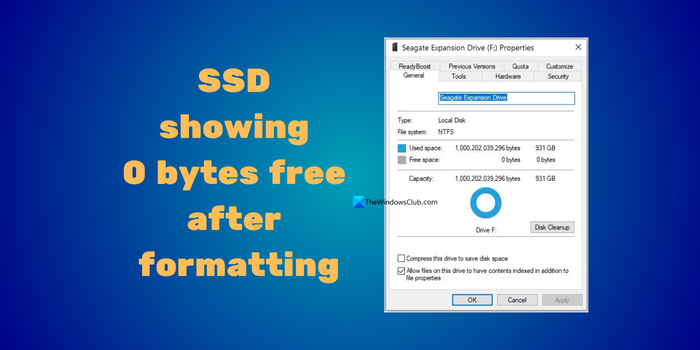
SSD showing 0 bytes free after formatting in Windows 11
If the storage space on your SSD shows 0 bytes free after formatting, follow the methods below to fix it and recover the drive space on your Windows computer.
- Clear the $RECYCLE.BIN folder
- Reconnect the drive and format it again
- Format it into another file system
- Wipe your SSD
- Use the tools provided by the manufacturer
- Check if it is a hardware failure
Let’s get into each method, understand it thoroughly, and fix the error.
1] Clear the $RECYCLE.BIN folder
The simplest way to regain your space on an SSD when it shows 0 bytes free is to clear the $RECYCLE.BIN folder on it. It is hidden by default. To clear it, open This PC, click the three-dot button on the toolbar, and select Options. It opens the Folder Options window. Click the View tab. Scroll down in the Advanced settings and check the button beside Show hidden files, folders, and drives. Then, uncheck the button beside Hide protected operating system files (Recommended) to disable it. On the Warning window that appears, click Yes.
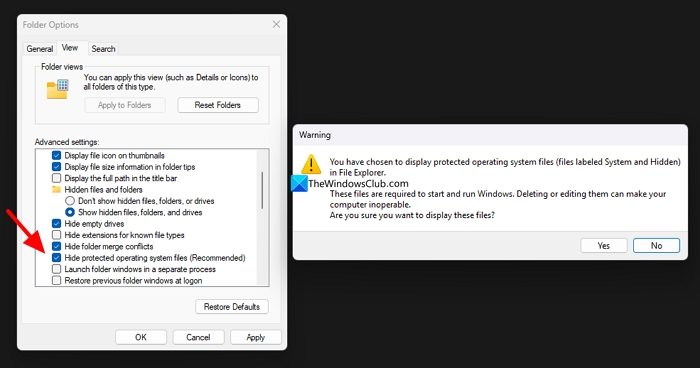
It will show the $RECYCLE.BIN folder on your SSD. Delete it manually. It will free up the space on your SSD. Then, change the folder options back to normal so as not to mess with system files in the future.
2] Reconnect the drive and format it again
If your external SSD shows 0 bytes free after formatting, disconnect the drive from your PC, reconnect it using another port, and format it again. Opt out of the quick format and format it normally, which takes a few minutes. Right-click on the drive in This PC and select Format. Then, set the File system to the default, Allocation unit size to the default or recommended size, uncheck the box beside Quick Format, and finally, click Start.
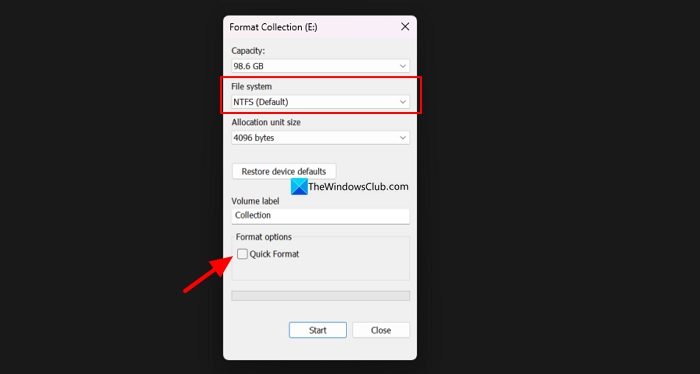
Wait a few minutes for the formatting to complete. Your drive should recover its space after this. If not, follow the method below, which is an extension of this.
Read: SSD keeps disappearing and reappearing on Windows 11
3] Format it into another file system
If you have formatted the drive with the recommended file system and it is still showing 0 bytes of free space, you need to format it to another file system it supports. Right-click on the drive and select Format. In the Format drive window, click the dropdown under File System and select another file system (not the default), then format the drive.
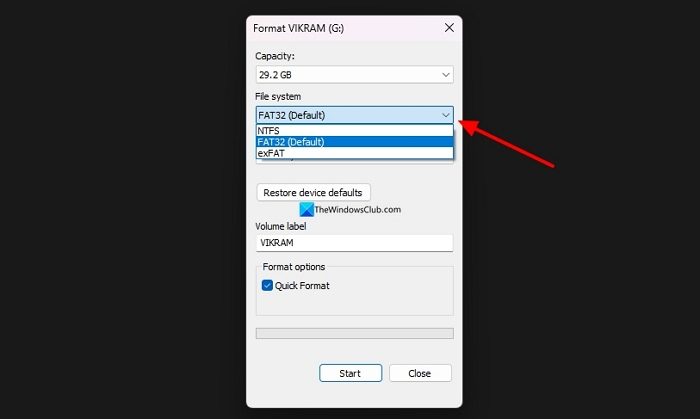
It should fix the error on your drive.
4] Wipe your SSD
When you see 0 bytes free on an SSD, it is better to wipe it, as there is no data on it after formatting. Wiping makes the data irrecoverable and frees up the space. You can either use the file shredder programs or the Command Prompt to do it.
Open Command Prompt as an administrator on your PC, copy and paste the following commands one after another.
diskpart

list disk
It will show you the drives on your PC along with their size. Your SSD will also be listed there. Remember the number given to it. Now, copy the command below and replace X with your SSD number in the list and press Enter.
select disk X
clean
convert gpt
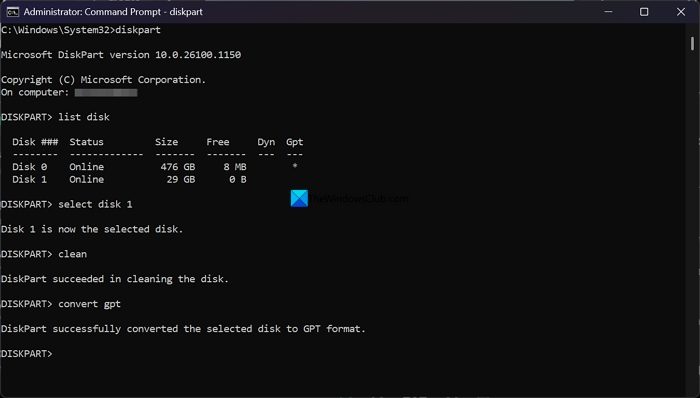
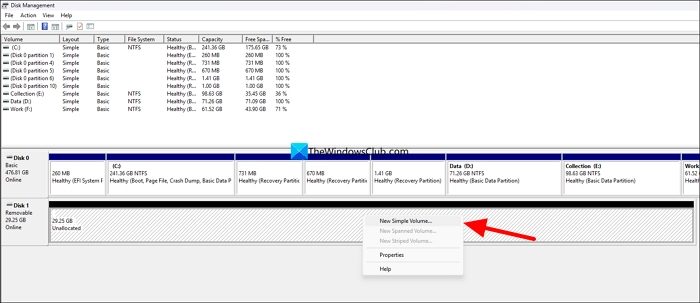
It will wipe your SSD clean. If your drive is missing from the My PC volumes list after wiping it, open Disk Management and allocate the unallocated space by giving it a drive letter. Open Disk Management from the Start menu. It is shown as Create and format hard disk partitions in the Start menu. Open it. You can find your newly wiped SSD as unallocated. Right-click on it and select New Simple Volume and follow the onscreen instructions to create a usable drive.
If you cannot use Command Prompt or if this looks confusing, you can use a file shredder and wipe your disk.
5] Use the tools provided by the manufacturer
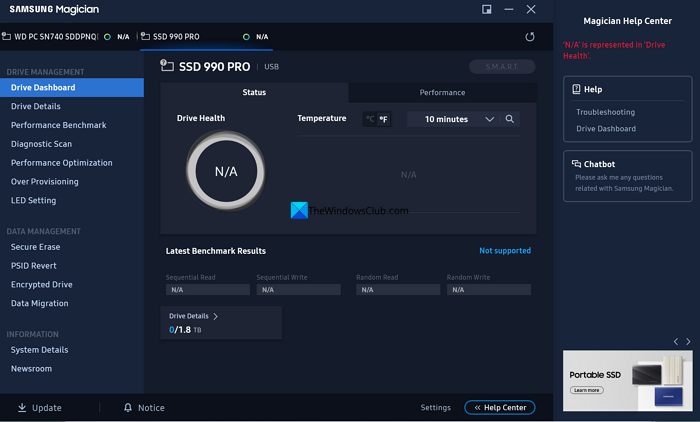
Every reputable SSD manufacturer offers a program to help manage SSDs on PCs. These tools help set passwords, back up or recover data, and diagnose the drives. Samsung has Samsung Magician, Crucial has Crucial Storage Executive, Western Digital has WD SSD Dashboard, etc. You can search for the software by your SSD manufacturer to identify issues and repair them, restoring drive space.
6] Check if it is a hardware failure
If neither of the methods above works, nor the manufacturer’s software detects or diagnoses the drive, it must be a hardware issue. To confirm it, you need to take the drive to the manufacturer’s service center for repair. If your drive has a warranty, you can even get a replacement in the worst case.
Read: SSD Optimization Tips for better performance on Windows PC
How to fix an unreadable SSD drive?
When your SSD is unreadable, try formatting it with default settings on your PC. If it does not help, use the manufacturer’s software for your SSD to check the drive’s health and fix the issues.
Will formatting fix a corrupted SSD?
When an SSD is corrupted, you can run CHKDSK commands on the drive and then format it to improve its performance. You need to use a professional data recovery program before trying any of the repairing methods not to lose any data stored on your SSD.
Related read: How to install an SSD on a Laptop.
