
Windows 11/10 is all loaded with animations. These animations give Windows 11/10 a smoother and a more modern interface. The duration of these animations also helps the user determine the overall computer’s speed. However, this also allows the user to do their work faster as they do not spend their precious milliseconds waiting for the program to load and the animation to take place. People often tend to make these animations faster to get the most out of them and complete their work even faster. Today, we’ll discuss how to change the duration of menu animations on your Windows 11/10 computer.
Speed up Windows Menu Animations
First of all, we would recommend you to create a System Restore point. Because we will be playing with registry files and modifying some critical Windows settings. Having done this, we will continue on our quest to speed up menu animations on Windows 11/10.
Hit the WINKEY + R button combination to launch the Run utility, type in regedit and hit Enter. Click on Yes for the UAC or User Account Control Prompt that you get.
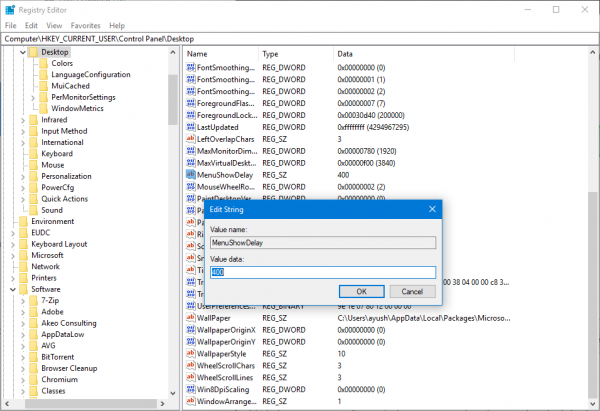
Once Registry Editor opens, navigate to the following key location-
HKEY_CURRENT_USER\Control Panel\Desktop
Look up for a DWORD called MenuShowDelay on the right side panel.
Double-click on it to modify its value data. The number in that field is the number of milliseconds the computer will take to run the animation once it is initiated. You can adjust the value lower to make the animations faster, or set a higher number to make them slower.
The default value is 400. To speed up the animation, you could enter a figure of, say, 200.
Click on OK to set the values. Reboot your computer for the changes to take effect.
Completely disable animations in Windows 11/10
To completely disable animations, type ‘Performance Options’ in Start search and hit Enter. Verify that you are under the Visual Effects tab.
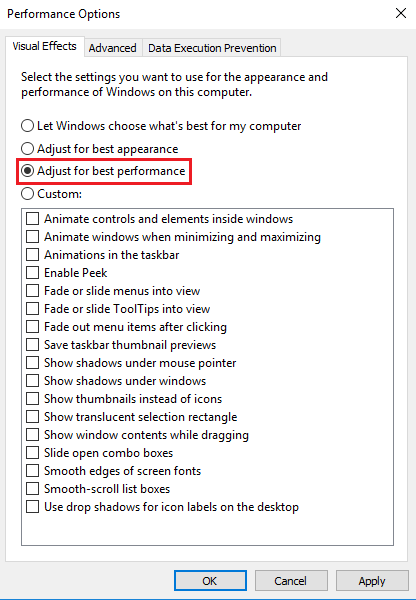
If you select Adjust for best performance, all animations & visual effects will be disabled.
To disable only animations, select Custom and make sure that you uncheck the following two entries:
- Animate controls and elements inside windows – This will disable the animations inside a particular window.
- Animate windows when minimizing and maximizing – This will disable the animation for minimizing and maximizing any window.
Now click on Apply and exit.
Reboot your computer for the changes to take effect.
How to increase the speed of animation?
To increase the speed of animation, reduce the complexity of graphics, optimize code, and use hardware acceleration. Adjusting frame rates and simplifying animations can also enhance performance. Leveraging techniques like sprite sheets can also help.
How to speed up moving files in Windows 11?
To speed up moving files in Windows 11, use the built-in “Robocopy” tool for efficient file transfer and ensure your system’s hardware, like SSDs, is in optimal condition. You can also close unnecessary background applications to significantly enhance transfer speeds and adjust power settings to “High performance”.
