
If special characters are not displaying correctly in Microsoft Outlook on your Windows 11/10 PC, this post will help you fix the issue.
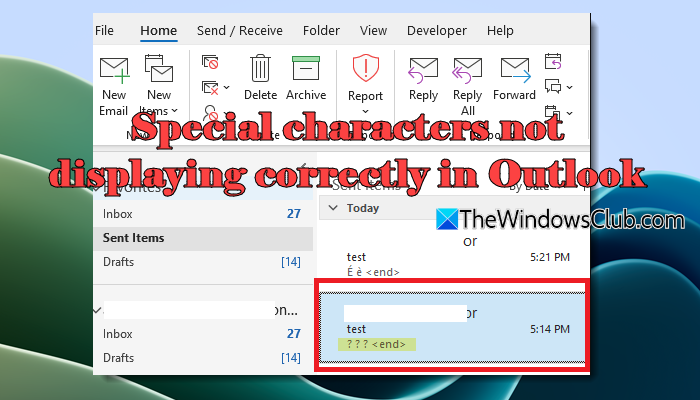
Special characters, such as accented letters, currency symbols, trademarks, etc., are commonly used in Outlook emails for professional communication and multilingual content. However, for some users, Outlook fails to interpret these characters and displays them as question marks (?), boxes, or incorrect symbols. If you’re experiencing the same issue, you’re at the right place. In this guide, we’ll explore the common causes behind this issue and show you how to fix it effectively.
What causes special characters to display incorrectly in Microsoft Outlook?
Special characters may display incorrectly in Microsoft Outlook when Outlook fails to interpret Unicode characters or when emails are sent in Plain Text format, which does not fully support special characters. In some cases, copying email content from Microsoft Word or web browsers may introduce incompatible formatting, causing special characters to display incorrectly.
Special characters not displaying correctly in Outlook
To fix special characters if they’re not displaying correctly in Microsoft Outlook on your Windows 11/10 PC, use these solutions:
- Update Outlook to the latest version
- Set encoding to UTF-8
- Disable automatic encoding selection in Outlook settings
- Modify Registry settings
Let us see these solutions in detail.
1] Update Outlook to the latest version

This specific issue can occur if you’re running a buggy build of Outlook. Microsoft has acknowledged a known issue in certain versions of Classic Outlook in which accented and extended characters may be replaced with question marks due to encoding issues. If you’re also using Classic Outlook, check the installed version and update Outlook as your first fix.
Open Outlook and go to File > Office Account. On the right pane, click Update Options and select Update Now. Outlook will check for available updates and automatically install them.
Once the update process is complete, restart Outlook and check if special characters are displaying correctly.
2] Set encoding to UTF-8
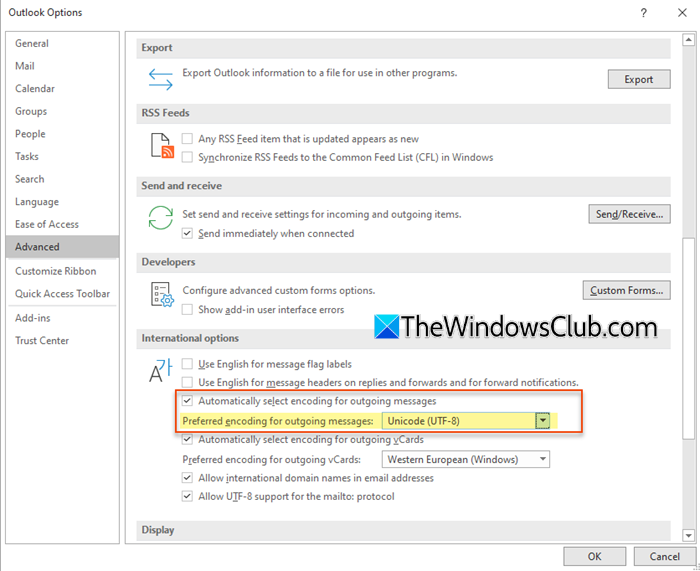
One of the most common reasons why special characters appear as question marks or incorrect symbols is that the character set in Microsoft Outlook is not configured to send outgoing messages in Unicode (UTF-8).
UTF-8 is the most universal and comprehensive character encoding standard that supports the majority of non-Latin alphabets, including Greek, Cyrillic, Hebrew, Arabic, and many other international characters. Using UTF-8 for outbound encoding ensures that Unicode characters are interpreted correctly across different languages and symbols.
Open Outlook and go to File > Options. In the Outlook Options window, select Advanced from the left pane. Under International options, change Preferred encoding for outgoing messages to Unicode (UTF-8).
Save the changes, restart Outlook, and then check if the issue is resolved.
3] Disable automatic encoding selection in Outlook settings
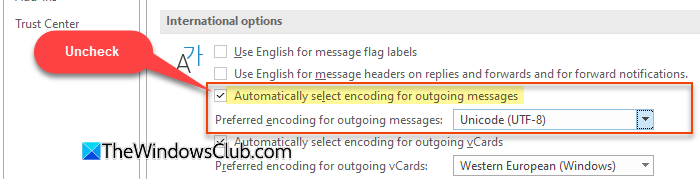
Sometimes, Outlook automatically selects an incompatible character encoding while sending emails, which may cause special characters to appear as question marks or incorrect symbols. Disabling automatic encoding selection can prevent Outlook from overriding the preferred Unicode (UTF-8) encoding.
Open Outlook and go to File > Options > Advanced. Under International options, uncheck Automatically select encoding for outgoing messages.
Save the changes and restart Outlook.
Note: If you are using an older version of Microsoft Outlook, you may change the character encoding for a specific email message from the Actions > Other Actions > Encoding menu within the Message tab of the opened email.
4] Modify Registry settings
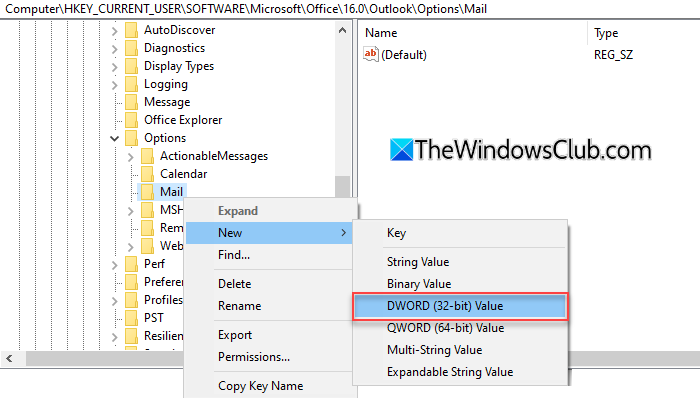
If the issue persists, you can manually disable Outlook’s automatic charset detection through the Windows Registry. This forces Outlook to stop auto-selecting incompatible encodings that may corrupt special characters.
Note: Incorrect modifications to the registry can cause serious system issues. Before proceeding, back up your Registry or create a System Restore point.
Press Win + R, type regedit, and press Enter to open the Registry Editor. Then navigate to the following path:
HKEY_CURRENT_USER\Software\Microsoft\Office\16.0\Outlook\Options\Mail
Right-click on the right pane and select New > DWORD (32-bit) Value. Name the value DisableCharsetDetection. Double-click it and set its Value data to 1.
Alternatively, you may run the following Windows PowerShell command:
Set-ItemProperty -Path "HKCU:\Software\Microsoft\Office\16.0\Outlook\Options\Mail" -Name "DisableCharsetDetection" -Value 1
You may need administrative privileges to run the above command.
Restart Outlook after making the changes and check if the issue is resolved.
German Umlauts not displaying correctly in Outlook emails
German umlauts such as ä, ö, ü, and ß may display incorrectly in Outlook emails if the message encoding is not configured properly. If this issue is occurring in the email body, use the fixes suggested above. Also, ensure that emails are being composed in HTML format, since Plain Text may not fully support international characters.
If the problem occurs specifically in email signatures, especially in Microsoft 365 environments, the issue may be related to cloud-synced Outlook signatures. In Microsoft 365, Outlook can store and sync settings and preferences to your cloud account, so they are automatically synced across all Outlook installations on every Windows device you use. Sometimes, these cloud-synced signatures may use incorrect character encoding, resulting in corrupted umlaut characters.
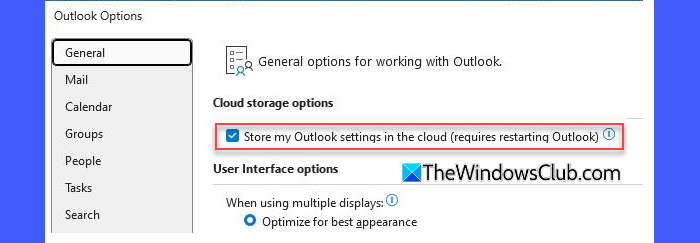
To fix the issue, open Outlook and go to File > Options > Advanced. Under Cloud storage options, uncheck “Store my Outlook settings in the cloud (requires restarting Outlook)” and click OK. Restart Outlook, and then send a test email to check if the umlauts display correctly in the signature.
I hope this helps.
Read: How to change the default Character Encoding in Notepad.
Why are weird symbols showing up in Outlook?
If you see question marks (?) in place of text or special characters, there may be a character encoding issue in Microsoft Outlook. In that case, use the fixes mentioned above. However, if you see symbols such as dots, arrows, or paragraph marks, these are probably formatting marks used for text layout. You can simply turn them off by clicking the button that looks like a paragraph mark on the formatting toolbar.
How to get Outlook display back to normal?
If the display in Microsoft Outlook looks unusual, you can restore the default layout by going to View > Change View > Compact. However, if you see strange symbols, formatting marks, or broken text, check Outlook’s formatting or encoding settings, as suggested in this post. These issues are usually caused by formatting marks or character encoding problems.
Read Next: Outlook Cannot send this item error.
