
Quite often, when a sender emails us in Outlook, we do not see the message but instead see unreadable characters. If you regularly see strange or incorrect characters in your Outlook email, this short tutorial will help you resolve the issue. When you type something on a keyboard, a computer recognizes it via a complex process called encoding. It then displays the relevant characters on screen. So, this character encoding serves as a key that maps values to characters.
The visual representation of these characters is referred to as Glyph. Different sets of it constitute a ‘Font’. So, when you type a line or write a paragraph and change its font, you’re not changing the phonetic values of the letters but just the appearance of it. Any mismatch in the process could render the text unreadable.
What is the need for Character Encoding?
There are many different languages spoken across the globe. All these languages use different characters. As explained above, the characters we type are not recognized by our computer. Instead, our computer recognizes each character as a series of alphanumeric values. Character Encoding tells the computer which value(s) correspond to which character.
For example, in the Cyrillic (Windows) encoding standard, the character Й has the numeric value 201. If you open the file containing the Й letter on an application that uses the Cyrillic (Windows) encoding, your computer displays the same character Й on the screen. Whereas, if you open the same file in an application that uses another encoding format as the default format, like the Western European (Windows) encoding standard, the computer will read the numeric value 201 but display the character equivalent to the numeric value 201 in Western European (Windows) encoding standard. Hence, in this case, you will see the É character on your screen. This is because, in the Western European (Windows) encoding standard, the numeric value 201 corresponds to the É character. In addition to this, you may also see an unreadable character on your screen. This problem can be resolved by changing the application’s encoding standard.
Read: How to change Encoding in Excel or Word
Today, Unicode (UTF-8) is the most widely used encoding format. Almost all the applications use this encoding format by default. This is because it supports almost all widely-used scripts, including Latin, Greek, Cyrillic, Armenian, Hebrew, Arabic, Syriac, Thaana, Devanagari, Bengali, Gurmukhi, Oriya, Tamil, etc. Therefore, the likelihood of character mismapping is lower with the Unicode (UTF-8) encoding standard. However, in a few cases, you may see unreadable text in the Ubicode (UTF-8) encoding standard. In such a situation, you can change the Character Encoding in Outlook.
Change Character Encoding in Outlook
Changing the message encoding can help you view the characters correctly. Fortunately, the process is quite easy in Outlook. To do so,
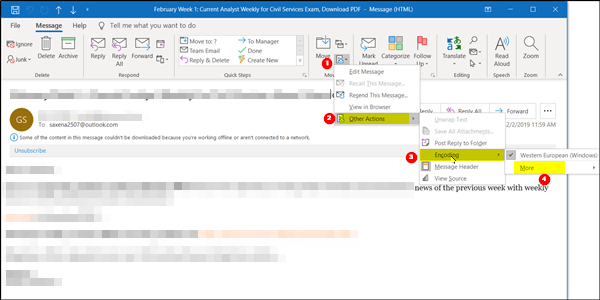
Open the desired message and double-click it.
Navigate to the ‘Message’ tab of the opened message and choose Actions > Other Actions. You will see the Actions option under the Move group.
After that, select ‘Encoding’ to see what encoding is currently in use.
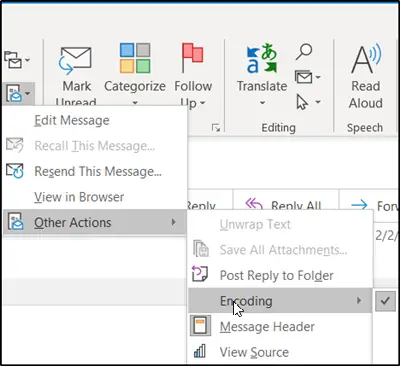
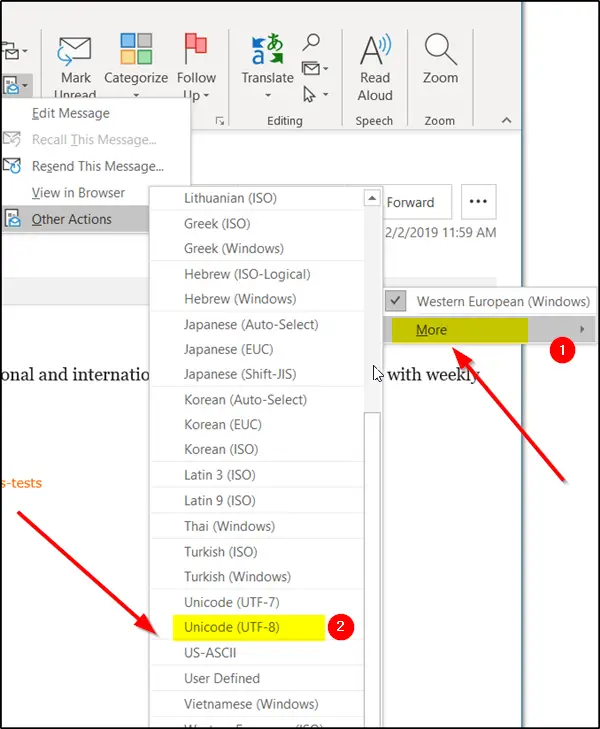
The recommended email encoding is UTF-8. If you find that the message from the sender is using another format such as ‘Western European’ to encode its mail, change it.
Click ‘More’ and then select the encoding you want, such as UTF-8. From now on, you should be able to read the email.
Although it is not mandatory and you can change the default outgoing encoding to any type, Western European is considered as a subset of UTF-8. As such it can be read using UTF-8.
If you want others to be able to read your messages without issues, it’s best to keep it in Western European or switch to a widely used encoding like UTF-8.
If you want to view the encoding format selected for the emails you send, follow the steps provided below:

- Open Outlook.
- Go to File > Options.
- Select the Advanced category from th left side.
- Scroll down to the International options section.
- You will see the default encoding format for all outgoing emails. If you want, you can change the encoding format for outgoing emails.
You can also set a preferred encoding for replying to and forwarding messages here.
Hope you find this tip useful.
Now read: How to change the default Character Encoding in Notepad.
