
According to some users, the Device Manager shows an exclamation mark in front of the SMBus Controller, this means that the SMBus controller is not recognized. In this article, we are going to see what you need to do to resolve the issue.
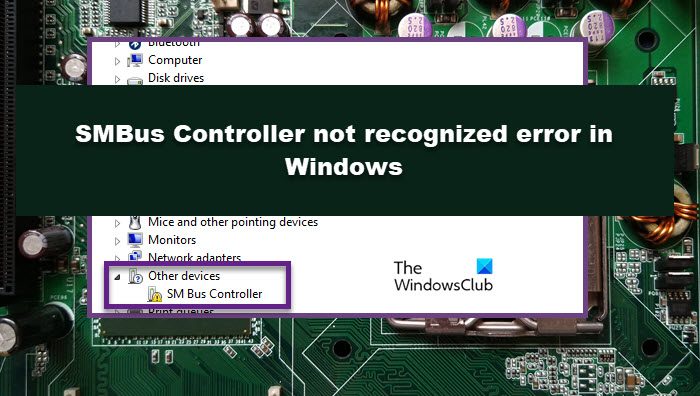
What is an SMBus controller?
SMBus or SMBus Controller is an abbreviation of System Management Bus Controller. It combines circuits and chipsets allowing the computer to create a communication channel between the system and the power components attached to it. The SMBus checks the voltage and temperature and notifies the computer with error messages if an issue arises.
Usually, SMBus works in the background without hindering the user experience. However, in this case, there is some problem with the SMBus driver. The device driver is a software component that allows the hardware to work with your Operating System.
Fix SMBus controller not recognized error in Windows 11
If the SMBus controller is not recognized, try the following solutions to resolve the issue.
- Run Intel Chipset Software Installation Utility
- Uninstall SMBus Controller
- Roll Back Driver
- Troubleshoot in Clean Boot
Let us talk about them in detail.
1] Run Intel Chipset Software Installation Utility
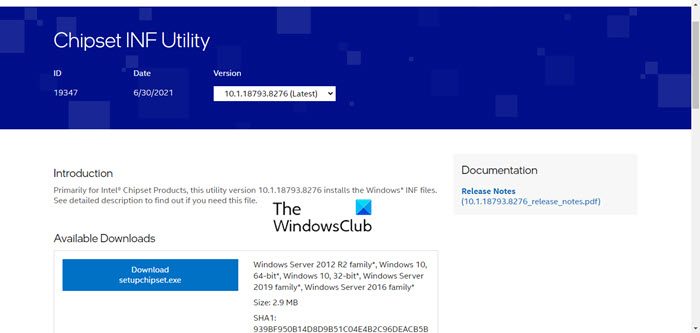
We should try to run Intel Chipset Software Installation Utility as it will automatically detect and install the SMBus driver. To do that, go to intel.com and click on Setupchipset.exe. You need to agree with the terms and conditions and download the app. Now, run the setup file and let it identify SMBus Controller. Hopefully, this will do the trick for you.
2] Uninstall SMBus Controller
If installing the utility doesn’t work, uninstall the driver, then reinstall it after restarting the device. To uninstall the driver, follow the prescribed steps.
- Open Device Manager.
- Go to Other devices.
- Right-click on SM Bus Controller and select Uninstall device.
- Click on Uninstall to confirm.
- Restart your computer.
This cycle will ensure that the driver is removed from your computer and Intel will identify and install it for you. You can also check the first solution to download the driver if needed. Hopefully, this will do the trick for you.
3] Roll Back Driver
If you have recently updated the SMBus Controller driver, the error may be due to a bug. To fix it, we need to roll back the driver to the state when the issue was not present. Follow the given steps to do the same.
- Open Device Manager.
- Go to Other devices.
- Right-click on SM Bus Controller and select Properties.
- Go to Drivers and select Roll Back Driver.
If the option is greyed out, you cannot roll back the driver because it hasn’t been updated. In that case, move to the next solution.
4] Troubleshoot in Clean Boot
Maybe a third-party app is causing trouble for you. Since we are not sure which one of the apps on your system is the culprit, what we would recommend you is to perform Clean Boot and manually disable processes one by one to find out until you stumble upon the trouble-causing program. Then, you can remove it and resolve your issue.
How do I fix my SMBus controller Windows 11?
As mentioned earlier, the problem is not related to your SMBus Controller, instead, it’s the driver that’s causing the issue. In this case, your OS is unable to communicate with the hardware. To fix it, we have to replace the driver as that should do the job.
Also Read: This device is not present, is not working properly, Code 24.
