
JavaScript is a programming language that developers use to make interactive webpages. JavaScript has made webpages and web applications dynamic. It is responsible for refreshing social media feeds, displaying animations, etc. JavaScript optimization is enabled by default in Google Chrome. However, you can disable it. In this article, we will talk about whether you should disable JavaScript optimization in Chrome.

Should I disable JavaScript Optimization in Chrome?
Many websites rely heavily on JavaScript to be interactive. Many website functions, such as menus, buttons, video players, forms, animations, notifications, and more, rely on JavaScript. Google Chrome optimizes JavaScript automatically to ensure everything runs smoothly. Therefore, if you disable JavaScript Optimization in Chrome, most websites will not function properly.
What happens if you disable JavaScript Optimization in Chrome?
JavaScript Optimization in Chrome makes modern web pages smooth and responsive. Therefore, turning it off forces Chrome to handle unoptimized code. Disabling JavaScript Optimization in Chrome can seriously impact how websites load and perform.
The following will be the result of disabling JavaScript Optimization in Chrome:
Website load time will increase
Disabling JavaScript Optimization will make websites load more slowly than before. Websites that heavily rely on JavaScript may not load or take a long time to load. Platforms like YouTube and Google Docs will become almost inaccessible. I also tested it on my laptop. YouTube and Google Docs did not load after I disabled JavaScript Optimization in Chrome.
Laggy animations
You may also encounter laggy animations on some websites. Without JavaScript, interactive elements on a website may freeze temporarily, causing Chrome to struggle to render dynamic elements smoothly.
Web applications or pages may crash
This action will also make some webpages and web applications crash. Platforms like Google Docs and YouTube rely heavily on JavaScript. Therefore, disabling it will make these platforms unstable in Chrome, and you will encounter issues visiting these websites.
Increased security
Apart from the demerits mentioned above, there is an advantage to this action. Google Chrome will become more secure and better at resisting attacks. Therefore, if privacy and security are your concern, you can disable the JavaScript Optimization in Chrome.
How to disable JavaScript Optimization in Chrome
The steps to disable JavaScript Optimization in Google Chrome are as follows:
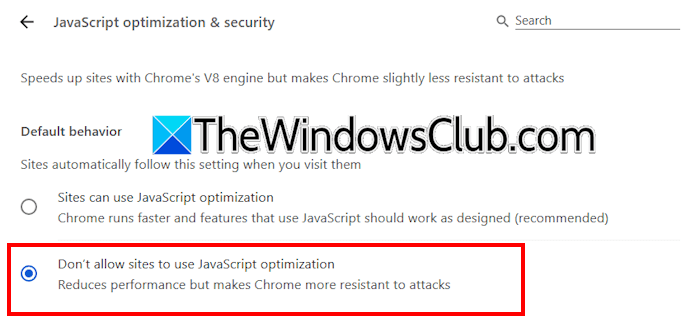
- Open Chrome and click on the three dots on the top right side.
- Select Settings.
- Select Privacy and Security > Security.
- Scroll down and click Manage JavaScript optimization & security.
- Select Don’t allow sites to use JavaScript optimization.
Do note that disabling this feature in Chrome will reduce performance and break some websites. Moreover, the websites or platforms that heavily rely on JavaScript optimization, such as YouTube, will stop loading. Disabling this setting makes Chrome more resistant to attacks.
The best alternatives to disabling JavaScript Optimization
If you want to disable this feature only to enhance security in Chrome, you can try the following alternatives.
Enable Safe Browsing
To enhance security in Chrome, you can enable Enhanced Protection for a safe experience. The Enhanced Protection is a real-time AI-powered protection against dangerous sites, downloads, and extensions.
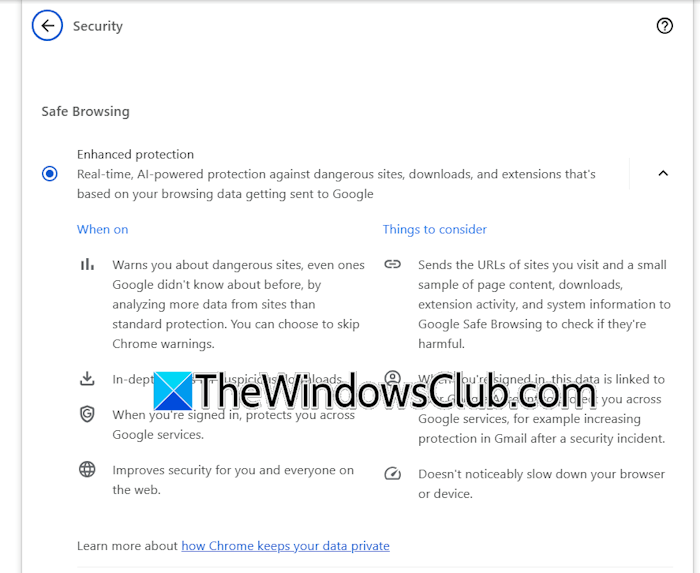
Follow these steps:
- Open Google Chrome settings.
- Go to Privacy and Security > Security.
- Select Enhanced Protection under the Safe Browsing tab.
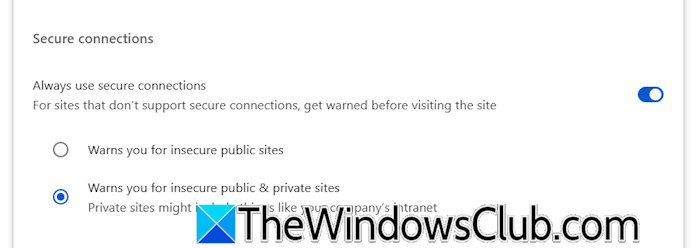
Additionally, you can also enable the “Always use secure connections” option to get a warning message when visiting insecure private and public websites. Scroll down the Security page in Chrome Settings and turn on the “Always use secure connections” option. Now, select the “Warns you for insecure public and private sites” option.
Install extensions
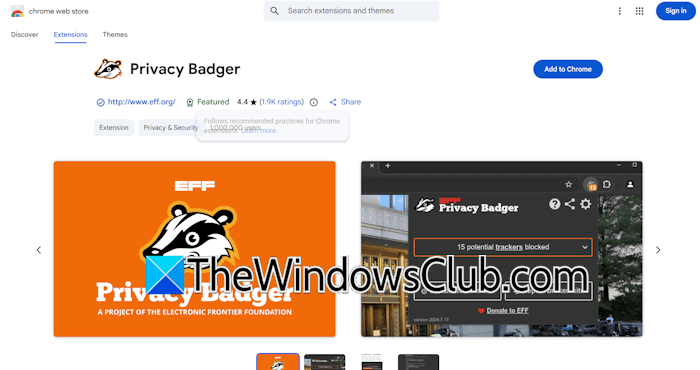
You can also install extensions to block trackers while visiting websites, such as Bitdefender Anti-tracker and Privacy Badger. These anti-tracking extensions protect your online privacy by blocking trackers that collect different types of data every time you navigate online. Privacy Badger is free, but Bitdefender Anti-tracker can be installed only if Bitdefender Antivirus is installed on your system.
Install a good antivirus

For a safer browsing experience, it is suggested to install a good antivirus program on your system. Many free antivirus programs also offer good protection.
Should you disable it?
Should you actually disable JavaScript Optimization in Chrome? Disabling this feature will impact the websites and platforms that heavily rely on it. Therefore, you will encounter issues while visiting such websites. Also, disabling this feature will only make Chrome more resistant to attacks but reduce its performance, which directly affects your productivity.
Therefore, in our opinion, you should not disable this feature; however, the decision ultimately depends on your preference.
That’s it. I hope this helps.
What happens if I disable JavaScript?
If you disable this feature in your browser, you will start experiencing issues with the websites or platforms that rely on it. However, browsers like Chrome will become more resistant to threats, but your productivity will decrease.
Why do people turn off JavaScript?
Users concerned about their security while surfing the internet can disable JavaScript. However, disabling this feature can cause some websites to break. Therefore, instead of disabling this feature, users can opt for alternatives, such as installing privacy extensions and a good antivirus.
Read next: How to use the new AI features in Chrome.
