
Sandbox is an environment created to run untrusted and unauthorized applications so that they cannot harm the underlying OS. Sandboxing is a common security practice that is used to test third-party unauthorized or suspicious codes. It is very much like Virtualization, as an application running in a sandbox environment cannot access the original device, nor access your personal files or folders.

Running programs in a sandbox is not a difficult thing these days. With a lot of Sandboxing software available out there for Windows 11/10 OS, you can easily run any program in a sandbox. It is also considered good security and a protective measure against malicious applications. Applications running in the sandbox have no special privileges, and they run in a very low profile.
What is Sandboxing
Sandboxing is a technique for running applications in a virtually isolated environment. The running applications are provided with virtual memory and disk space. Communication between the running application and the underlying operating system is barred. Sandboxed applications are usually not allowed to access the hardware components or the contents of hard disks without permission. They run with a very low profile and privileges.
Most of the applications these days are already running in a sandbox, whether or not you’ve noticed that. Most PDF viewers, web browsers, and document viewers are already running in sandbox mode. Even Microsoft Office comes with a built-in sandbox mode that prevents access to running certain expressions that could be harmful to your data and computer. Microsoft Edge and Google Chrome run itself in a sandbox so that any malicious website cannot affect your system or access your files. For a malicious website to affect your system, it will have to come over the sandbox of the web browser, which is indeed a difficult task. You can run any other application in the sandbox mode to completely cut off its interaction with the operating system.
Sandboxed applications usually do not appear any different, and it is difficult to differentiate them from normal applications, although some programs may show some border to mark the sandboxed applications.
Another way of testing software in a sandbox is to use a Virtual Machine. You can create a virtual machine using Microsoft Virtual PC, VirtualBox, or any other virtualization tool. Any changes made to this virtual machine will not affect your operating system.
Read: What is a Browser Sandbox?
Free Sandboxing Software for Windows 11/10
Let us take a look at some free sandboxing software that are available for Windows 11/10.
1] Sandboxie
Sandboxie is the most popular sandboxing software, and it now supports Windows 10. The free version does not offer all the features. Also after 30 days, the free version stays functional but starts nagging you about the Pro version. Sandboxie puts all your applications into a virtual environment so that you play safely while using any applications.
2] Time Freeze
ToolWiz Time Freeze is another great tool that can potentially be used in sandbox applications. What it does is create an effective restore point of your computer. So now when you enable the ‘Time Freeze’ mode, the whole system runs in a sandbox, and all the changes are reverted after you’ve disabled the tool. While in the time freeze mode, any application except those in the exclusion list cannot change the registry or the files on your computer. Using this tool, you can freeze your actual operating system and work in a virtual environment that is exactly the same as your original operating system.
3] BitBox
The internet is to be blamed for most of the viruses or malicious programs creeping into your computer. Browser in the Box is a free tool that can be a secure alternative to conventional web browsers. BitBox is a web browser installed on a virtual machine. With this tool, you can browse any website without even a minute risk of viruses or Trojans. BitBox comes with its copy of VirtualBox that is running a reduced operating system. And that operating system has your choice of web browser installed. You can choose from BitBox Firefox or BitBox Chrome. BitBox is the secure web browser you can ever have because whatever website you browse, it will not affect your original operating system. And in case anything bad happens on the virtual machine, it will automatically get reset at the next browser startup. Click here from cybersecurity.rohde-schwarz.com to download BitBox.
4] BufferZone
BufferZone is sandboxing software that lets you run all your applications in an isolated environment. The developer’s website is no longer available, but the software is still available to download from major software hosting websites like Softpedia, etc. The same is the case with Returnil.
5] Shade Sandbox
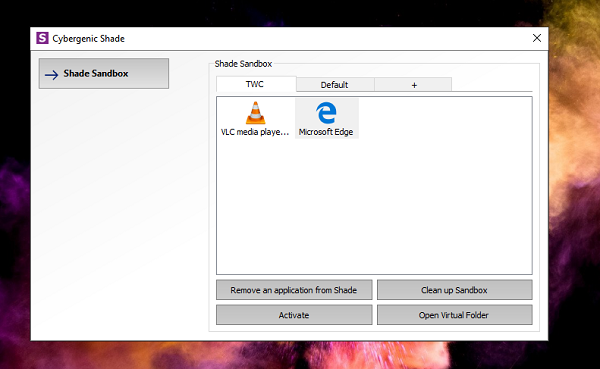
You can locally virtualize applications using Shade Sandbox for Windows. Once you install it, you can add apps to it, and when you launch it, it will make sure it runs in a safe environment. It is particularly useful if you are trying software that you don’t trust but need to use to make sure. So it keeps off from any malware, ransomware, Worms, Trojans, and any other exploits. You need to restart the computer after you install the software.
How to add applications to Shade Sandbox
- Launch the software, and then click on the Shade Sandbox Button.
- It will open the side panel where you can drag and drop applications. It can be a shortcut or an EXE file.
- Next time you launch that application, it will be running it in the sandbox.
Features of Shade Sandbox
1] The browser applications, when run in a Sandbox, make sure all programs you download are moved to a safe environment and restricted. So if it’s malicious, it will be restricted as it will have no access to Windows Files.
2] You can also right-click on any application and then choose open in any of the named virtual environments, put it in a sandbox, and also open the virtual folder.

3] Virtual folder is a way to keep the fils in a safe environment. Any application which is virtualized will be available at C:\Shade.
So when I virtualized VLC, the folder was:
C:\Shade\{50C7846E-8295-476E-BB62-05223A7A36BA}\C\Users\ashis\AppData\Roaming\vlc.
Similarly, for Edge, it was:
C:\Shade\{A0F20EBD-770D-432E-92D2-F3A7A5E90606}\C\Program Files (x86)\Microsoft\Edge Beta\Application\77.0.235.27.
All your downloads will be available in the same folder. You also have the option to clean up the isolated folder as follows:
- Open Shade’s Control Panel
- Click with the left mouse button on the “Shade Sandbox” button
- Click the “Clean up Virtual Folder” button.
It will delete the selected files from the sandbox but will not affect any data that remains outside the sandbox.
The best part of using Shade Sandbox is that you can drag and drop applications, and the next time you run the app, it will be sandboxed. There is no extra configuration or permission required. Overall an excellent and straightforward solution.
Requesting a free Key for Personal Use
While the software is paid, if you plan to use it for business, you can request a free key using their contact page for personal usage. When I connected with them, they offered a free key for a year. So if you like the software, you can download it and then request a free key from them by writing to [email protected].
What happens after a year when the key expires? According to their Support, the user can request another personal key. The only difference between the Home and Enterprise editions is that you need to update the software independently, while the paid users receive updates (patches, new versions) automatically.
Shade Sandbox is another sandbox tool that is completely free to use. The tool features a drag-and-drop functionality that makes it easier to use. You can simply add as many applications as you want to Shade, and next time, you can open these applications with confidence. Shade creates a virtual environment that can trap malware and prevent it from reaching the actual OS. The best part about this tool is its accessibility. It is easiest to use and moreover free of cost.
These were some of the sandboxing software available out there. You can also find sandboxes included in most security software these days. Sandboxing applications are a great technique to stay protected from modern malware. Sandboxes let you browse and compute with greater confidence. You can run web browsers, actually download viruses, run games, or just any other suspicious program in a sandbox.
One thing to note is that you need a computer with good hardware specifications and capabilities to handle sandboxed or virtual applications; otherwise, you may at times face performance issues.
Now read: How to enable Windows Sandbox on Windows 11.
