
Setting up employee profiles and onboarding workflows for HR in Zoho People involves configuring organisation details, creating employee profiles with system access, and setting up automated workflows for a smooth onboarding experience. In this post, we aim to simplify things for you and provide a comprehensive guide to set up an environment for HRs.
Can Zoho People handle Employee Onboarding?
Yes, Zoho People is designed to handle and automate the entire employee onboarding process. It provides a built-in onboarding system that helps create a structured and efficient experience for new hires, from the moment they accept the offer through their initial integration into the company. The platform uses customizable workflows to streamline tasks like sending welcome messages, collecting digital forms, and assigning training
Set up Employee Profiles & Onboarding Workflows for HR in Zoho People
To set up employee profiles & onboarding workflows for HR in Zoho People, follow the steps mentioned below.
- Add an employee
- Configure employees’ onboarding flow
Let us talk about them in detail
1] Add an employee
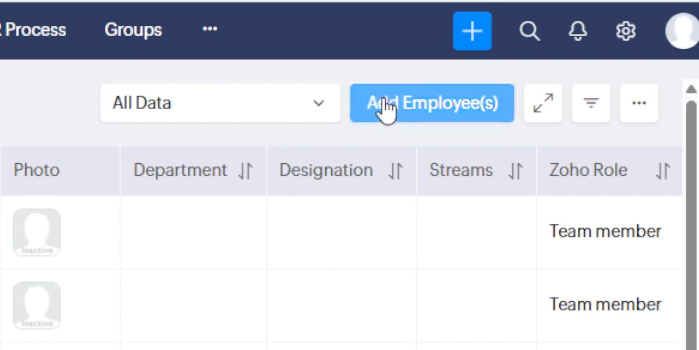
If you have a new employee and want to add them to the environment, follow the steps below.
- Log in to Zoho People.
- Once you are on the dashboard, click on on Plus (+) icon, also called Quick Actions.
- Now, you need to click on Employee from the drop-down list.
- Since we have a new employee, we need to click on the Add Employee(s) button.
- Now, you will see multiple invitation options to add your employee.
- Based on your policy, select an option, enter all the required details and add the employee.
This is a quick and easy way to add an employee to your organisation.
2] Configure employees’ onboarding flow
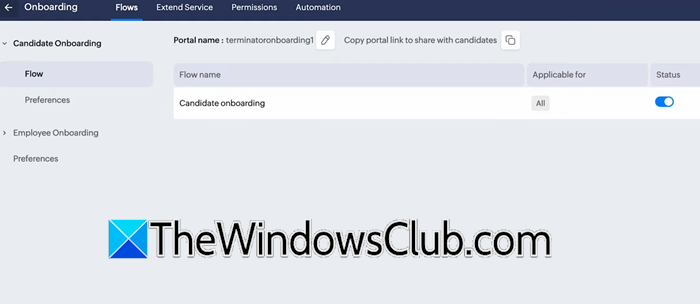
Instead of just adding a new employee, if you want to onboard them onto your system, you will have to follow a different route that involves properly configuring the onboarding flow.
The Employee Onboarding Flow helps new hires get started on their first day of joining. It includes forms for submitting personal details, such as ID and address proof, and covers company policies and documents that need to be read and signed. It also introduces them to their team, outlines role-specific goals, and provides necessary training for a smooth transition. To configure it, follow the steps outlined below.
- In the dashboard, click on the Cog icon to open Settings.
- Click on Onboarding.
- You will see a flow named “Candidate Onboarding”, which is a default flow name created when onboarding an employee for the very first time.
- Click on the Flow name.
Now, we need to make the following configurations.
First of all, we need to populate the Welcome Aboard tab’s following fields.
- Home page video URL: Add a URL for an introductory or company culture video. This will be embedded on the welcome page.
- Description: Customise the text that appears in the Welcome Aboard section.
- A Welcome feed will be posted for the new employee or their entire department, based on your selection in the Post To dropdown. This feed is visible in Zoho People Home page > My Space > Overview > Feeds.
- Select the HR partner: Designate an HR contact for employee queries.
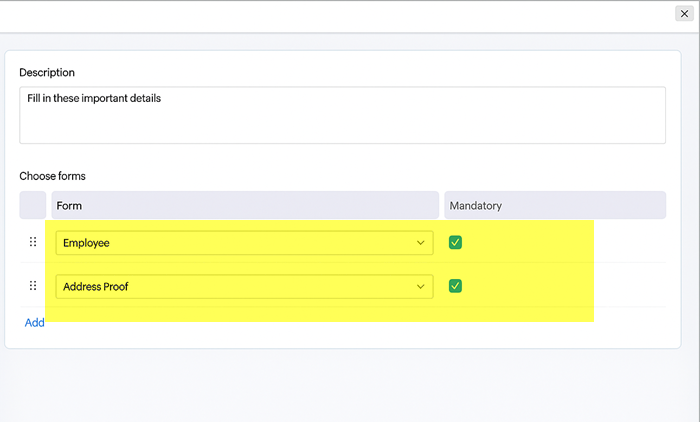
Now, let’s go to the Profile and Other Forms and configure the following information.
- Description: Customise the text for this section.
- Choose Forms: Select the forms employees must complete during onboarding. You can drag to reorder them and mark forms as mandatory.
Go to the Documents and Policies tab, enable this tab to share documents that need to be read, accepted, or signed.
- Description: Customise the introductory text.
- Documents to be read and accepted: Add documents using predefined Mail Merge Templates. For each document, you can:
- Set the sign type to Accept/Decline or Zoho Sign (if an e-sign application is integrated).
- Use the ellipsis icon (…) to view or edit added documents.
- Click Add to include more documents.
- Documents to be read: Add documents from your Organisational Files in the Zoho People Files service that are applicable to all employees.
Go to the Team tab and enable this section to introduce new hires to their team members and department head.
- Description: Customise the introductory text for this section.
- Team Introduction: New hires can use the Say Hi! button on employee profiles to start a conversation.
In the Company Information tab to provide details about your organisation.
- Description: Customise the text for this section.
- Embed Company Website URL: Provide your company website URL so new hires can learn about your values and culture.
Go to the Objectives tab to assign Key Result Areas (KRAs).
- Description: Customise the text for this section.
- Assign KRAs: Assign KRAs based on the employee’s Designation, Department, and Location. You can tag existing KRAs or create new ones in the Performance service.
Navigate to the Training tab to assign learning courses.
- Description: Customise the text for this section.
- Self-Paced Courses: Tag Self-Paced learning courses from the LMS service that new hires must complete. You can mark courses as mandatory.
Go to the Checklist tab to add administrative tasks. (Note: Checklists are for administrator use only).
- Add Checklist: Add a checklist to the flow before converting a candidate to an employee to track completion and trigger actions like email alerts.
- Validate Checklist: After onboarding, administrators can validate the checklist via Operations > Onboarding > Employee Onboarding Reports > Onboarded.
That’s how you can configure onboarding.
Read: Best Free CRM Software for Windows 11
Can Zoho People automate HR processes?
Yes, Zoho People can automate many HR processes. It utilizes workflow rules to automate tasks such as sending notifications, updating records, and routing approvals for leave, expenses, and onboarding, thereby reducing manual work.
Also Read: How to set up Territories, Roles and Data Sharing rules in Zoho CRM.
