
Windows drivers make their corresponding devices function. This is similar to the Bluetooth feature. If your computer has a malfunctioning Bluetooth driver, but you want to use another Bluetooth adapter, you have to install the replacement driver.
However, you can’t simply download and install the adapter if it’s integrated into your motherboard or wireless card. You can’t do this because Windows will continue to recognize the driver, and it can use only one driver per device.
Without setting up a replacement Bluetooth driver, Bluetooth won’t work on your machine. Follow the steps and solutions in this guide to install a replacement Bluetooth adapter on your device.
Install a Bluetooth adapter replacement in Windows 11/10
Now that you understand the need to set up a replacement Bluetooth adapter, we’ll guide you through the correct steps to do so. To install a replacement Bluetooth adapter on your PC, follow the procedure below:
- Disable the old Bluetooth adapter.
- Install a new Bluetooth adapter.
- Check the new Bluetooth adapter.
- Install the Bluetooth driver manually.
Upon completing the above steps, you will have successfully set up the replacement driver and be able to use it without any issues. If you are unsure about how to perform the processes above, follow the guides in this section.
1] Disable the old Bluetooth adapter
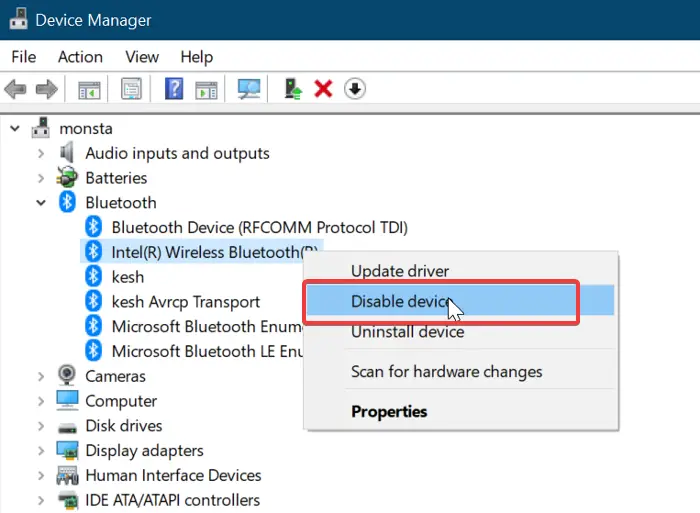
Before installing a replacement driver, you must disable or uninstall the one you have presently. Uninstalling the driver is extreme; so, we’ll disable the driver in this guide.
Right-click on the Start button and select Run to open the Run dialog box. There, enter devmgmt.msc and click on the OK button.
Expand the Bluetooth branch to reveal the drivers under it. Right-click on your Bluetooth adapter and select the Disable option from the context menu.
When prompted if you want to disable the adapter, hit the Yes button to confirm.
2] Install the new Bluetooth adapter
We assume that you already have a Bluetooth adapter at this point.
Following this guide, you can purchase a compatible Bluetooth adapter. The next step is to install it on your computer.
Bluetooth adapters are usually plug-and-play, so you only have to plug it in. Windows will detect the newly connected Bluetooth adapter and install it on your machine automatically.
Restart your computer when the installation is complete.
3] Check the new Bluetooth adapter
It’s now time to confirm that the new adapter works correctly. You can do so from Windows Settings. The quickest way to get here is by using the Windows key + I combination.
In Settings, go to Devices > Bluetooth & other devices. If you see a switch to toggle Bluetooth on or off, it means that the replacement Bluetooth adapter is working.
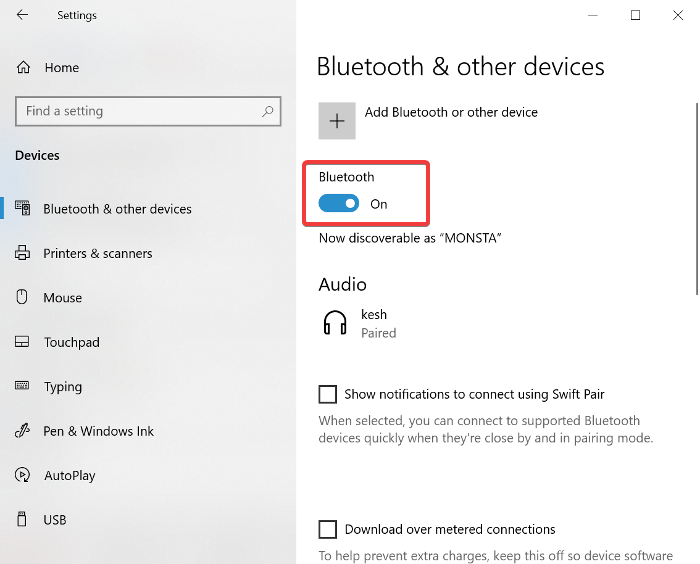
Otherwise, you’d see a button that says Add Bluetooth or other device. If you see this, proceed to the next solution, where we will manually install the driver.
4] Install the Bluetooth driver manually
As stated earlier, the Bluetooth driver software should install automatically. Use the manual installation option only if Windows fails to install it automatically. The driver manufacturer’s website will always have the latest drivers downloadable along with installation instructions.
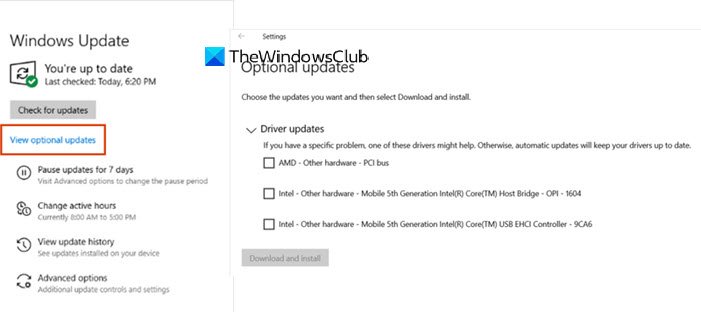
The manual installation is also done from the Settings app. Open Windows Settings and go to Updates & Security.
Here, go to Windows Update and hit the Check for updates button if you see it. Select View optional updates.
Switch to the Driver updates tab and choose your Bluetooth driver. Hit the Download and install button below the driver to start downloading the driver.
After downloading the driver, restart your computer to install it automatically when it starts up.
Hope this helps.
How do I fix Bluetooth missing in Windows 11?
If Bluetooth is missing in the Device Manager on your Windows 11/10 system, then the very first thing you should do is run the Bluetooth troubleshooter tool. This will provide some fixes (if available) to solve the problem. Apart from that, you may need to restart the Bluetooth Support Service, manually download the Bluetooth driver from the official website and install it, uninstall the recent Windows Update, perform an in-place upgrade, etc.
What to do if Bluetooth is not showing in Windows 11?
If the Bluetooth icon is not showing on the taskbar on Windows 11/10, then make sure the Bluetooth is turned on. If not, turn it on using the Settings app. Access the Bluetooth & devices category and then turn on the Bluetooth. If you are using Windows 11 and Bluetooth icon is not showing in Quick Settings, then use Edit quick settings icon, press the Add button, select Bluetooth, and click on the Done option.
