
In this post, we will show you how to set a Custom User Folder name during Windows 11 installation. A user folder (or Profile folder) stores Desktop, Pictures, Documents, and other folders. When we install and set up Windows 11 with our Microsoft account, Windows generates a user folder name from that Microsoft account email (like the first 5 characters of the email address). Starting with the security update (KB5094126), this default behavior has changed, and we can set a custom user folder name directly during the initial setup [Out-Of-Box Experience (OOBE)] in Windows 11.
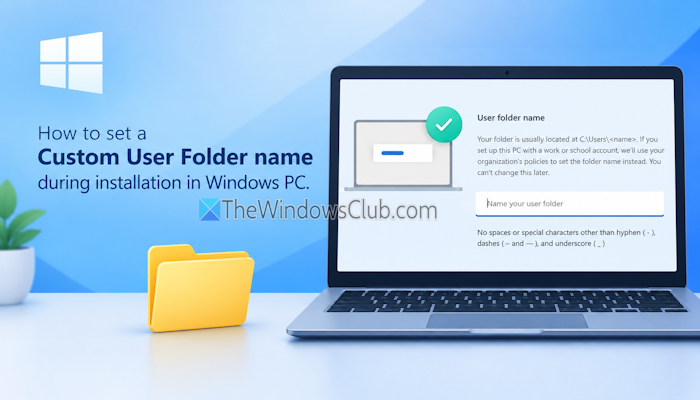
This feature is available only during the initial setup wizard. If you press Skip there, the initial 5 characters of your Microsoft account email address will be used as the folder name.
Can I rename my Windows user folder?
Yes, you can rename a Windows user folder in different ways. First, you can create a local user account and change the account type to Administrator. You can also use this Registry hack to change the user folder name. Now, Windows 11 also supports setting a custom user folder name during installation.
How to set a Custom User Folder name during installation in Windows 11
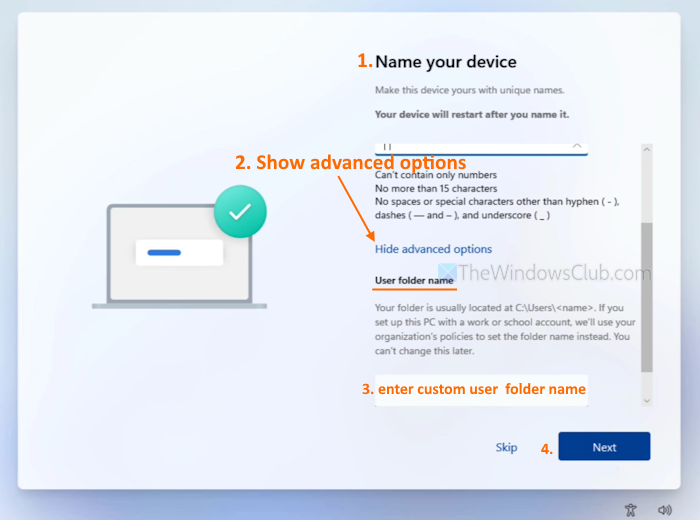
The steps to set a Custom User Folder name during installation in Windows 11 are as follows:
- The first startup page of the Out-Of-Box Experience in Windows 11 will show a region setting (Is this the right country or region?). There, select your country from the list
- Press the Yes button
- Continue the setup wizard and add a second keyboard layout or skip it for later
- Connect to an internet connection (WiFi or Ethernet)
- On the Name your device page, enter the device name in the given field
- Click on Show advanced options
- You will now see the User folder name field. Enter a custom name of your choice. You can’t use spaces or choose special characters for the user folder name except dashes (-), underscores (_), and hyphens (-)
- Continue the setup, add your Microsoft account, set up a PIN, choose privacy settings, etc., and complete the setup wizard.
Now open File Explorer, go to C:\Users, and you will see the custom user folder name.
That’s all.
Related: Cannot rename User Profile folder in Windows PC
Where do I find my user folder?
To find your user folder, open File Explorer. After this, access This PC > C > Users. There, you will see multiple folders for each user profile created on your PC. To open your personal user folder quickly, open the Run Command box. Type %userprofile% and hit Enter.
Read next: How to change the default name of Newly Created folder on a Windows PC.
