
In this post we will show you how to open a folder with a keyboard shortcut on Windows 11/10 computer. There is a huge list of keyboard shortcuts in Windows 11 OS for different actions, but there is no direct way to do the same for a folder. So, if you want to quickly open a folder with an assigned hotkey or shortcut, the options in this post will be helpful.
You don’t have to go to the folder location again and again, pin it to the Start menu, Quick Access, etc., to open it. A keyboard shortcut lets you open your folder from anywhere. Whether you are using the Start menu, File Explorer, a browser, or an application, when you need to access your folder, press the hotkey to open it.
Open Folder with Keyboard Shortcut in Windows 11
There are two ways to open a folder using a keyboard shortcut. These are:
- Using Folder Shortcut
- Using the WinHotkey tool.
Let’s check both options one by one.
1] Open a Folder with Keyboard Shortcut using Folder Shortcut in Windows 11
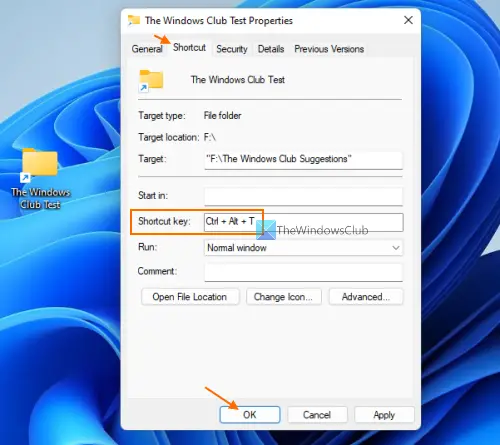
This is an easier and built-in option in Windows 11/10 to open a folder with a keyboard shortcut. You can also use this option to create keyboard shortcuts to open programs or applications. The process is very much similar. Here are the steps:
- Right-click on a folder of your choice
- Access the Send to menu. If you are using Windows 11, first you need to click on Show more options, and then you can access the Send to menu
- Click on the Desktop (create shortcut) option. This will add a folder shortcut to your desktop
- Now right-click on the folder shortcut
- Click on the Properties option
- The Properties window will open with the Shortcut tab. If not, then you need to select the Shortcut tab
- There is a Shortcut key field in that tab. Enter a hotkey combination in that field
- Hit the OK button.
Now you can open that folder using the hotkey set by you. It will take 2-4 seconds to launch the folder after you press the hotkey.
Note that this option will work as long as the folder’s desktop shortcut is available. Once you will delete that shortcut, the hotkey to open that folder won’t work. You can hide that folder shortcut from the desktop if you don’t want to see it there.
Related: How to open a File or Folder using Command Prompt or PowerShell
2] Open a Folder with Custom Hotkey using the WinHotKey tool
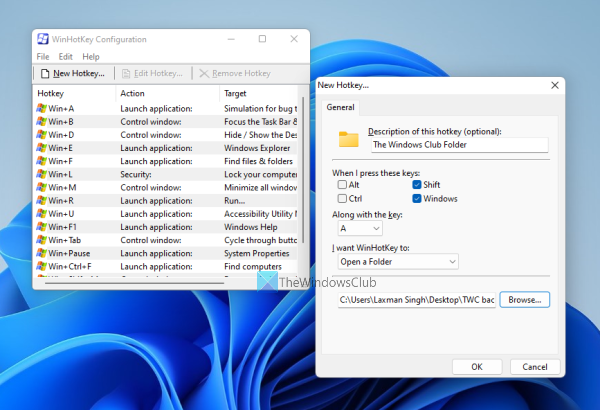
This option is better because it doesn’t require a desktop shortcut. In this option, we have used a free tool named WinHotKey that lets you open a folder using a custom key combination. You can use keys like Shift, Alt, Win, Ctrl, numeric keys, alphabets, etc., to set a hotkey of your choice.
Beyond opening a folder, this tool also helps you launch an application, open a document, etc., using a custom shortcut key. Moreover, you can also change the hotkey combination for a folder or application anytime you want.
Let’s check the steps to open a folder using a keyboard shortcut with the help of this tool:
- Grab this tool from directedge.us
- Install the tool and run it. A WinHotKey Configuration window will open
- Click on the New Hotkey button in that window. It will open a separate box
- In that box, enter a description for the hotkey in the given field. You can add a custom text of your choice for the description
- Select key combinations using the available options to set a custom hotkey
- Select the Open a Folder option from the drop-down menu available for I Want WinHotKey to section
- Click on the Browse button to select a folder
- Press the OK button.
That’s it. The hotkey for that folder will be added and appear in the tool’s configuration window, along with the hotkey combination, target folder, and action.
You can do the same for other folders using the steps above. After that, close the configuration window and the tool will start running in the system tray of your Windows 11/10 taskbar. When you will press the hotkey, the associated folder will open.
You can also double-click on its system tray icon to open the configuration window and add more hotkeys. If you want, you can also change the hotkey combination and remove a hotkey set by you using the Edit Hotkey and Remove Hotkey options.
Hope this is helpful.
How do I make a shortcut to open a folder?
You can create or use different types of shortcuts to open a folder. For example, you can:
- Create a desktop shortcut for a folder to open it. For this, right-click on a folder, use the Send to menu, and select the Desktop (create shortcut) option
- Make File Explorer Taskbar shortcut to open your favorite folder
- Assign a hotkey or keyboard shortcut to open a folder. To do this, use the folder shortcut’s Properties window. We cover all the steps in this post.
How do I assign keyboard shortcuts in Windows 11?
There are tons of Windows 11 keyboard shortcuts (like File Explorer keyboard shortcuts, general keyboard shortcuts, taskbar keyboard shortcuts, etc.) already assigned for different tasks. But if you want to use a keyboard shortcut to open a folder and/or application, then you need to assign them manually. You can do this using a desktop shortcut for a folder or application, or a third-party tool. This post covers both options with step-by-step instructions.
Read next: Access and Launch Applications folder using a Desktop shortcut.
