
Like its earlier versions, Windows 11/10 chooses its default players to run your music and video clips. But, what if you do not like the default media player and instead, want a different program to open your music and video files? You can set your desired program as the default Media Player in Windows 11/10. Let us see how to do it.
Change or Set Default Media Player in Windows 11/10
Windows has a set of programs that it will always use to open certain file types. For instance, when you attempt to play a supported file type, such as Windows Media Audio (.wma) or Windows Media Video (.wmv), the Media Player app opens up instantly and automatically begins playing the file. Most of the time this is fine, but you might want a different program to do the job, such as VLC Media Player as it has many of the popular codecs already built into the program, so you can watch practically any video file without having to download a codec pack.
To change the default media player in Windows 11/10, follow these steps:
- Press Win+I to open the Windows Settings.
- Go to Apps > Default apps > Media Player.
- Click on a file extension.
- Choose the media player you want for such files.
- Repeat these steps for other extensions.
To learn more about these steps, continue reading.
To get started, press Win+I to open the Windows Settings on your computer. After that, go to Apps > Default apps > Media Player.
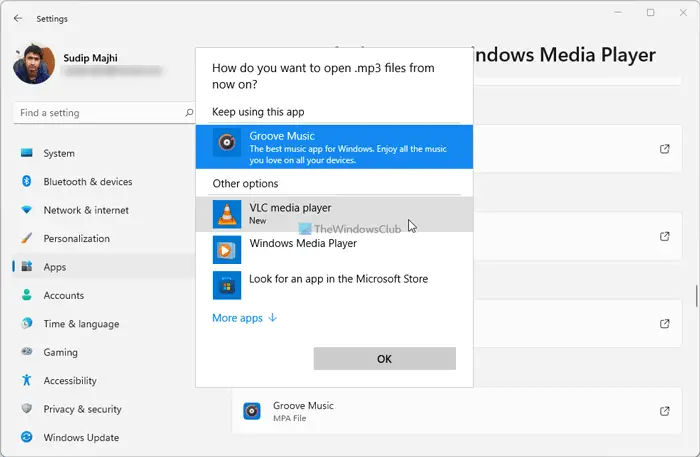
Here you can find some file extensions such as .mp3, .mp4, etc. You need to click the arrow on the right side against each file extension and choose another media player that you want to set as the default.
Read: How to change default programs in Windows.
However, if you are using Windows 10, you need to follow these steps:
Open the Settings app and then click on ‘System’. From the ‘System Settings’ section look for Default Apps option in the left side. Scroll down a bit if you do not find the option.
Here you can select the default app for Music files and Movies & TV. Click on Music Player and you will see a list of apps displayed, that can open these files. Select the one you want and click on it.
Follow the same procedure for Video Player.
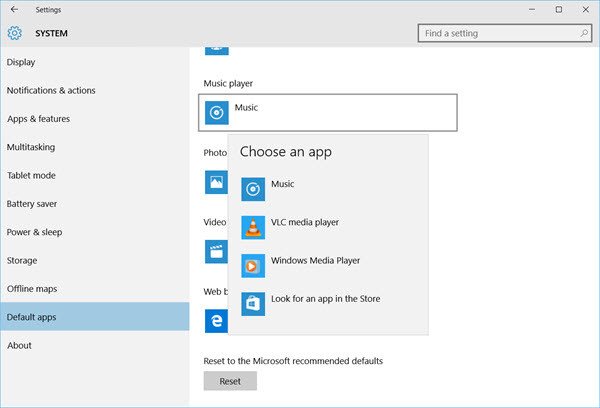
After you have done this, you will have successfully set the player of your choice as default media player in Windows 11/10.
If you wish to reset to the Microsoft recommended defaults, you can click on the Reset button towards the end.
How do I change the default app in Windows 11?
To change the default app in Windows 11/10, you need to go to Apps > Default apps in the Windows Settings panel. After that, select an app that you want to change as the default application. Next, click on each file extension and choose another app that meets your requirements.
How do I convert VLC to Windows Media Player?
You can convert VLC to the default media player from the Windows Settings panel. To do so, you need to follow the steps mentioned above. Whether you use Windows 11 or 10, you can follow the same steps to get the job done.
Read: Windows Media Player Tips and Tricks.
Incidentally, Windows Media Center is not included in Windows 11/10, you might be looking for some good alternatives. Take a look at this post Windows Media Center alternatives – it might interest you.
