
While browsing a website on Google Chrome, if you get an error saying This server could not prove that it is <domain.com>; its security certificate is not from <ABC> or not valid or not trusted at this time, here is how you can fix the issue. Even if you are not the administrator of the website, you may try the following solutions to eliminate this error if it appears for multiple websites on your browser. The exact error message reads:
This server could not prove that it is [Server Name] its security certificate is from [missing_subjectAltName]
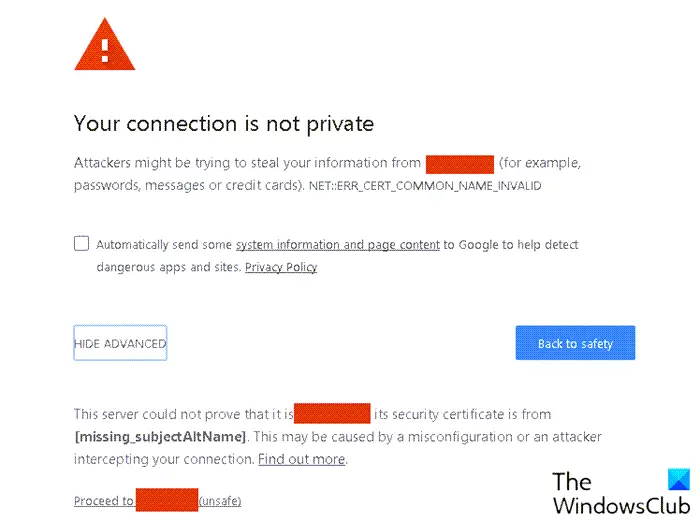
This error message mainly appears when the corresponding website doesn’t have a valid SSL certificate. There could be hundreds of problems regarding SSL. However, this specific error occurs when the SSL certificate doesn’t validate the domain name, or the administrator made a spelling mistake when generating the CSR or Key.
The same thing can happen if you try to install an SSL on a domain or sub-domain made for another URL. On the other hand, if you generated the SSL for domain.com, but you have installed it on www.domain.com, you might get the same error.
Chrome error This server could not prove that its security certificate is not valid or trusted at this time
To fix This server could not prove that its security certificate is valid or trusted at this time error in Chrome, follow these steps:
- Try incognito mode
- Clear cache and cookies
- Change internet source
- Flush DNS
- Change date and time
- Check expiry of SSL certificate
- Validate SSL installation
- Redirect all variations to one URL
To learn more about these steps, continue reading.
1] Try incognito mode
It is the first thing you need to check when you are getting the above-mentioned error while browsing a website. Let’s assume you installed a couple of extensions, security shields, etc., in your browser and started getting this error afterward. In such situations, you can try using Incognito mode and see if you can browse the website. If so, you need to check the extensions you installed. If not, follow the other guides.
Related: Fix NET::ERR_CERT_DATE _INVALID error on Chrome
2] Clear cache and cookies
At times, old cache and cookies can also cause the same problem. That is why it is recommended to remove them when you are getting this error. You can follow this guide to clear cache and cookies and hard reload in Chrome browser.
3] Change internet source
If there are any issues on the ISP’s end, you might encounter this problem as well. That is why you might want to change the internet connection so it uses a different DNS server, which can resolve the problem. If you are using a Wi-Fi connection, you can opt for another Wi-Fi network, a mobile hotspot, Ethernet, etc.
4] Flush DNS
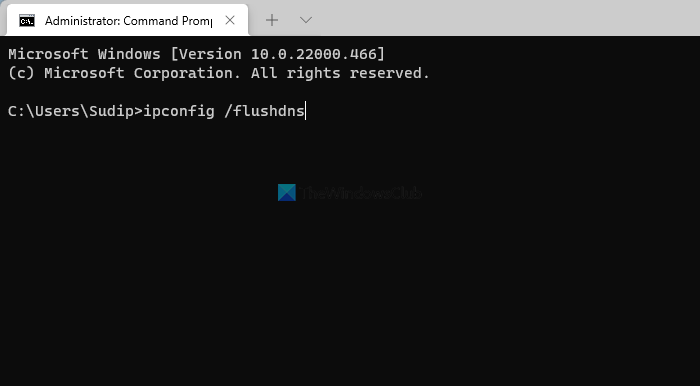
If there are DNS issues with your connection, flushing the DNS cache is probably the best option. In this case, you can flush DNS cache in Windows by following this guide.
Related: Fix Wi-Fi Certificate Error on Windows
5] Change date and time
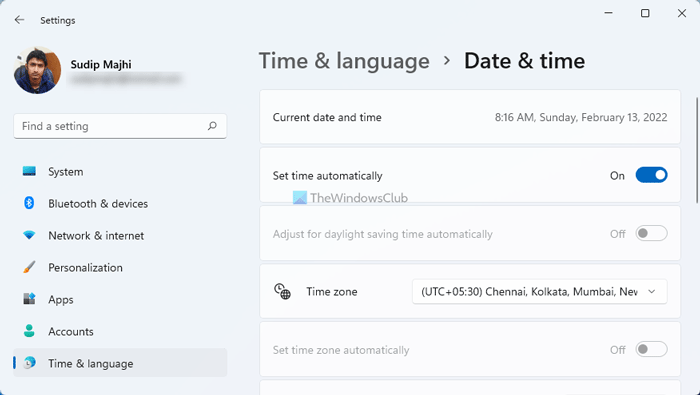
If you are using a different time on your computer, it is recommended to change it to the correct one where you are in. The date and time settings are somehow connected to the SSL validation. That is why it is suggested to change the date, time, and region to the correct one.
Related: Fix ERR_CERT_COMMON_NAME_INVALID error
6] Check expiry of SSL certificate
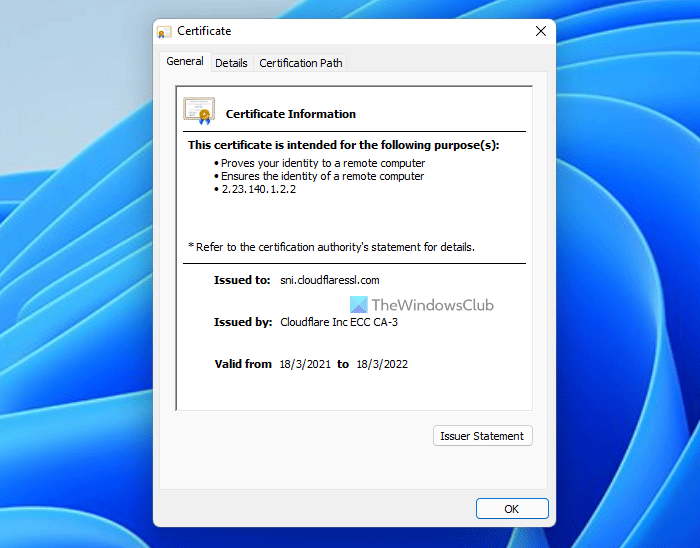
This solution is for the website administrator as well as users. However, the process depends on the side you are on. For example, if you are a user, you can click on the lock icon in the address bar, select the Connection is secure/not secure button and click the Certificate is invalid option. Then, you can find the validity of the existing certificate.
On the other hand, if you are the administrator, you can simply open the account you used to purchase the SSL certificate and find the expiry date.
Fix: Certificate Errors in Microsoft Edge
7] Validate SSL installation
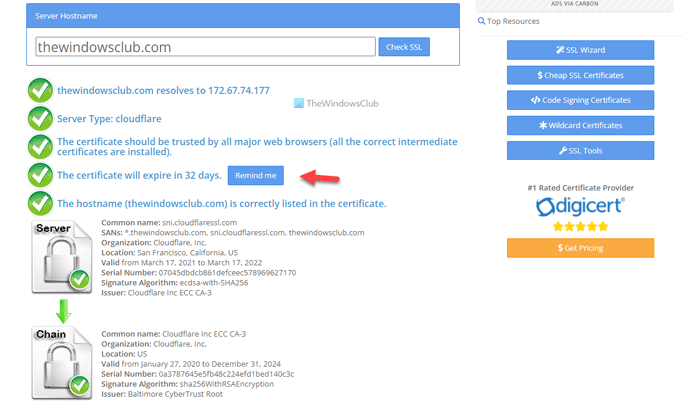
If you are an administrator, it is one of the most important solutions for you. You must check every step you’ve gone through to install the certificate. To make things easier, you can head to slshopper.com and enter your website URL to find if there are some issues. You need to take action according to the problem.
Another important thing is you need to wait for some time after changing the IP/server before you install the SSL. It needs some time for DNS propagation.
8] Redirect all variations to one URL
There are mainly four variants of any website:
- http://domain.com
- http://www.domain.com
- https://domain.com
- https://www.domain.com
When you have an SSL certification for https://domain.com, you need to redirect the WWW version to non-WWW. That is why, to be on the safe side, you can redirect all variants to the same URL.
That’s all! Hope this guide helped.
How do you fix This server could not prove that it is?
To fix the This server could not prove that it is its security certificate is not valid at this time issue, you need to follow the above-mentioned solutions. That said, you need to clear the cache, flush the DNS, check the SSL expiry date, etc. The most important thing is to verify the SSL installation.
How do I fix SSL certificate error on Chrome?
There are countless SSL certificate errors on Chrome, and it needs different approaches to fix them up. You need to follow the error to understand what it is implying if you cannot find any solution anywhere. However, if you are the administrator of a website, you must first check the SSL expiry date and installation.
Read: How to fix common SSL Connection errors in your browser.
