
If the Security devices menu is missing or unavailable in Device Manager in Windows 11/10, this article will help you fix the issue. Although it mainly happens when you have issues with the TPM, there could be other reasons as well.
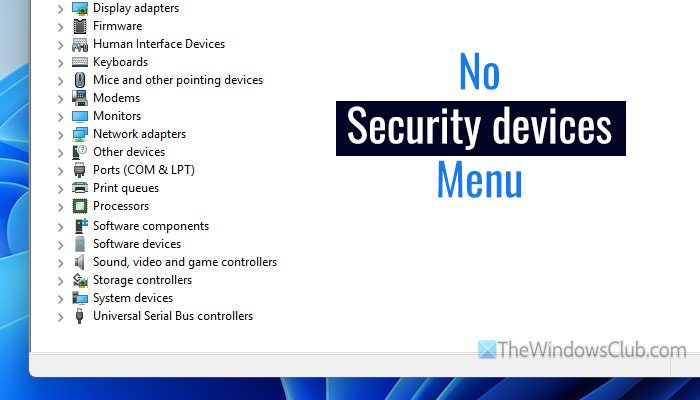
Why is Security devices missing or unavailable in Device Manager?
If Security devices is missing or unavailable in Device Manager, one of these could be the reasons:
- It has become a hidden device.
- You do not have TPM support.
- You have mistakenly disabled TPM in the BIOS.
- Your TPM driver has issues and is not working properly.
- There are some issues in your system files.
Security devices missing or unavailable in Device Manager of Windows11/10
If Security devices is missing or unavailable in Device Manager, follow these solutions:
- Check TPM status
- Show hidden devices
- Enable TPM in BIOS
- Update TPM driver
- Reset BIOS
- Run SFC and DISM
To learn more about these solutions, continue reading.
1] Check TPM status
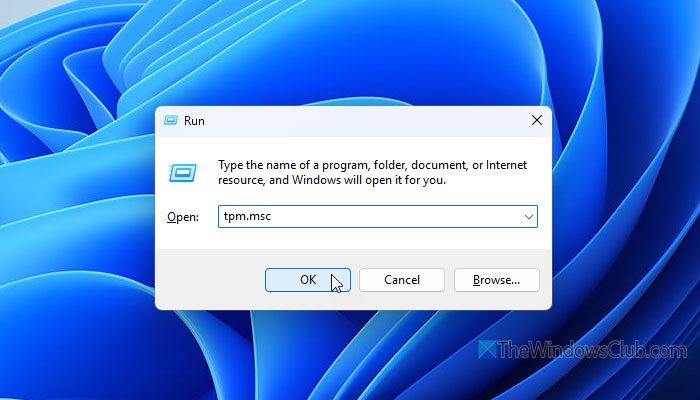
It is the very first thing you need to check since TPM is directly related to this error. If your computer has somehow ditched TPM, you may run into this problem.
To check the TPM status, press Win+R to open the Run prompt, type tpm.msc, and hit Enter. If it shows an overview of your TPM, there is probably no issue with your TPM.
However, if it shows an error message, you must check your TPM activity.
Read: How to check if you have TPM chip
2] Show hidden devices
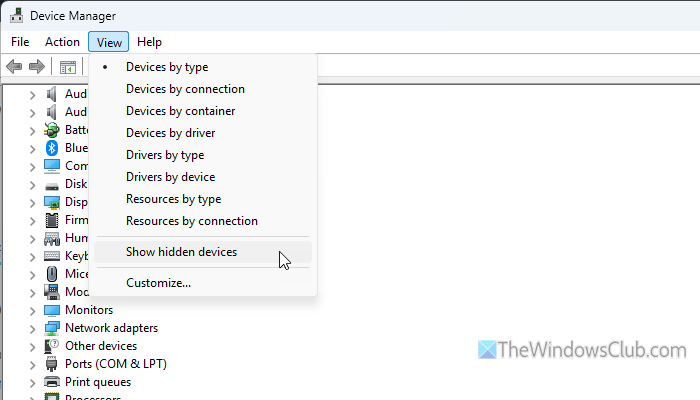
It is possible to show or hide some hidden devices in Device Manager. Although Security devices are not hidden, some sub-options may be. As a result, the entire menu could be hidden. In such situations, open the Device Manager on your computer first. Then, go to View and click on Show hidden devices.
Then, check if the Security devices option is enabled or not.
Read: How to show Hidden Devices in Device Manager of Windows 11
3] Enable TPM in BIOS
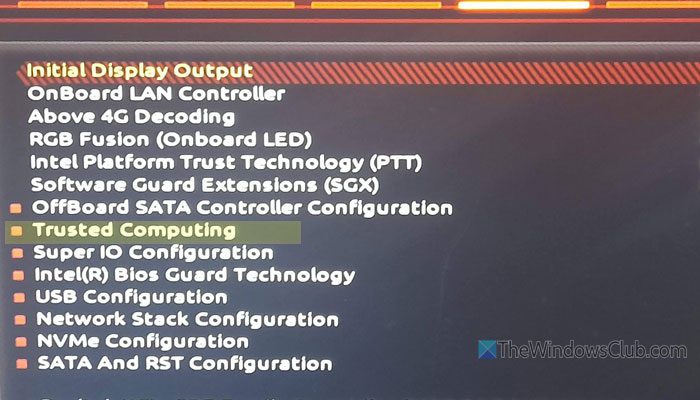
If TPM is disabled in BIOS, you cannot find the Security devices menu in Device Manager. In that case, you must enable it in the BIOS. To enable TPM in BIOS, open the BIOS and find an option named either TPM, Trusted Platform Module, or Trusted computing.
Then, use your mouse or keyboard to turn it ON. Finally, save the change.
Following that, restart your computer and check if the menu is visible in Device Manager.
Note: If you cannot find TPM in BIOS but your motherboard has TPM support, follow the instructions mentioned in the article.
Read: The TPM could not be initialized on Dell computer
4] Update TPM driver
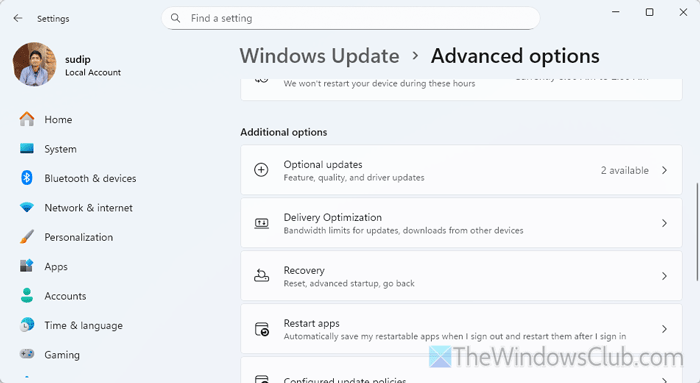
In general, your motherboard manufacturer may not offer you an update for TPM only. However, you can update your motherboard driver manually. There are mainly two ways to do that. First, you can use the Windows Settings panel. Second, you can download the motherboard driver directly from the manufacturer’s official website.
To use the first method, open the Windows Settings panel and go to Windows Update > Advanced options > Optional updates.
Check the Windows updates and Driver updates sections. If an update is available, download it.
Read: How to install Driver and Optional Updates in Windows 11
5] Reset BIOS
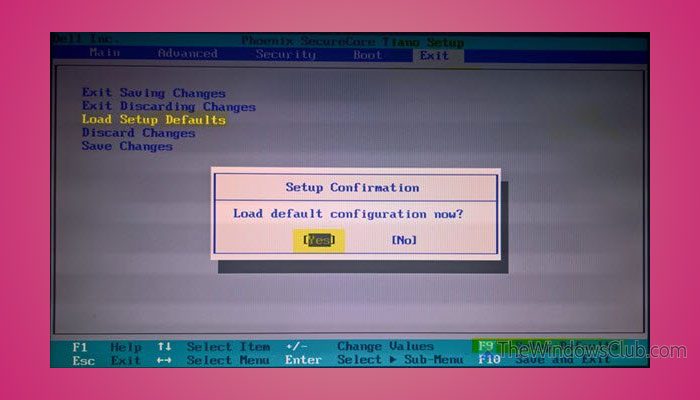
Every BIOS has a common option named after Restore, Reset or something like that. You have to use this option to reset the BIOS on your computer. Once you do that, all the tweaked settings will be set as factory defaults. Following that, you will be able to find TPM if it was hidden due to a BIOS mess-up.
6] Run SFC and DISM
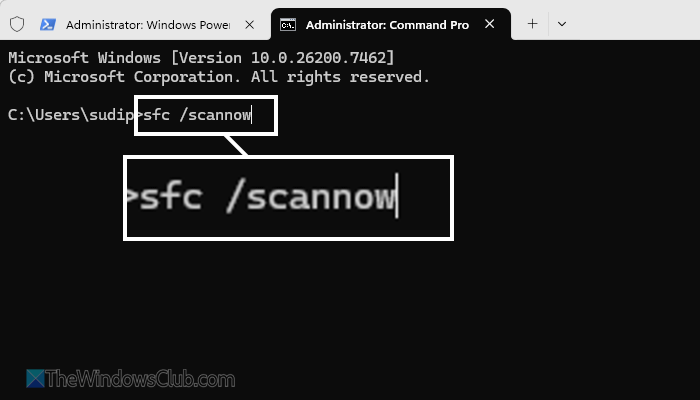
If this problem arises due to damaged system files, you can fix it by SFC scan and DISM tool. Follow this article to run the System File Checker and DISM tool on your computer.
Read: Device Manager not opening or keeps crashing on Windows 11
How to add Security devices in Device Manager?
There is no way you can manually add Security devices in Device Manager in Windows 11. However, you can install a TPM chip, or replace your motherboard with one that supports TPM. If you do that, the Security devices menu will be added automatically.
Why did my TPM disappear?
If your TPM disappeared, these could be the reasons:
- You have disabled it in the BIOS.
- There are some issues with the TPM chip or the motherboard.
- Your BIOS is messed up.
- There are some issues with the TPM driver.
Read: Alert! TPM device is not detected error on Dell computers
