
Saving a web page for offline viewing is a great way to mitigate network issues when you need to view specific information in remote areas or for other purposes. Today, we are going to look at several ways to save web pages for offline viewing in Google Chrome, Microsoft Edge or Mozilla Firefox.
Yes, it is possible to bookmark pages with ease, but that doesn’t mean those pages can be viewed offline, because that’s not how bookmarks work. One will always need a connection to view bookmarked web pages, which can be a problem in certain scenarios.
So, what do we do then, in such a situation? Well, before you get yourself into that problem, be sure to follow the steps below on how to save web pages for offline viewing.
Save a webpage in Firefox for offline viewing
To learn how to save webpages for offline reading using Firefox on Windows, you have the following three options:
- Save the page as an HTML file
- Save the page as an Image file
- Save the page as a PDF.
Let us go into this in more detail.
1] Save the webpage as an HTML file
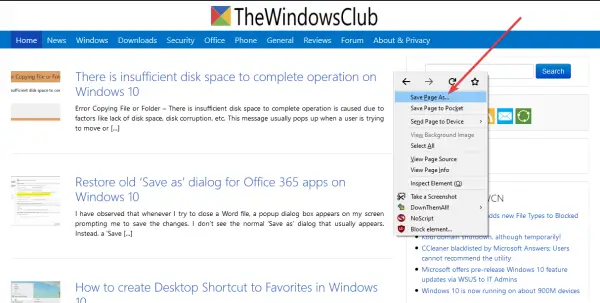
OK, so to save the page as an HTML file, we recommend clicking on the menu button at the top-right corner of the browser. From there, select Save Page As to save the webpage as an HTML file for future reference.
Alternatively, you could simply press CTRL + S, or right-click on the webpage, and select Save Page As. So many options to choose from, it’s crazy, so choose the one that works best for you.
2] Saving the page as an Image file
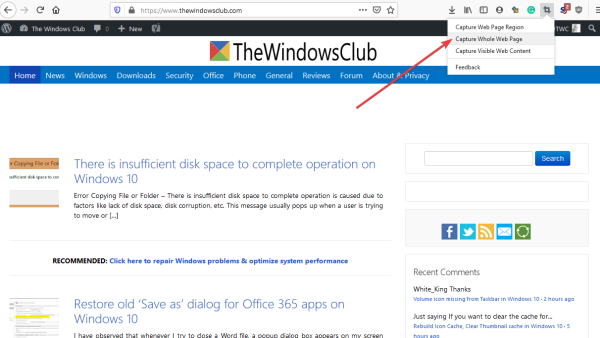
Mozilla Firefox should come with its own screenshot extension called Easy Screenshot. If not, we suggest installing it from the Add-on Store, as it works very well. After installation, click on the icon from the icon and select the option that says Capture Whole Webpage
Alternatively, the user could simply right-click the page and select Take Screenshot from the menu.
3] Save the page as PDF
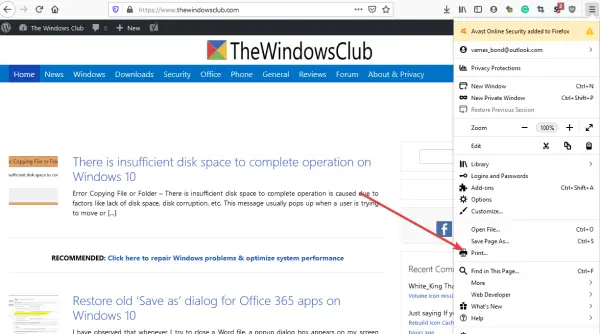
The final step, then, is to save the page as PDF for future reference. We can do this by clicking on the menu button in Firefox, then select the option that says Print.
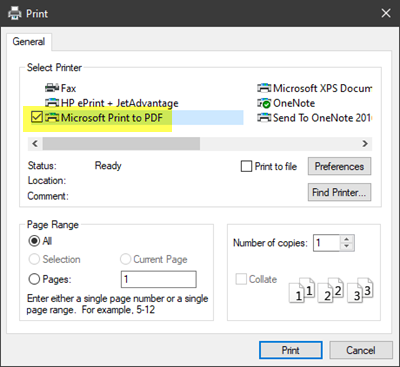
After that, click Print at the top-left corner, then select Microsoft Print to PDF, tap on Print, then save the document on your hard drive, and that’s it.
Read: How to turn on Offline Browsing in Firefox or Chrome
How to read pages later and offline in Chrome
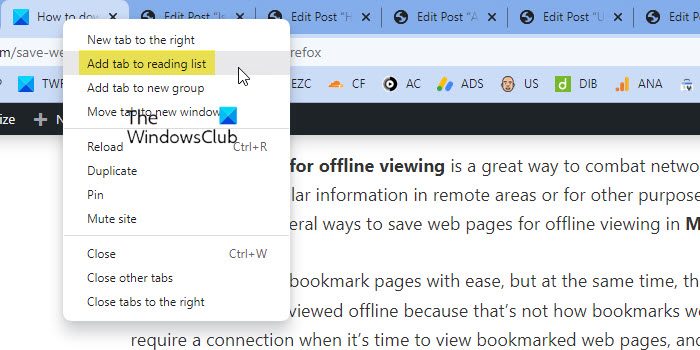
You can save webpages to read later, even if you’re offline in Chrome. To read a page later, add it to your Reading list.
- Open Chrome and visit the webpage
- Right-click on the tab and then select Add to the Reading list.
Download a page from Chrome to read offline
You need to be online to save a page.
- Open Chrome and visit the webpage
- Click More and then More Tools and then Save page as.
- Choose where you want to save the page.
- Click Save.
- To read a saved page, open the file on your computer. It will open in your default browser
To delete a saved page, delete the file from your computer.
Related: How to use Reading Mode in Chrome.
How to read pages later and offline in Edge
You can save web pages in Microsoft Edge to read later and even offline using any one of these methods:
1] Save for Offline Reading
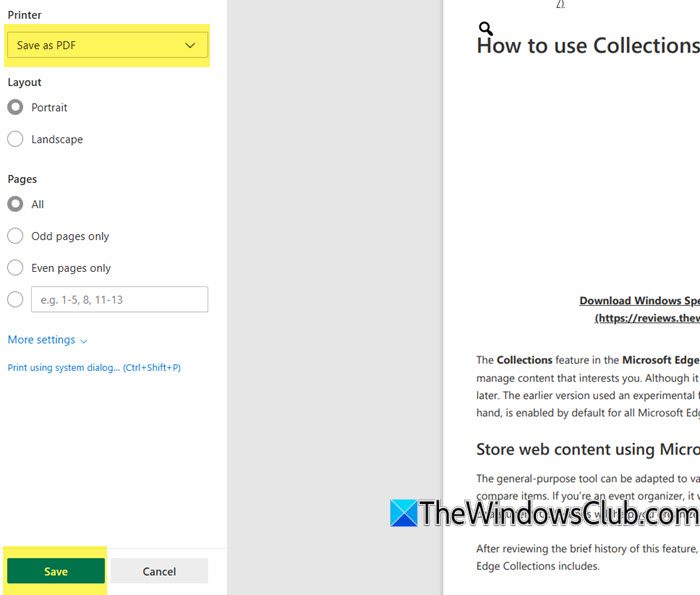
Press Ctrl+P (or right-click and select Print) and select Save as PDF. This saves the entire page as a PDF file, which you can open offline anytime.
2] Use Collections
Click the Collections icon in the toolbar. Now, create a new collection and add the page.
This saves the link and content preview so you can revisit it later. This works online, but not fully offline unless you open the page once and keep it cached.
3] Use Reading Mode
Click the Book icon in the address bar to remove all the clutter and ads from the webpage and then save it as PDF for offline use.
4] Use Extension
Edge also integrates with Pocket or other extensions that let you save articles for offline reading across devices.
How do I download entire website for offline viewing?
You cannot download the entire website for offline viewing because a website has a lot of pages and posts. You can save only the currently opened web page for offline viewing. If you want to save the entire website for offline viewing, you have to save each page of the website which will take a lot of time.
Which key is used to save web pages offline?
Most web browsers provide users with a feature to save web pages for offline reading. The shortcut key for saving web pages is Ctrl + S. This shortcut is the same in most web browsers. Open a web page and press the Ctrl + S keys. After that, enter the name and hit the Save button.
We hope you find this post useful.
