
In this post, we will show you how to enable and use Reading mode in Google Chrome on Windows 11/10 system. This built-in feature of Chrome browser opens a side panel where you can view a webpage in text-only mode. There won’t be any images and other distracting items. Only the main content and clickable links are on the side panel. You can also view the original webpage side by side, making this Reading mode feature better. We have already seen how to browse in text-only mode in Microsoft Edge, Firefox, etc. Now, we will see how to use this native feature to open a webpage in reading mode on Chrome browser.
How to use Reading Mode in Chrome on Windows 11/10
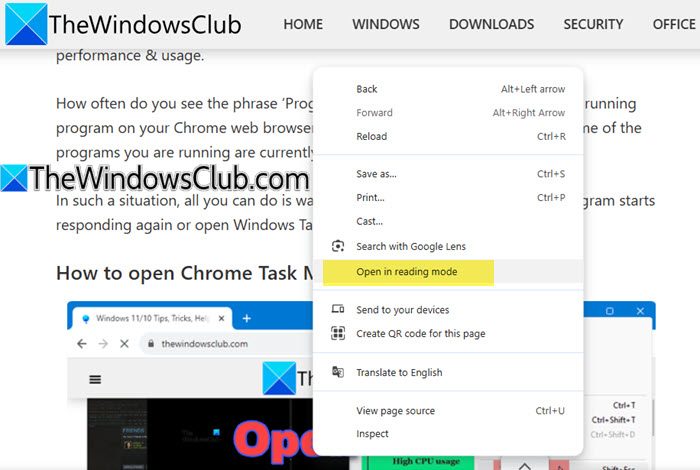
To use the Reading Mode in Chrome, open the web page and right‑click anywhere on the page. Select Open in Reading Mode.
The webpage will open in a side panel with simplified text and no images or ads.
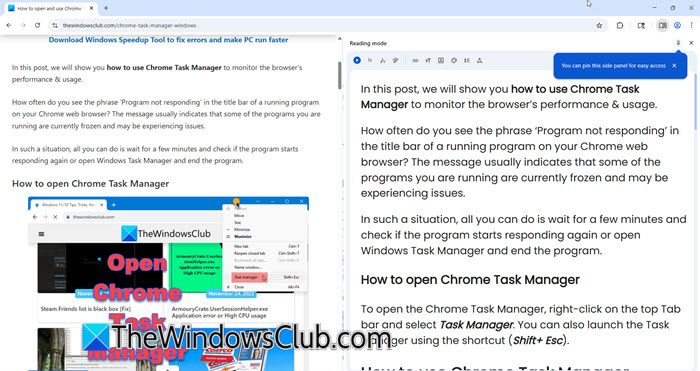
If you wish, you can also customize your reading experience. You can:
- Change font size and typeface
- Adjust line and letter spacing
- Choose a color theme
- Listen to the text aloud.
That it!
Related: How to enable and use Link Preview in Chrome Browser
Key features of Reading mode in Google Chrome
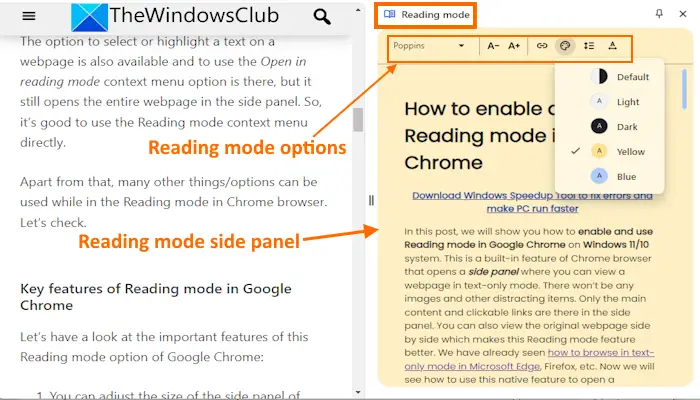
Let’s have a look at the important features of this Reading mode option of Google Chrome:
- You can adjust the size of the Reading mode side panel at your convenience. Press and hold the left mouse button and drag the side panel left to right to adjust the size
- You can change the font for reading. Serif, Poppins, Comic Neue, Lexend Deca, Sans-serif, Andika, and other font types are available
- Font size can also be increased and decreased in Reading mode
- You have the option to enable or disable links in the Reading mode which I find quite useful
- The Reading mode theme can also be changed. Light, Dark, Default, Blue, and Yellow themes are available to choose from
- You can adjust the line height for webpage content or text. Standard, Very loose, and loose options are present to set the line height
- Letter spacing can be set to Wide, Standard, or Very wide
- Reading mode icon can also be pinned to the toolbar of Google Chrome
- When Reading mode is enabled and in use, you can switch to the other tabs and it will automatically generate text-only mode (if possible) for the current tab or webpage.
How do I enable Read Aloud in Chrome?
While Microsoft Edge comes with a Read Aloud feature for webpages, PDFs, eBooks, etc., Google Chrome doesn’t support this natively. So, if you want to use the Read Aloud option for webpages in the Chrome browser, then you need to use some extension to get Chrome to read text aloud on PC.
How do I enable Chrome screen reader?
Chrome browser doesn’t have the native option or feature for screen reading. There’s a built-in screen reader in Chromebooks called ChromeVox to help visually impaired people use the Chrome OS, but it’s not available in the Chrome browser on Windows 11/10. Instead, you can use Narrator in Windows PC for screen reading to read aloud text on documents, settings, etc.
Read: How to use Bionic Reading on Chrome or Edge.
The following methods was used to work on earlier versions of Chrome, but may not work now.
Disable or Enable Chrome Reading Mode using Chrome Flag
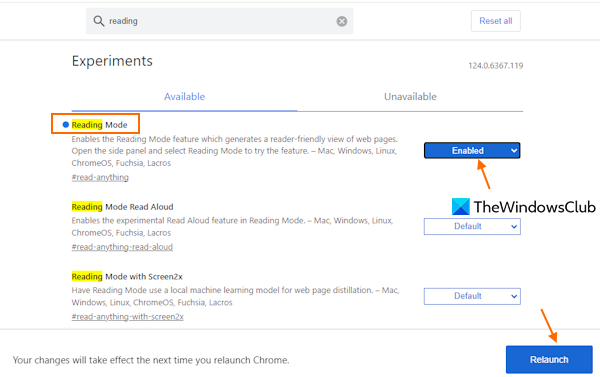
Reading mode can be disabled or enabled in your Chrome browser using a Flag. If not, here are the steps to enable or disable it:
- Launch the Chrome browser
- Type chrome://flags in the Omnibox or address bar and press Enter
- Search for the Reading Mode setting or flag
- Use the drop-down menu for this setting and select Enabled (or Disabled)
- Press the Relaunch button.
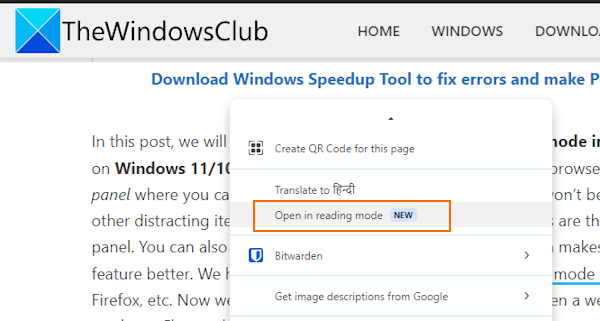
Once the Reading mode is enabled, right-click on a webpage and select Open in reading mode option. Immediately, a side panel for reading mode will appear on the right section and the webpage will be visible in text-only mode (including the hyperlinks present in that webpage). You can read the text and also click on the links in the Reading mode and the change will reflect in the webpage tab also.
The option to select or highlight text on a webpage is available, and the Open in reading mode context menu option is available as well, but it still opens the entire webpage in the side panel. So, it’s good to use the Reading mode context menu directly.
Apart from that, many other things/options can be used while in the Reading mode in the Chrome browser.
Enable or disable Reader Mode or Distill Mode through Properties
To enable or disable Reader Mode through the Settings, follow the instructions below:
- Update Google Chrome to the latest version.
- Open the Google Chrome Properties dialog box.
- Enable the reader mode by adding commands in the Target box.
- Disable the reader mode by removing command from the Target field.
Before you begin the process, you must first check that you have the latest version of Google Chrome installed. If any updates are available, download and install them. Once the process completes, click the Relaunch button for the changes to take effect.
After updating the Chrome browser to the latest version, pin the Chrome icon to your taskbar.
After that, right-click on the Chrome icon. In the options list, again right-click on “Google Chrome” and then select the Properties button as shown in the below snapshot.
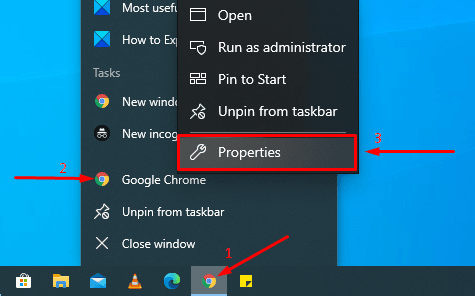
Clicking the Properties button, it opens the Google Chrome Properties dialog box.
On the Shortcut tab, next to the Target box, there is an EXE file path for the Chrome application. Append the below phrase to the end of the text:
--enable-dom-distiller
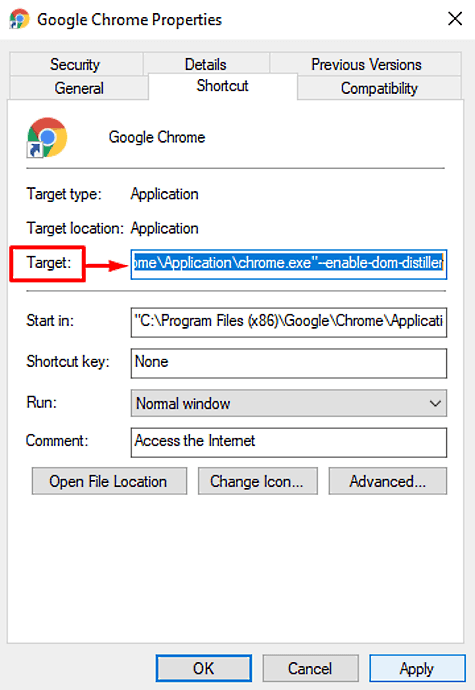
Once you added, click on Apply and then the OK button to save the changes.
That’s it—the flag is now activated. To use this feature, click the three dots, then select the Distill page option from the menu. It will display the current web page in Reader Mode, without any distracting ads or other page elements.
To disable this feature, open the Chrome browser’s Properties window. Then, remove the added phrase from the Target field of the Shortcut tab.
Once you disable reader mode, the Distill page option is also removed from the browser’s menu (the three-dot menu).
I hope you find this guide helpful and that you’re enjoying the distraction-free and clutter-free environment of Reading Mode in Chrome.
