
Some users have reported that the Run dialog box is not opening, showing, or working on their Windows 11/10 PCs. For some users, the Win+R hotkey to open the Run dialog is not working. For other users, they can’t find or access the Run dialog using the Start menu, Search box, etc. We have covered some working fixes and other options to help you open or use the Run dialog box in Windows 11.
Run dialog not opening, showing, or working in Windows 11
If the Run dialog is not opening, showing, or working in your Windows 11 PC, use these solutions:
- Run System File Checker
- Check if the Win key is disabled or locked
- Enable the Run dialog using Group Policy or Registry Editor
- Uninstall Windows Update
- Use Run new task from Task Manager
- Use Windows Tools
- Create a new Run dialog box shortcut
- Update or uninstall desktop customization tools.
Let’s check these options.
1] Run System File Checker
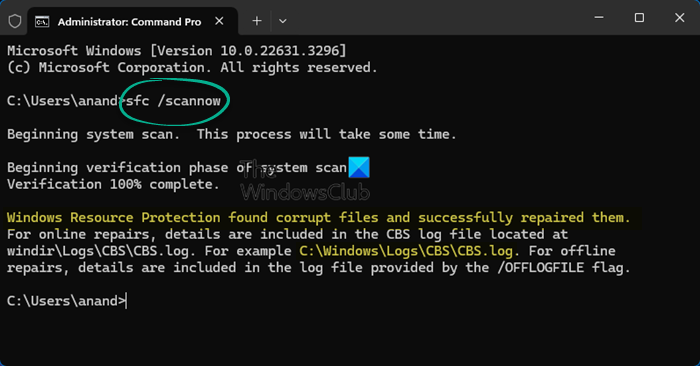
This fix has helped some users. If critical system files are corrupted or missing, Windows features don’t work properly. In this case, you can run the built-in System File Checker tool to scan for corrupt system files and restore them.
So, open an elevated Command Prompt window and execute the sfc /scannow command. This should help fix the issue.
2] Check if the Win key is disabled or locked
This solution is helpful when you try to open the Run dialog box using the Win+R hotkey, and it does nothing. This can happen when the Win key (or Windows key) is disabled or locked. Some gaming keyboards have a dedicated switch or Function (Fn) combination to lock the Win key. There are some third-party tools, Group Policy, and a Registry setting also available to enable or disable the Win key.
So, in this case, you need to enable the Win key. You can press Fn+Win key to re-enable it. Also, check if you are using some tool that can disable the Win key. You should also make sure that the Win+R hotkey is not assigned to another task or is not remapped. If you are using some tool to remap keyboard shortcuts (like PowerToys), check that the Win+R combination is not remapped or is set to disabled.
Related: Run command not saving History in Windows PC
3] Enable the Run dialog using Group Policy or Registry Editor
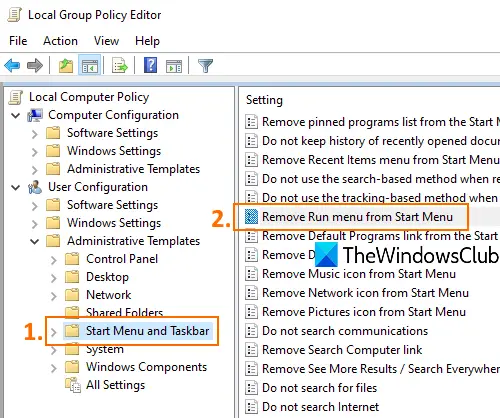
There’s a setting in the Group Policy Editor window named Remove Run menu from Start Menu. A similar setting is there in the Registry Editor. If this setting is configured to Enabled mode, this can make the Run dialog stop working. If you try to launch the Run dialog using its shortcut, Search box, or Start menu, it will show an error instead. If this is the case, you need to enable the Run dialog box using Group Policy or Registry Editor.
In the Group Policy Editor window, navigate to the following location:
User Configuration > Administrative Templates > Start Menu and Taskbar
Double-click the Remove Run menu from Start Menu setting and set it to Not Configured.
In the Registry Editor window, navigate to the following Registry key:
HKEY_CURRENT_USER\SOFTWARE\Microsoft\Windows\CurrentVersion\Policies\Explorer
There, create a new DWORD (32-bit) Value and name it NoRun. Double-click on it and set its Value data to 0. This will enable the Run dialog box.
4] Uninstall Windows Update
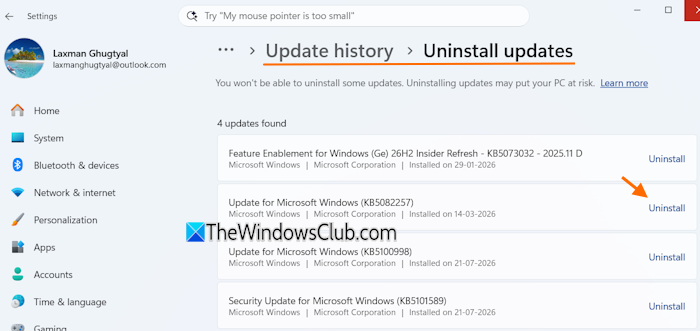
For some users, this problem started after a Windows Update (KB5058499). If you also face this issue after a particular update, uninstall the Windows update and see if it works.
In the Settings app, navigate to Windows Update > Update history > Uninstall updates. Look for an update that started the problem and use the Uninstall option.
Read: How to clear Run command history in Windows PC
5] Use Run new task from Task Manager
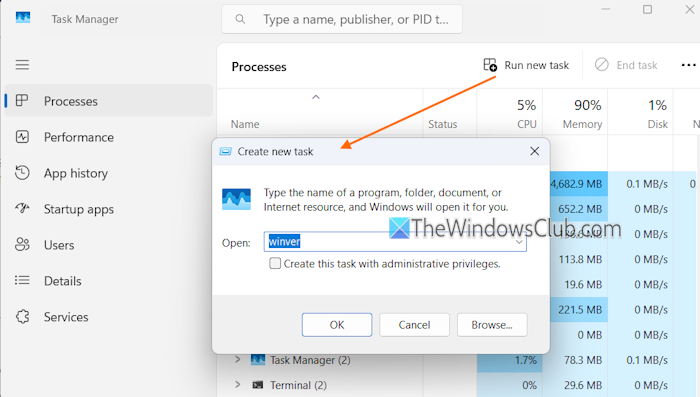
You can also use the Run new task option from the Task Manager as an alternative to the traditional way to open the Run dialog box. In the Processes tab of Task Manager, click on the Run new task button on the top-right part, and it will launch a Create new task box.
6] Use Windows Tools
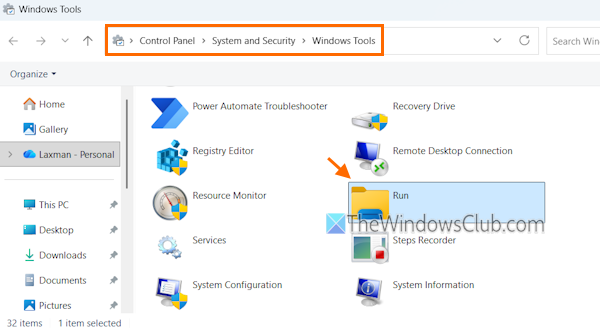
If you can’t use the Start menu or Search box to launch the Run dialog box, you can use Windows Tools. It’s a folder that includes Command Prompt, Disk Cleanup, Run, and other Windows utilities. So, open Windows Tools (Control Panel\System and Security\Windows Tools) from the Start menu, Search box, etc., on your Windows 11 PC and double-click on the Run option.
Also read: Use Explorer address bar as Run box for executing commands in Windows PC
7] Create a new Run dialog box shortcut
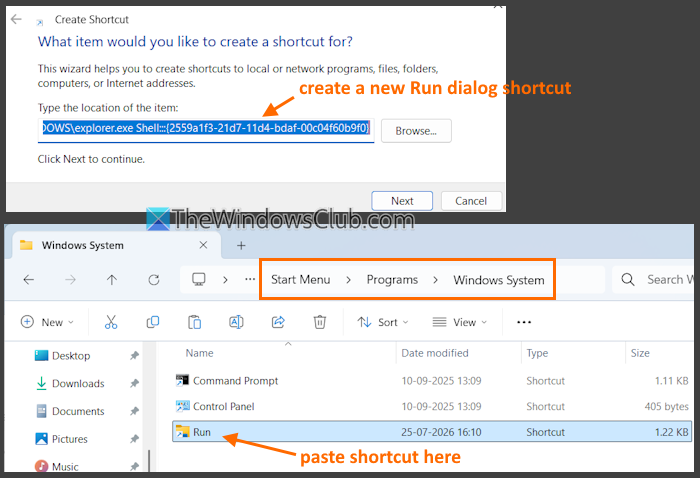
If the Run dialog box is removed from its stored location (Windows System), you won’t be able to open or access it using the Search box or Start menu. The keyboard shortcut will work, though.
In this case, you can create a new Run dialog box shortcut and place it in the Windows System folder. Here are the steps:
- Create a new desktop shortcut
- In the Create Shortcut wizard, enter the following text in the Type the location of the item field
explorer.exe Shell:::{2559a1f3-21d7-11d4-bdaf-00c04f60b9f0}
- Press Next
- Give a name to the shortcut (say Run)
- Press Finish
- Copy the shortcut from the desktop
- Go to the Windows System folder. The path is:
C:\Users\%username%\AppData\Roaming\Microsoft\Windows\Start Menu\Programs\System Tools\Windows System
- Paste the Run shortcut.
Now you will be able to launch the Run dialog box from the Start menu and the Search box.
8] Update or uninstall desktop customization tools
This fix worked for a user. He was using a StartAllBack tool when this problem started. Updating that tool helped him solve this issue. Though there are some good Start menu customization tools and Taskbar customization tools out there that work well, these can interfere with Windows utilities and cause trouble.
So, if the Run dialog box is not opening, working, or showing in your Windows 11 PC, it could happen because of the third-party desktop customization tools you’re using. In such a case, you can either update or uninstall that tool and restart your PC.
That’s all. Hope this helps.
Windows R not working
If the Win+R shortcut is not working, check if your keyboard is functioning properly by testing other shortcuts. Next, try restarting your computer, as temporary glitches often resolve after a reboot.
If the issue persists, update or reinstall your keyboard drivers from Device Manager. Finally, if nothing works, run the System File Checker sfc /scannow to repair corrupted files.
Now read: How to Run as different user in Windows PC
How to fix program is running but not showing in Windows 11?
If a program is running but you can’t see it, first use some generic tips. For example, you can open Task View, update graphics drivers, or update Windows. If that doesn’t work, maximize or move the program from the Taskbar using the program thumbnail, or modify your display settings. Additionally, you can boot in Clean Boot State to identify the culprit program, and reinstall the program for which you are having this trouble.
How do I enable the new Run dialog in Windows 11?
To enable the new Run dialog in Windows 11, open the Settings app. Navigate to System > Advanced. Use the toggle for the Run dialog option. You can also enable the redesigned Run dialog via a Registry trick.
Read next: List of Run Commands and Keyboard Shortcuts in Windows PC.
