
In this guide, we’ll show you how to enable the new Run dialog in Windows 11. Microsoft is gradually refreshing classic Windows tools with a modern design, and the Run dialog box is one of them. The tech giant has recently introduced a redesigned Run dialog with a cleaner UI, rounded corners, and better alignment with the system’s Fluent Design language.
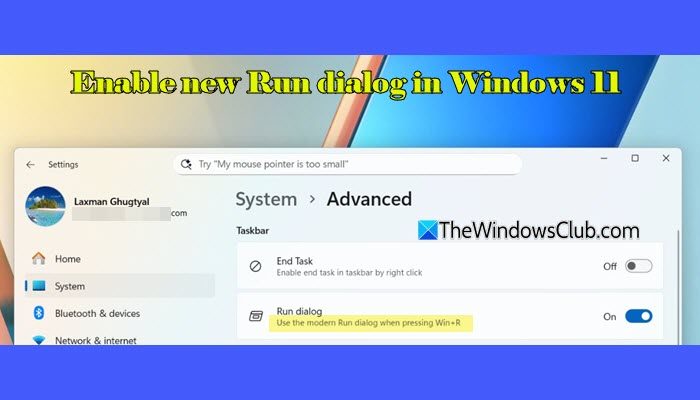
The Run dialog has long been one of the most widely used built-in Windows tools, allowing users to quickly open apps, settings, folders, and system utilities using simple commands. This redesign brings a modern look to the Run dialog without changing how it works.
How do I enable redesigned Run dialog?
As of now, the new Run dialog isn’t generally available on the Stable Windows 11 releases. Microsoft is still testing it and rolling it out first to Windows Insiders – but it will be rolled out to everyone soon.
Enable new Run dialog in Windows 11
To enable the new Run dialog in Windows 11, you may use the following methods:
- Use the Settings app
- Use Registry Editor
Let us see this in detail.
1] Use the Settings app
Press Win + I to open the Settings app. In the Settings window, select System in the left pane. Then scroll down and select Advanced in the right pane.
Under Taskbar, you’ll see a toggle for Run dialogue. Turn the toggle On to enable the modern Run dialog. Restart your PC to apply the change.
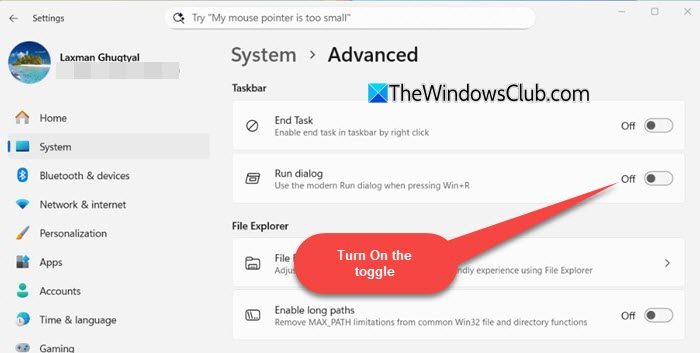
After restarting, press Win + R to open the Run dialog and verify the new design.

Note: If you don’t see the Run dialog toggle, the feature is not yet available in Settings on your Insider build.
2] Use Registry Editor
Note: Modifying the Windows Registry incorrectly can cause serious system issues, so create a backup before making any changes.
Press Win + R, type regedit in the run dialog, and press Enter. Click Yes when the User Account Control prompt appears.
In the Registry Editor window, navigate to the following key:
HKEY_CURRENT_USER\Software\Microsoft\Windows\CurrentVersion\Explorer\Advanced\TaskbarDeveloperSettings
In the right pane, double-click the Run DWORD. If it doesn’t exist, right-click on the empty area, select New > DWORD (32-bit) Value, and name it Run.
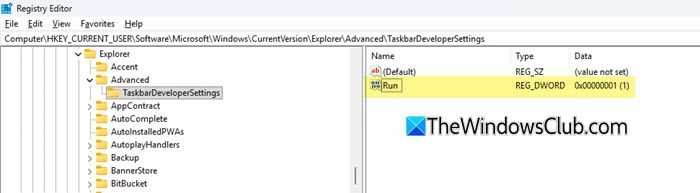
In the Edit DWORD (32-bit) Value dialogue, set the Value data to 1. Click OK and close Registry Editor. Reboot your PC to apply changes.
Once restarted, you should be able to see the modern Run dialog while pressing Win + R.
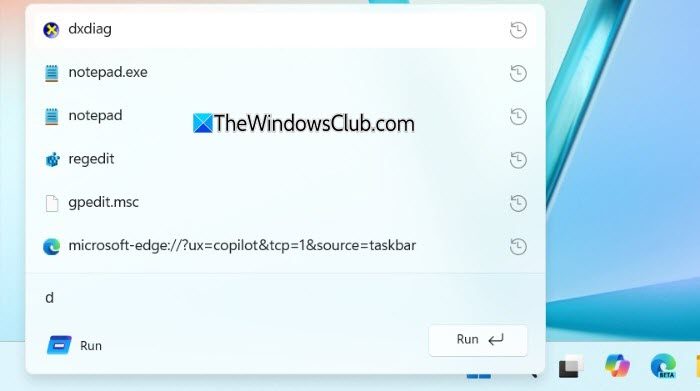
Note: As of now, the redesigned Run dialog appears to be fixed in the bottom-left corner of the screen and cannot be moved around like the classic Run dialog. Additionally, as you start typing a command, it displays a history of previously used commands in a suggestion panel, making it quicker to reuse recent entries.
Disable the new Run dialog
If you want to revert to the classic Run dialog, go to Settings > System > Advanced. Then turn Off the Run dialog toggle.
Alternatively, go to the same location within the Registry Editor:
HKEY_CURRENT_USER\Software\Microsoft\Windows\CurrentVersion\Explorer\Advanced\TaskbarDeveloperSettings
and set the Value data for the Run DWORD to 0.
Restart your PC to apply changes.
That’s all! I hope you find this useful.
Read: How to clear Run command history in Windows.
How to open Run dialog in Windows 11?
You can open the Run dialog in Windows 11 by pressing Win + R on your keyboard. Alternatively, right-click the Start button and select Run from the Power User menu. You can also type Run in Windows Search and open it from the results. If the redesigned Run dialog is enabled on your system, it will appear with a modern Windows 11 look while retaining the same functionality.
Read Next: Enable or disable Run Command box in Windows.
