
Auto-complete is one feature that makes executing the same or similar commands easy. Whether you are typing in the Command Prompt or on Run prompt if what you are typing matches with the previously executed command, you save a lot of time. This small feature is so beautifully implemented that you can use the up, and down arrow keys to navigate through the set of commands in the run prompt or hit the down arrow button on the Run prompt to see all of them. During an active CMD session, you can also press F7 to see the history of the commands. If you suddenly can’t see the saved history, what do you do?
If your Run command is not saving History in Windows 10, then this post will show you how to enable it and make Windows save Run command History, by tweaking the Registry.
Run command not saving History in Windows 11/10
Windows 10 has implemented a ton of privacy features which turned of some of the features which were previously enabled by default. Issues around audio not working, microphone in webcams turned off are few popular ones.
The same has happened with the Run command history. Let’s figure out how to fix this:
- Click on the Start button, and on the left of it look for a cog icon. This will open Windows Settings.
- Then click on Privacy > General
- Turn on the option which says ‘Let Windows Track app launches to improve Start and Search results.’
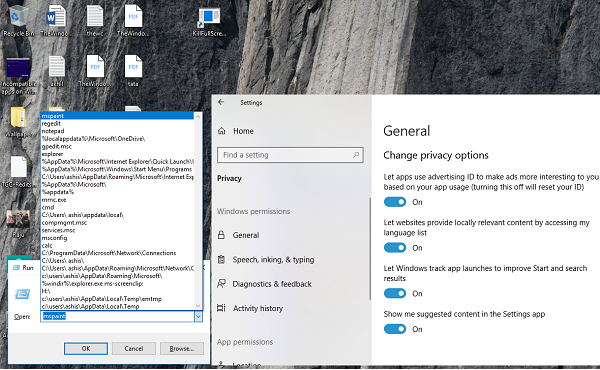
If this is greyed out for you, then you need to change one key in the Registry.
Type Regedit in Run prompt, and navigate to the following key-
HKEY_CURRENT_USER\SOFTWARE\Microsoft\Windows\CurrentVersion\Explorer\Advanced
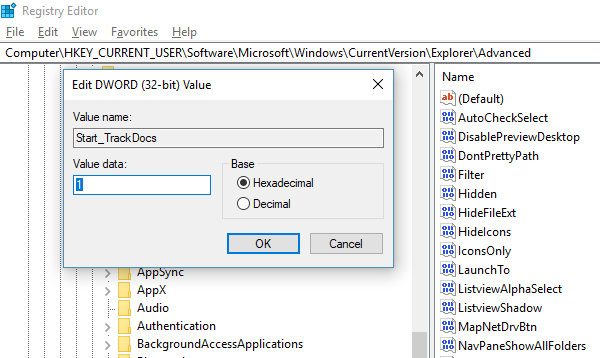
Look for the Start_TrackProgs DWORD and then double-click to open and set the value to 1.
If the DWORD is not there, right-click on an empty area on the left pane, select New > DWORD. Enter the name as Start_TrackProgs and set the value as 1.
Click OK, and reboot your computer.
Now type few commands in the Run prompt, and use the arrow keys to see if they are saved in the list. I am sure this is going to solve your problem.
Whenever you update anything in Windows Privacy settings, it affects many places. So, make sure you choose your options wisely, as it may affect your day-to-day usage.
PS: If Start Menu is not showing Recent app history, you can enable it from the Show Apps settings
How to save Run command history?
To save your Run command history in Windows, access the Registry Editor. Press Win + R, type “regedit”, and hit Enter. Navigate to HKEY_CURRENT_USER\Software\Microsoft\Windows\CurrentVersion\Explorer\RunMRU. This registry key contains your Run command history. You may save it by backing up the key.
Read: Run dialog not opening, showing, or working in Windows
How to get the History of Command Prompt in Windows 11?
To view the Command Prompt history in Windows 11, open Command Prompt and press F7. This displays a pop-up with a list of previously entered commands. If F7 doesn’t work, you can also use the “doskey /history” command to generate a list of your command history.
