
Roblox is a popular game that comes with a load of features. The game requires users to use their creativity and customize it in their own way. It also provides access to other programmers’ creations. The story frame comes under an exciting genre, and many gamers admire its gameplay. Initially, the game was launched in the web version but later was launched for Windows gamers. However, the major drawback was its refresh rate, which was 60 fps. And for the record, it hasn’t been upgraded till now. That’s why we have FPS Unlocker. But the problem is that there are a lot of misconceptions around this one tool. In this article, we are going to clarify all of them for you, we have going to talk about them in detail. Is Roblox FPS Unlocker safe, allowed, or bannable? We will be answering this in this guide.
What is Roblox FPS Unlocker? Is it allowed, or will you get banned?
Roblox is a tag that will come under the vintage game lists as it has been in the market for quite some time now. So, its refresh rate has also been stuck at 60 fps. To change this defect, developers launched an FPS unlocker.
FPS unlocker was launched on GitHub and it provides gamers a key to achieve a better refresh rate. This unlocker does a minimal task such as disabling frame limiter and v-sync, which is enabled by default.
Why do you need a Roblox FPS Unlocker?
Well, I hope you know that enabled V-sync and frame limiter is the root cause of performance issues in many online games. And that is because V-sync limits you to have a refresh rate of up to 60 fps. Even though your computer is capable of more than 60 frames per second (fps), V-sync will only allow you to maintain 60 fps.
FPS Unlocker will disable the V-sync and also add some more features to make the gameplay smoother and will increase the frame rates. Additionally, disabling V-sync will enable you to experience better gameplay in Roblox. Disabled V-sync also has other benefits, such as no input lag, allowing you to enjoy your gaming monitor to the fullest.
How to use Roblox FPS Unlocker
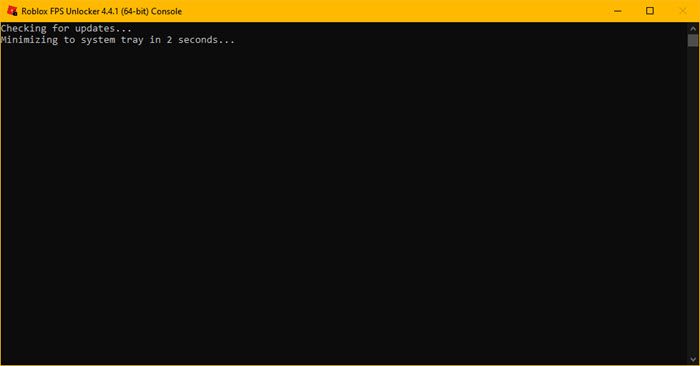
Using FPS Unlocker in Roblox is fairly easy but before that, we need to download and install the tool. Follow the steps below to complete the same task.
- Go to github.com and download the latest version of FPS Unlocker.
- Then extract the file to a location.
- Open Roblox and open a game.
- Now, open the extracted file.
- Your FPS will be increased.
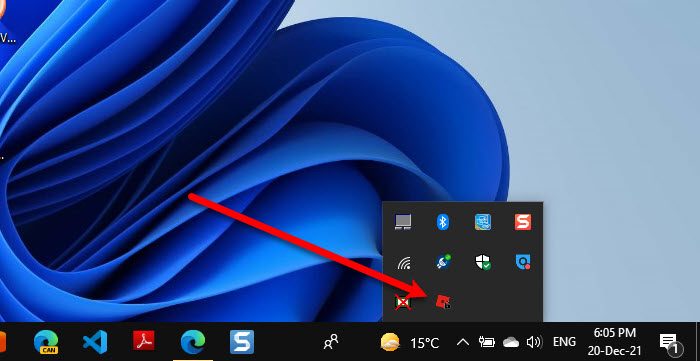
To confirm whether FPS Unlocker is running in the background, check the Taskbar. There, you will see its icon. If you are unable to see the icon, click on Λ and it will be there.
Can you get banned for using FPS Unlocker?
No, you won’t get banned for using FPS Unlocker in Roblox. The point to be noted here is that lot of subreddits have complained that they were temporarily banned but after an update, the anti-cheat recognized that the app is not malicious or illegal.
Even though anti-cheat set rumors about using FPS Unlocker, many still had their doubts. Roblox developers made it very clear that you won’t get banned while using it.
Is Roblox Unlocker worth it?
Yes, it is worth using Unlocker, as you will get tons of features. Top of the list, you are getting a better refresh rate along with smooth gameplay. It gives you access to a high frame and better performance.
Last but not least, you won’t be swamped in lagging issues as Roblox Unlocker disables V-sync, the main reason behind input lag. It increases the default limit of V-sync which is 60 fps so that everything looks smooth.
Does FPS Unlocker reduce lag?
Yes, it comparingly reduces input lag by giving more wings to the game. FPS Unlocker disables V-sync, which is enabled by default, allowing you to enjoy your gaming computer to its fullest. However, in some computers, this move can backfire. So, install FPS unlocker in Roblox and see if it’s working fine, if you see that your game is lagging or if your computer starts heating, uninstall it, as your computer is handling the tool well.
How do you check FPS on Roblox?
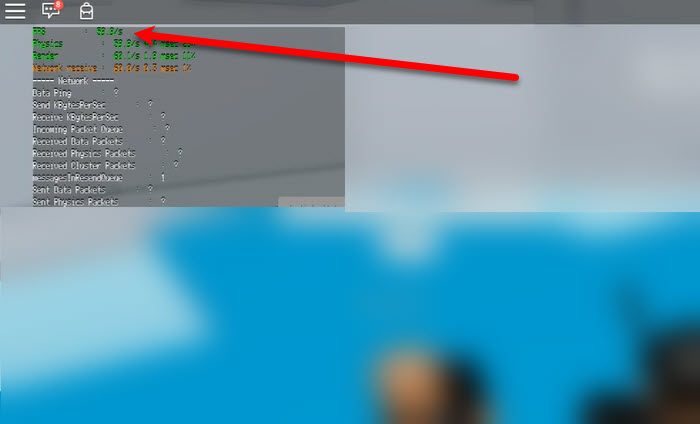
You can easily check FPS on Roblox. Just hold Shift and then click F5. You will see a lot of different things. We don’t need to know all of them, we just need to check the FPS. So, note the FPS. You can also check the FPS after using the unlocker. You will see a significant difference in the FPS.
Some Common Roblox issues:
