
In this post, we will show you how to remove the underline from a link in Outlook. By default, Microsoft Outlook automatically formats hyperlinks in blue with an underline. While this default styling is done to indicate clickable content, it doesn’t always match the look you want for your email.
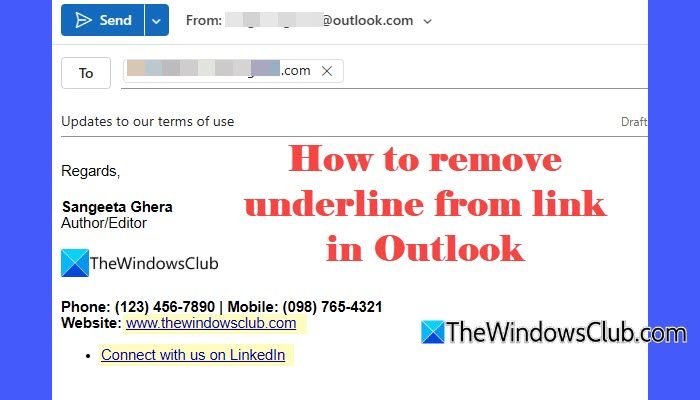
The underline can sometimes make an email look cluttered or visually inconsistent with custom fonts and colors. In corporate environments, it may even conflict with brand guidelines. If you want to keep the link clickable while removing the underline, we’ll show you how to do that step by step.
How to remove Underline from Link in Outlook
To remove the underline from a link in Outlook on a Windows 11/10 PC, use the following methods:
- Use the font formatting option
- Modify the hyperlink style
- Remove underline from links in your email signature
Let us see these methods in detail.
1] Use the font formatting option
Applies to: Microsoft Outlook, New Outlook app, Outlook on the web
In Microsoft Outlook, hyperlinks are treated like normal text with special formatting applied. If you just want to remove the underline from a hyperlink in your email, the font formatting option is the quickest and easiest method.
Open your email in Outlook and insert the hyperlink as usual.
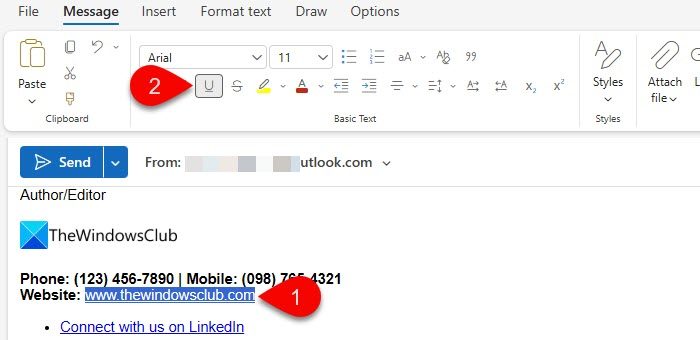
Select the linked text. Go to the Format Text tab on the ribbon. Click the Underline button to turn it off. In the new Outlook app or Outlook on the web, you can also find this option within the Message tab.
Alternatively, you can select the text and press Ctrl + U to remove the underline.
2] Modify the hyperlink style
Applies to: Microsoft Outlook
If you regularly send emails and don’t want to remove the underline manually each time, you can modify the Hyperlink style in Microsoft Outlook. This method changes how hyperlinks appear in your current email (or template).
Open a new email message in Outlook. Go to the Format Text tab. Click the small arrow in the Styles group to open the Styles pane.
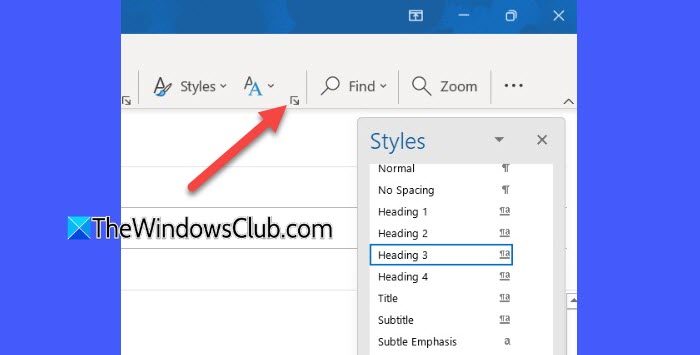
In the list, find Hyperlink. Right-click Hyperlink and select Modify. In the formatting options, click the Underline button to remove it.
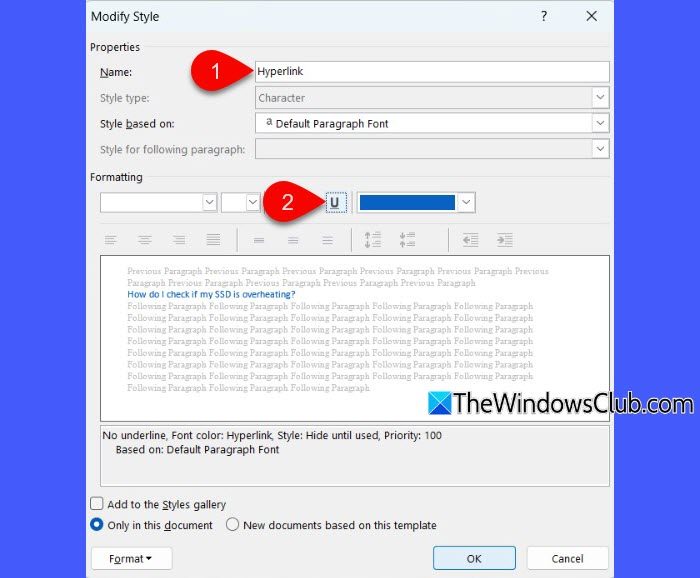
You may also format the hyperlink in the message composer and select Update Hyperlink to Match Selection.

To change it for all new messages that you create in Outlook, enable the option: New documents based on this template.
Click OK to apply the style changes and to close the dialog. Close the Styles pane using the close icon (X) in the top right corner.
Note: If you want to control the appearance of visited links as well, modify the FollowedHyperlink style. Outlook uses Hyperlink for normal (unvisited) links and FollowedHyperlink for links that have been clicked. If you only modify one, visited links may still appear underlined or change color, causing formatting inconsistencies.
3] Remove underline from links in your email signature
Applies to: Microsoft Outlook
Many users don’t actually want to remove the underline from links in the entire email. They specifically want to remove it from their email signature. If you’re trying to keep your signature clean, professional, and aligned with your branding, then this method is for you.
A] Remove underline directly from the Signature Editor
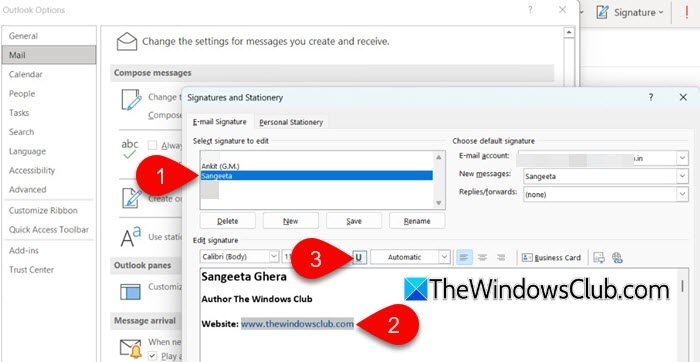
Open Outlook. Go to File > Options.
Select Mail from the left pane. In the right pane, click Stationery and Fonts. The Signatures and Stationery dialogue will open. Select your signature under Select signature to edit.
In the Signature editor, select the hyperlinked text, then click the Underline option to remove the underline.
Click OK, then OK again to save the changes.
B] Edit the signature HTML
In Microsoft Outlook, signatures are saved as local HTML files, which you can open and modify manually.
Close Outlook. Press Win + R to open the Run dialog box.
In the Run dialog, type the following path and press Enter:
%appdata%\Microsoft\Signatures
Locate your signature name. You will see multiple files with the same name:
- .htm
- .rtf
- .txt
- A folder containing images (if your signature includes logos)
Open the .htm file in Notepad or any text editor.
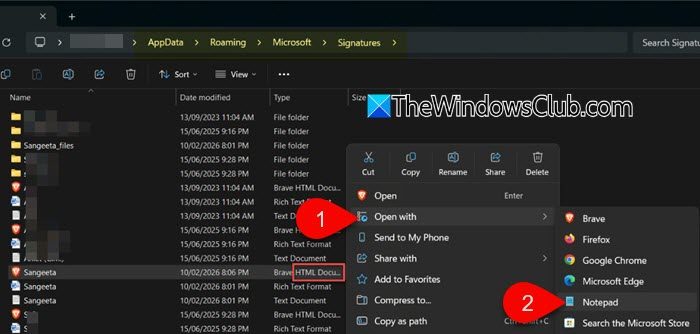
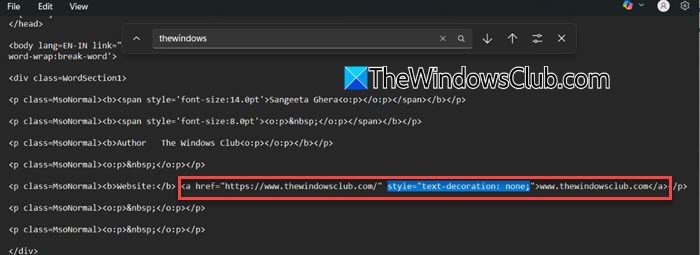
Find the <a> tag for your hyperlink. It may look like this:
<a href="https://www.thewindowsclub.com">TheWindowsClub</a>
Modify it to remove the underline:
<a href="https://www.thewindowsclub.com" style="text-decoration: none;">
TheWindowsClub
</a>
Save the file.
Reopen Outlook and test your signature.
I hope you find this useful.
Read: How to remove the Underline from a Hyperlink in Word.
How do I change a hyperlink to normal text?
To change a hyperlink to normal text in Microsoft Outlook, select the hyperlink text, right-click it, and choose Remove Hyperlink. This converts the clickable link into plain text while keeping the visible text unchanged. You can also use the shortcut Ctrl + Shift + F9 to remove the hyperlink quickly.
Read: How to remove underline from link in PowerPoint
How do I get rid of Underline in Email?
Select the underlined text in your email and click the Underline (U) button on the formatting toolbar to turn it off. In Microsoft Outlook, you can also press Ctrl + D and set the Underline style to (none). The text will remain clickable if it’s a hyperlink, but the underline formatting will be removed.
Read Next: Stop Outlook from changing the font for hyperlinks.
