
In this post, we will show you how to remove the underline from a link in PowerPoint. When you insert a link in PowerPoint, the app automatically formats it according to the theme’s hyperlink style (usually blue) and adds an underline. While this makes links easy to identify, it can sometimes look distracting or clash with your slide design.
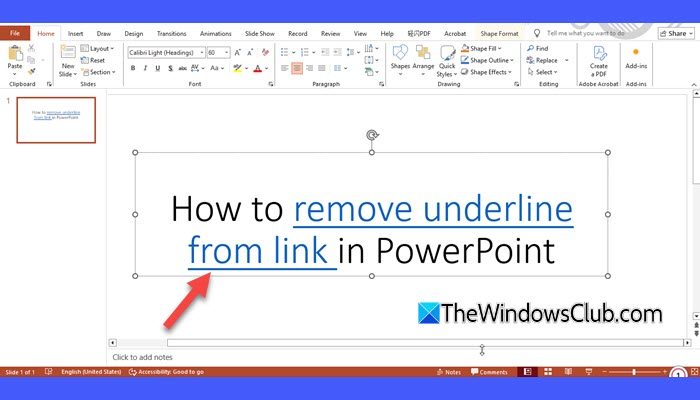
In other Office apps, these underlines can easily be removed using standard font formatting options. However, PowerPoint doesn’t treat hyperlink underlines as regular text underlines, so they may not disappear even if you click the Underline button. The good news is that you can still remove the underline using a few simple workarounds. We’ll walk you through them below.
How to remove underline from link in PowerPoint
To remove underline from a link in PowerPoint on your Windows 11/10 PC, you may use these workarounds:
- Apply the hyperlink to a shape
- Hide the underline by matching the background color
- Convert the hyperlink text to a picture
- Use a VBA Macro
Let us see this in detail.
1] Apply the hyperlink to a shape
One of the most reliable ways to remove the underline from a link in PowerPoint is to apply the link to a shape, rather than text.
Open your PowerPoint presentation and select the hyperlinked text. Right-click it and select Remove Link.

Next, go to Insert > Shapes and select Rectangle from the list.
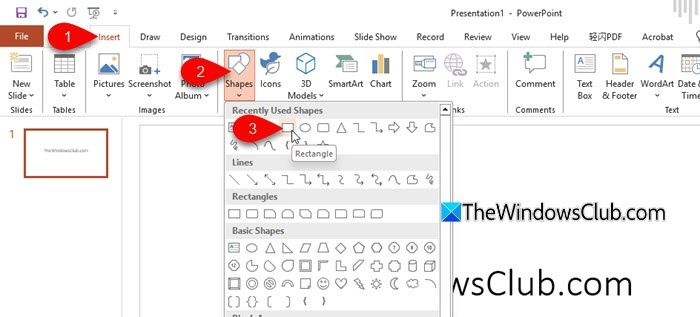
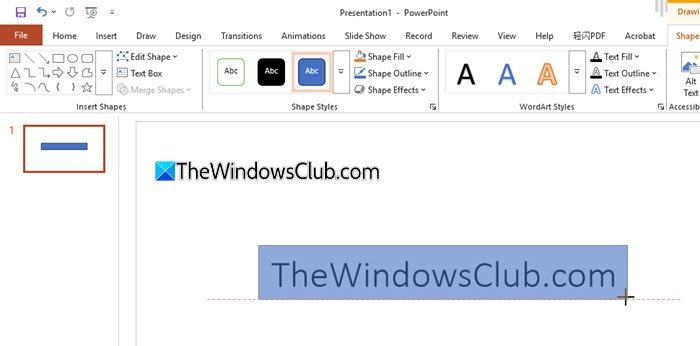
Draw the shape to cover the text that needs to be hyperlinked.
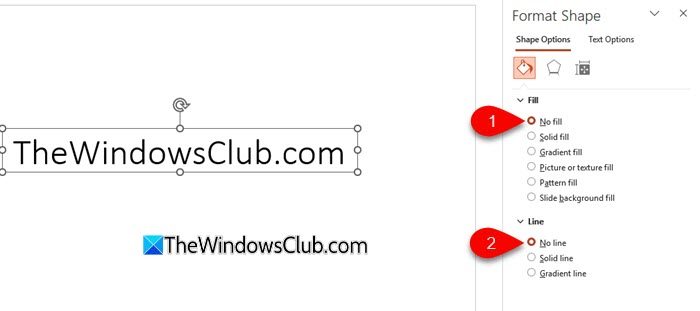
Select the shape, right-click it, and select Format Shape. In the Format Shape pane, select No fill under Fill, and No line under Line. The rectangle will become transparent (invisible).
Now, select the shape again, right-click it, and select Hyperlink.

In the Insert Hyperlink dialogue, enter the web URL (or select the slide) you want to link to, and click OK.
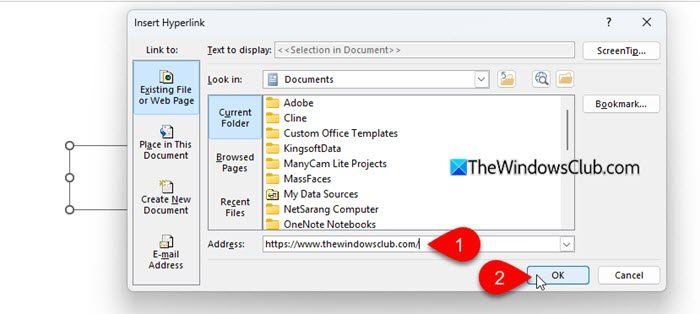
When you play the slideshow, the text remains clickable, but the underline no longer appears because the hyperlink is applied to the shape rather than the text.

2] Hide the underline by matching the background color
If you’ve applied a solid background to your presentation, you can make the hyperlink underline invisible by matching its color to the slide background.
Open your PowerPoint presentation and select the hyperlinked text. Go to the Home tab and click the small arrow in the bottom-right corner of the Font group (or press Ctrl + D to open the Font dialog box).
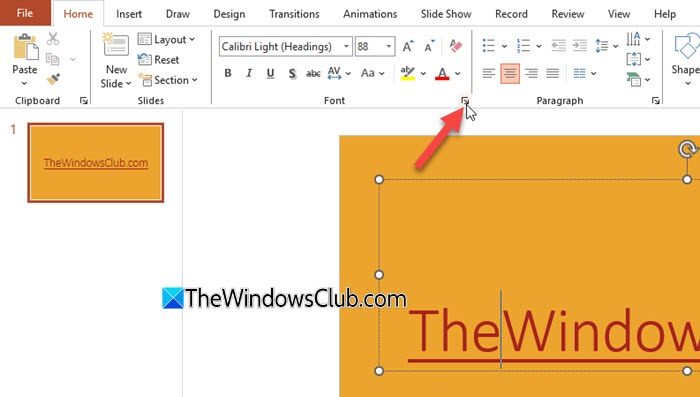
Under Underline style, select Single line. Next, change the Underline color to the color that matches your slide background.
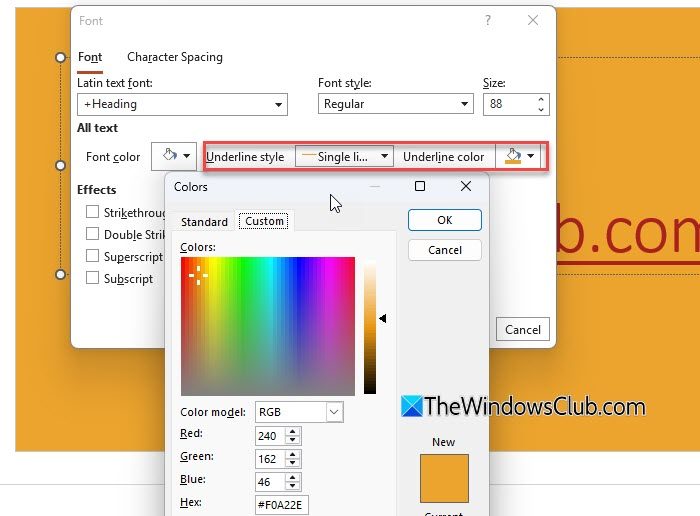
Click OK to apply the changes.
The underline will still technically exist, but it will blend into the slide background and no longer be visible. This method works best with solid background colors, as patterned or image backgrounds may reveal parts of the underline.

3] Convert the hyperlink text to a picture
Another workaround is to convert the text into an image and then apply the hyperlink to the image. This method is generally not recommended for large blocks of content since the text becomes non-editable after conversion.
Select the hyperlinked text, right-click it, and select Remove Link.
Then select the text and press Ctrl + C to copy it. Go to Home > Paste > Paste Special and choose Picture (PNG). The text will now appear as a picture.
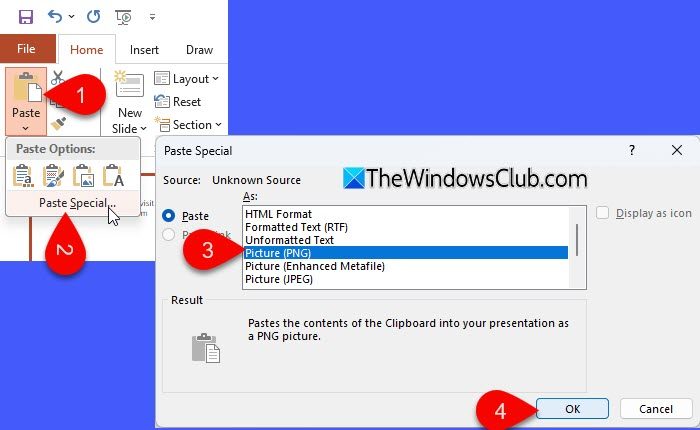
Delete the original text. Then move the image to the same position as the text previously appeared, maintaining the same alignment and spacing.
Right-click the image and select Hyperlink. Enter the web URL (or choose the slide you want to link to) and click OK. The image will remain clickable, but no underline will appear.

Note: When you paste text as an image, PowerPoint may convert the default hyperlink color from blue to black. If you only want to remove the underline without changing the text color, select the picture and go to Picture Format > Color > Recolor, then choose a blue tone that matches your original text.
Read: How to remove the Underline from a Hyperlink in Word
4] Use a VBA Macro
If you are comfortable using VBA, you can use a macro to automatically move hyperlinks from text to their parent shapes. This method is best suited for presentations where hyperlinks are applied to full text boxes rather than selected words within paragraphs.
In PowerPoint, everything is treated as a shape, including text boxes, title placeholders, and content boxes. This allows us to move the hyperlink from the text level to the shape level using VBA.
Before proceeding, save a backup copy of your presentation.
Press Alt + F11 to open the Visual Basic Editor. Click Insert > Module.
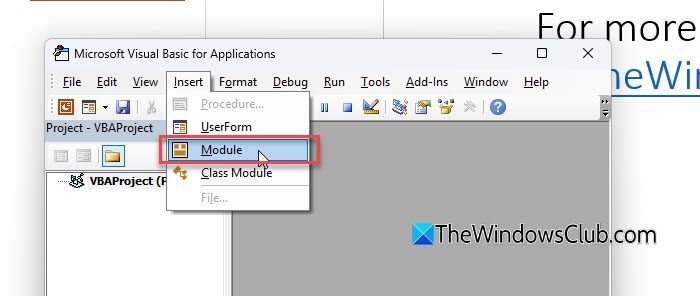
Copy and paste the following code into the module window:
Sub HyperlinkShapes()

Dim oSh As Shape

Dim oSl As Slide

For Each oSl In ActivePresentation.Slides

For Each oSh In oSl.Shapes

If oSh.HasTextFrame Then

If oSh.TextFrame.HasText Then

If Len(oSh.TextFrame.TextRange.ActionSettings.Item(1).Hyperlink.Address) > 0 Then

oSh.ActionSettings(1).Hyperlink.Address = oSh.TextFrame.TextRange.ActionSettings.Item(1).Hyperlink.Address

oSh.TextFrame.TextRange.ActionSettings(1).Action = ppActionNone

End If

End If

End If

Next ' shape

Next ' slide

End Sub
Press F5 to run the macro. The macro will scan all slides and move any text-level hyperlinks to the shape level.

Note:
- This macro works only when the entire text box contains a hyperlink.
- It does not detect hyperlinks applied to individual words or partial text within a text box.
That’s it!
Read: How to modify Hyperlinks in Excel, Word and PowerPoint.
How do I unclick a link in PowerPoint?
To remove (unclick) a hyperlink in PowerPoint, select the linked text or object, right-click it, and choose Remove Link. You can also go to the Insert tab, click Link, and remove the existing hyperlink from the dialog box. Once removed, the text or object will no longer be clickable during the slideshow.
Read: How to remove Underline from Link in Outlook
What is Ctrl+K in PowerPoint?
Pressing Ctrl + K opens the Insert Hyperlink dialog box in PowerPoint. It allows you to add a link to a web page, another slide in the presentation, an email address, or a file. This shortcut works when text or an object is selected.
