
While importing files in Registry Editor, if you get Cannot import reg key, Error accessing the registry error, these troubleshooting suggestions will help you fix the issue. This unusual error message can appear on your computer when the Registry Editor has issues or another process is controlling the Registry Editor files.
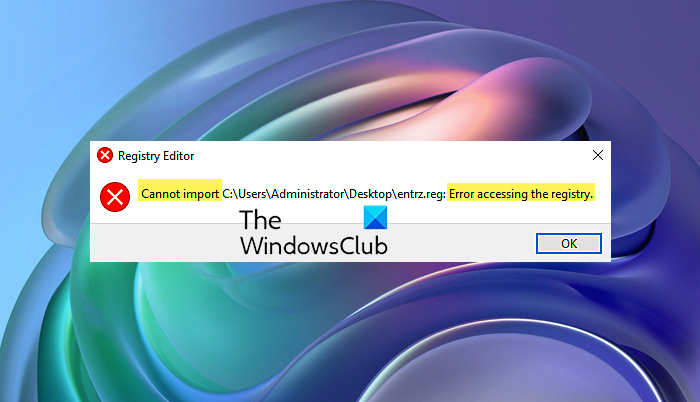
The entire error message says:
Registry Editor, Cannot import reg file: Error accessing the registry
Registry Editor, Cannot import, Error accessing the registry
If you cannot import a .reg Registry file and see Error accessing the registry message, follow these steps to resolve the issue:
- Restart your computer
- Try in Safe Mode
- Use Administrator account
- Take full ownership of the Registry key
To learn more about these solutions in detail, continue reading.
1] Restart your computer
As mentioned earlier, if the Registry Editor or Registry file is being processed by another program in any way, there is a chance of getting this error on your computer. No matter how many ways you try to import, you will encounter the same issue while importing.
The worst thing is that you may not be able to detect the program using Task Manager. However, you can use Task Manager to close all open or recently opened programs and their corresponding processes.
However, if it doesn’t help, you can restart your computer. It will close all the processes and apps at once. After that, you will be able to import the Registry files without errors.
2] Try in Safe Mode
If you have recently installed any drivers or hardware and the problem started after that, you can try importing the Registry files in Safe Mode. Safe Mode disables all third-party processes at once, so you can get a fresh-like experience while using your computer. Therefore, follow this guide to boot your PC in Safe Mode. Then try importing the Registry file.
3] Use Administrator account
At times, not having permission might cause this issue. For your information, some HKEY_LOCAL_MACHINE keys may not work if you are not signed in to an administrator account. If so, you need to use an administrator account to resolve this problem. If you wish, you can enable the in-built administrator account and try to import the data with it.
4] Take full ownership of the Registry key
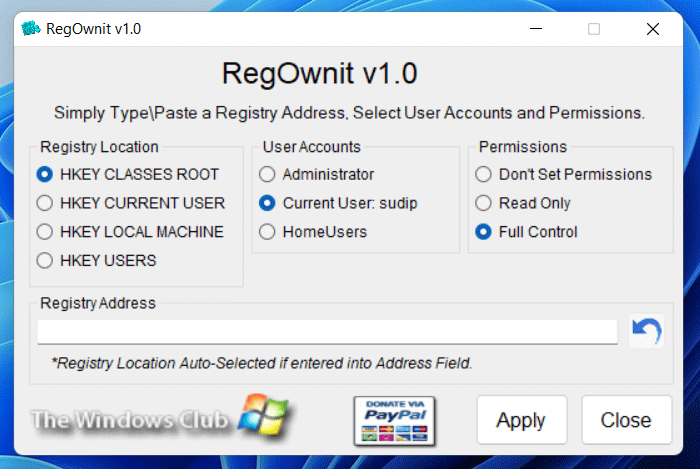
There are some Registry keys and values that require to have proper permissions. Otherwise, you might encounter the aforementioned issue. Let’s assume that your exported Registry files include some keys that your user account doesn’t have permission to access. In such situations, you must take full ownership of the file. No matter whether you want to modify the key or import it into the Windows Registry, you must obtain full ownership.
There are two ways to gain ownership of a Registry key. First, you can use the manual method. However, if you want to get things done quickly, you can opt for our RegOwnit. This freeware allows users to take full control and ownership of Windows Registry keys with a click.
NOTE: It is strongly recommended that you first backup your Windows registry and create a system restore point before making any changes to your system. Be very careful and aware of what you are doing as taking ownership of Registry keys can create problems.
This should resolve your problem.
Read: How to monitor and track Registry changes in Windows
How do you fix Cannot import, Not all data was successfully written?
If you see Cannot import Registry File, Not all Data was successfully written to the Registry error, you need to follow almost the same guide as mentioned above. For example, you need to sign in to an administrator account, boot in the Safe Mode and try again, take full control of the Registry key, etc.
Read: Cannot import file: The specified file is not a registry script
How do you fix Cannot import, Error accessing the registry?
If you get Cannot import error accessing the registry error while importing, you must sign in to an administrator account to get it resolved. However, if it doesn’t work, you need to use the System Restore point to get it fixed. However, before using the System Restore point, it is highly recommended to use the first solution.
Read: How to switch between HKLM and HKCU quickly in Registry Editor.
