
Some users can’t import registry files. When trying to do the same, an error message saying Cannot import file: The specified file is not a registry script appears. In this post, we’ll show you how to fix the issue and import your registry.
The following is the exact error message.
Cannot import C:<file-name>reg: The specified file is not a registry script. You can only import binary registry files from within the registry editor.

Let us go to the troubleshooting guide in order to fix it.
What is a .reg file?
The .reg, or Registry Entries, files are used to alter your computer’s settings. They use Registry Editor to do what the Settings app can do, and more. When you download a registry or create its backup, it will be saved in said format. The following is the syntax of .REG files.
RegistryEditorVersion
Blank line
[RegistryPath1]
"DataItemName1"="DataType1:DataValue1"
"DataItemName2"="DataType2:DataValue2"
Blank line
[RegistryPath2]
"DataItemName3"="DataType3:DataValue3"
In this syntax, RegistryEditorVersion specifies the version of Registry Editor. For Windows 11/10, the version will be Windows Registry Editor Version 5.00. In case the registry file you were trying to import has a different format, you will see the error code in question.
Cannot import file: The specified file is not a registry script
If you cannot import your registry and see Cannot import file: The specified file is not a registry script on a Windows computer, try the following solutions.
- Check the formatting of the Registry File
- Try importing Registry Files in Clean Boot
- Run SFC and DISM
Let us start troubleshooting.
1] Check the formatting of the Registry File
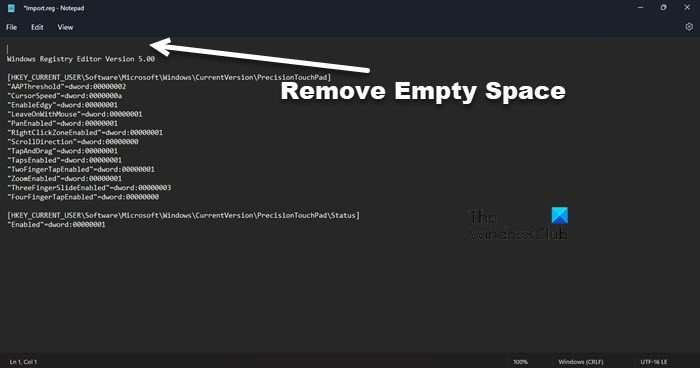
Let us first check the format of the Registry File. First, open the file you were trying to import in Notepad. For that, you can right-click on the file and select Open with > Notepad (or Notepad++). Once the file opens, check for an empty line before the Registry version. If there is, remove it and save the file using Ctrl + S. Then try importing the file; it should work.
Read: How to repair or fix corrupt Registry in Windows
2] Try importing the Registry File in Clean Boot
Let us try importing the Registry File in Clean Boot State. This mode stops all services except those of the OS, ensuring no third-party application interferes. So, boot your PC in Safe Mode and then try to import the file. Hopefully, your issue will be resolved then. If you want to find the culprit, enable processes manually and narrow the suspect down to one. If that app is unimportant, you can remove it and your issue will be resolved.
3] Run SFC and DISM
To fix corrupted system files, you can try running SFC and DISM commands. To do the same, open Command Prompt as an administrator and run the following command.
sfc /scannow
If this doesn’t work, run the command mentioned below.
DISM.exe /Online /Cleanup-Image /RestoreHealth /Source:C:\RepairSource\Windows /LimitAccess
Hopefully, this will do the job for you.
Read: Registry Editor, Cannot import reg file, Error accessing the registry
How do I import the registry in Windows 11?
It is quite easy to import the Registry file in Windows 11/10. There are various methods to import the registry. We have mentioned three of them below.
- Double-click the Registry File (.reg), and a UAC pop-up will ask you to confirm your actions; click Yes. Click Yes again to continue.
- You can also import files using the Registry Editor. Hit Win + R, type Regedit, and click Ok. Now click Import, go to where the file is saved, select it and click OK.
- Right-click on the .reg file and select Merge, if you are on Windows 11 you may have to click on More options to see the Merge button. Once the button is clicked, do what you did in the first method the registry file will be imported.
You can use any of the three methods, but the first is the easiest. Hopefully, now you know how to import a registry file.
Read: Cannot import Registry File, Not all Data was successfully written to the Registry
How do I add a registry key?
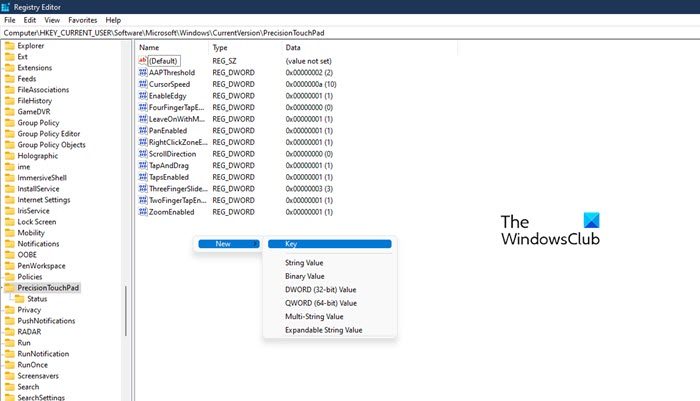
A registry key is created when you add or install an adapter, device, software, or similar item on your computer. It has values you can use to alter how the related component functions. However, sometimes you need to create a Registry key manually to customize a device further. To do this, first go to the location where you want to create the key. Then, right-click on the space on the left panel and select New > Key. Then name the key as needed.
Also read: Registry Editor: Use, Edit, Open, Modify, Save, Backup, Import, Export.
