
Have you ever wondered how to modify the Registry settings of other Users in Windows 11/10? Well, Windows users can edit registry settings only for the currently logged-in user account. When a user attempts to open the Registry Editor, Windows displays the registry hives of the currently logged-in account only.
If your system has multiple user accounts and you wish to modify another user’s registry settings, you need to log in to that account. However, with sufficient credentials, it is possible to modify other users’ registry settings without logging into each account every time.
In order to edit the Windows Registry of other users, one must first identify where the registry hive of that particular user is stored. Each user has their information stored in the HKEY_CURRENT_USER registry hive, which is unique to each user, and in all new versions of Windows, the NTUSER.DAT file is loaded as soon as the user logs in to the system. To modify another user’s registry settings, first identify the user’s directory file.
In this article, we explain how to modify another user’s registry in Windows 11/10. Before modifying the registry settings, it is recommended to back up the Registry.
How to edit Registry for another User in Windows 11
Follow the steps below to load the registry of another user and make changes to other users’ registry settings.
Load the registry hive of another user
To edit another user’s registry, one must first load their registry which is stored in the User directory file NTUSER.DAT C:\Users\<username>\ntuser.dat.
To load the user’s ntuser.dat file use the reg.exe in the command prompt or PowerShell.
Type Command Prompt in Start Menu and Run as administrator.
Type the following command specifying the user’s key, file and path of NTUSER.DAT to load another user’s NTUSER.DAT file-
reg load HKU\<username> C:\Users\<username>\ntuser.dat
Make sure to replace <username> with the name of the user’s folder you want to edit the registry.

Once the loading is successfully completed, open Run.
Type regedit and click on OK to open the Registry Editor.
Navigate to the following path Computer\HKEY_USERS and select the username specified in the command prompt.
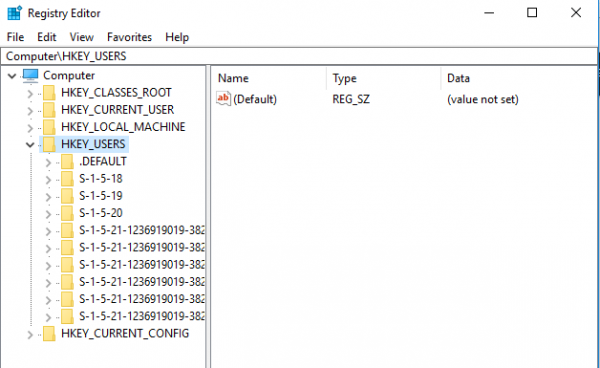
Once done, the user can access all registry keys and modify another user’s registry keys without affecting the main user’s account.
For your general information, the registry hive is located in the %Windir%\System32\Config folder as one of the following files:
- SAM represents Sam hive.
- SECURITY represents Security hive.
- SOFTWARE represents Software hive.
- SYSTEM represents System hive.
Hope this helps!
NOTE: After loading and modifying another user’s registry, you have to unload it manually using reg unload HKU\<username>. If you do not manually unload it, they will not be able to log in under their profile. Thanks Brandon & Matt.
How do I see other users’ registry?
To view other users’ Registry, as explained in this post, go to the HKEY_USERS folder > File > Choose Load Hive option. Locate a non-active NTUSER. Open the DAT file and click the Open button to load it.
Can you remotely edit the registry?
Yes, you can remotely edit the registry of a client computer from a host computer. To do this, open Registry Editor on the Host computer. On the File menu, select Load Hive. Select the registry hive on the Client computer you want to edit remotely, then click OK.
