
Printer and Scanner Drivers can be notorious. I remember having a lot of trouble with them in college, and even now, when I have multiple printers at home. One of the common issues we have cited in the forums is that consumers were unable to print or scan documents. The error appears in the Windows Settings page where it says — Printer or Scanner Driver is unavailable. In this post, I will share several tips to help you fix this problem for Epson, HP, etc. Printers & Scanner.
Cant Print or Scan documents
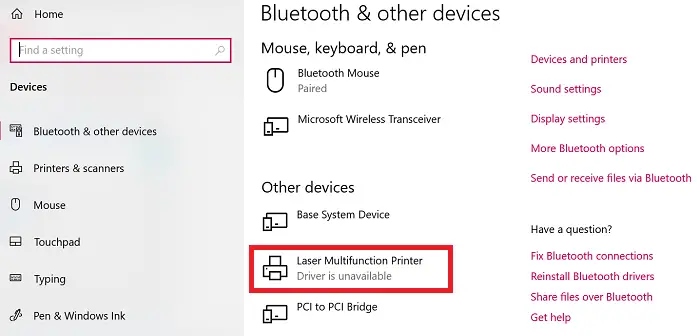
Printer or Scanner Driver is unavailable in Windows 11/10
These are some of the top suggestions available from forum users that have worked for them. You should know that even though people may have the same problem, solutions can be different.
- Reset Firewall for Network Printers
- Reinstall the Printer or Scanner Driver
- Use Microsoft Driver
- Install Driver in Compatibility Mode
- Suggestions for an old Printer/Scanner
Some of the tips will only work when you have admin privileges. Make sure to check if the problem was resolved after each listed solution.
1] Reset Firewall for Network Printers
If it’s a network printer installed on the computer, it can be blocked by the firewall. It could be the printer’s IP address or the port number. The first thing you need to is to find the IP address of the printer using your router or another computer. Next, if you can manage Windows Firewall, then you can check if the port or IP has been blocked. You can either manually remove it or reset the Firewall.
2] Reinstall the Printer/Scanner Driver
The next step is to reinstall the printer/scanner driver. You can install the driver from the OEM website, or you can use the Device Manager.
- Type devmgmt.msc in the Run prompt and press the Enter key
- Navigate to Print queues, and locate the printer
- Right-click on it and select Uninstall.
- Restart the computer. Windows will then attempt to reinstall the driver.
During installation, it will check with the Windows Update Service and look for an official driver to install.
Related: Application Isolation feature isolates applications from Printer drivers.
3] Use Microsoft Driver
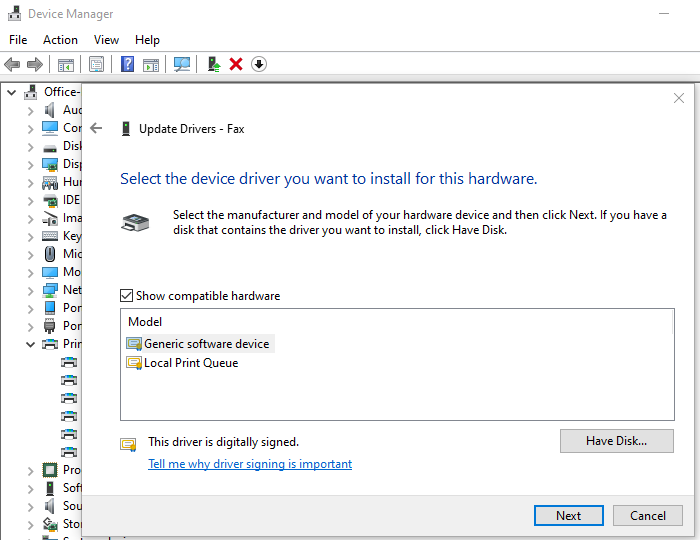
Some users reported that installing the generic driver has helped. These drivers are provided by Microsoft when no official drivers are available.
- Open Device Manager (devmgmt.msc)
- Locate the printer or scanner, and right-click on it
- Click on Update Driver from the menu, and choose to browse manually
- In the next screen, select “Let me pick from a list of available drivers on my computer.”
- Then select the driver that has a “Generic” name.
- Install the driver and check if that works.
4] Install Driver in Compatibility Mode
If there is a compatibility issue with the driver and the current version of Windows, you should install the printer/scanner driver using compatibility mode. To execute this method, you will need to install the driver from the OEM’s website.
- Right-click on the setup file, select properties.
- Switch to the Compatibility Tab.
- First, run compatibility troubleshooter, if that doesn’t work, then check the box next to Run this program in Compatibility mode
- Apply, and then install the driver to see if it works as expected.
5] If it’s an old Printer or Scanner
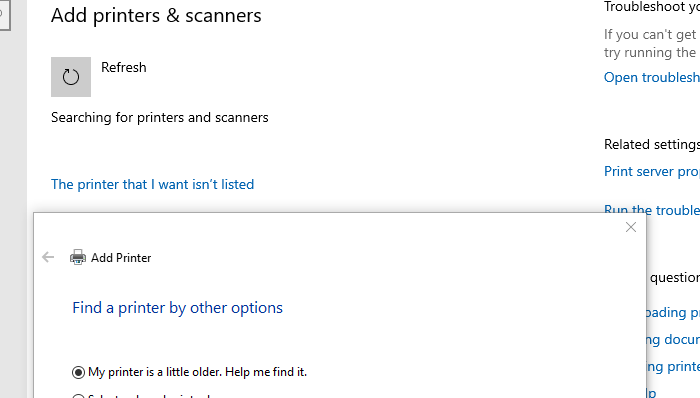
If you are trying to get an old printer or scanner working, here is a neat trick available in Windows.
- Go to Settings > Devices > Printers and scanners
- Next click on Add a printer or scanner button
- When it displays link which says—The printer that I want isn’t listed, click on it
- Select the radio button which says, “My printer is a little older. Help me find it.”
- It will then scan for older models, and might find it for you.
- Since Microsoft maintains a massive database of drivers through the update service, it will install the driver as well.
That concludes our suggestions to help you resolve the “Printer or Scanner Driver is unavailable” message in Windows 11/10.
Let us know if this helps you.
