
If PowerPoint opens a blank presentation with name but content not showing, the solutions provided in this article will help you. This problem can occur due to several causes, such as a corrupt PowerPoint file, conflicting add-ins, or incompatible fonts.
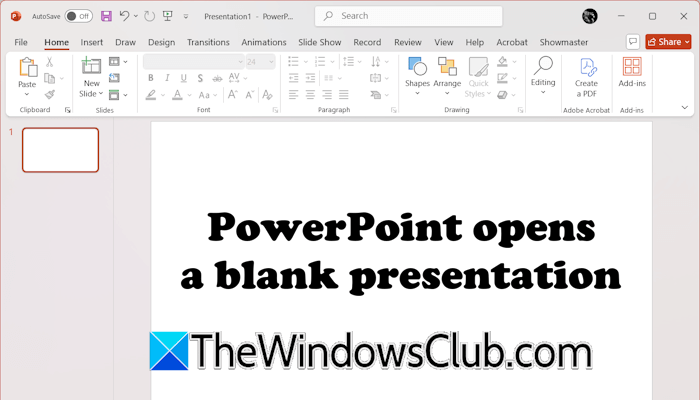
PowerPoint opens a blank presentation
If PowerPoint opens a blank presentation with name, but content not showing, on your Windows computer, these solutions will help you.
- Change PowerPoint Options
- Open the affected PowerPoint file online
- Disable add-ins
- Create a new user profile
- Restore the PowerPoint file to the previous version (if applicable)
- Use the Reuse Slide option
- Change the image format (if applicable)
- Repair Office
- Roll Back or Reinstall Office
All these fixes are explained in detail below.
1] Change PowerPoint Options
If PowerPoint opens a blank document on startup, it might be selected as the default document in PowerPoint settings. Check this and change this setting.
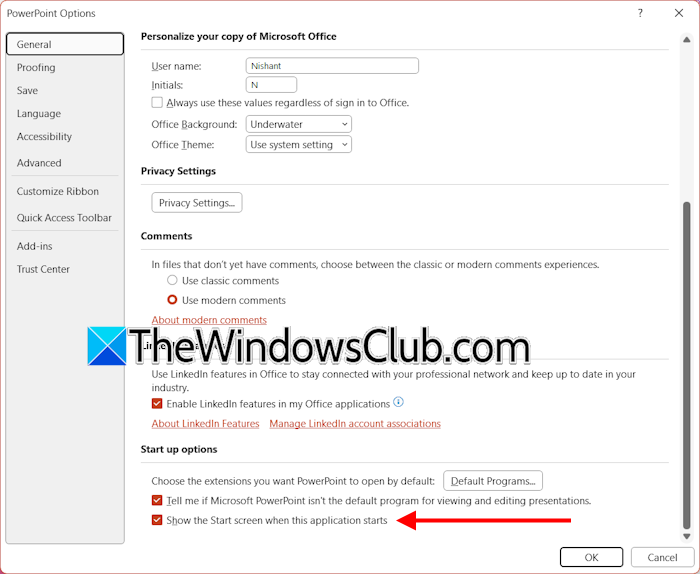
Follow these steps:
- Open PowerPoint.
- Go to File > Options.
- Select the General tab from the left side and scroll to the bottom.
- Under the Startup options, enable the “Show the Start screen when this application starts” checkbox.
After performing the above steps, PowerPoint will open the Start screen on every launch.
2] Open the affected PowerPoint file online
If the saved PowerPoint file opens blank or some of its pages are blank, it may have become corrupted. You can verify this by uploading the same document to OneDrive and then opening it in PowerPoint for the Web. If the file opens blank online, it might have been corrupted. Now, in this case, you can repair the corrupted PowerPoint file.
3] Disable add-ins
Sometimes, add-ins installed in Microsoft Office applications conflict with the software and cause several issues. If this is the case with you, disabling all the installed add-ins will help.
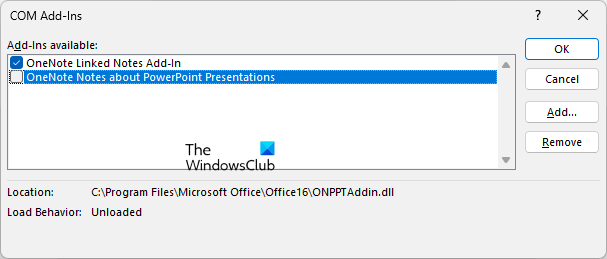
Follow these steps:
- Open PowerPoint.
- Go to File > Options.
- Select Add-ins from the left side and then select COM add-ins in the drop-down on the right side.
- Now, click Go. A new pop-up window will appear. Uncheck all the add-ins and click OK.
- Restart PowerPoint and see if the issue persists.
4] Create a new user profile
Create a new user account and sign in to that account. Now, launch PowerPoint and open the affected file. See if the problem persists. If the issue disappears in the new user profile, the problem might be occurring due to the conflicting font. This happens if you have recently installed a new font on your system. However, if you have not installed a new font, you can still check this.
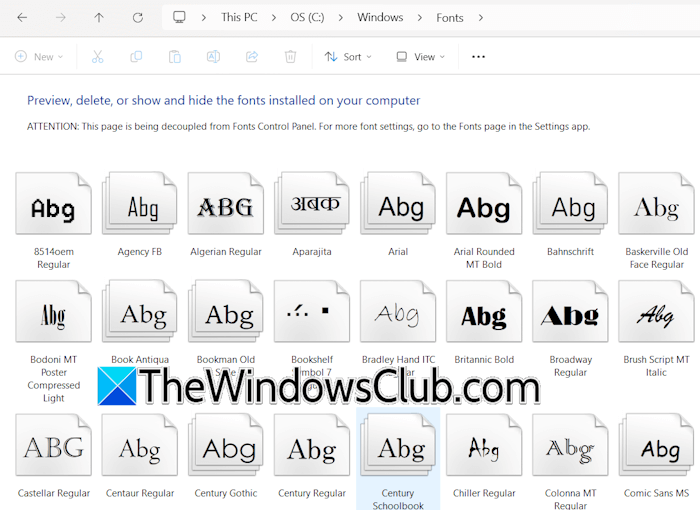
Open the C drive and go to Windows > Fonts. Count the number of installed fonts in both user profiles. If there is a mismatch, check which font is missing in the new user profile. That font might be the culprit. Now, move that font to another hard drive partition. Open PowerPoint and check if the issue persists.
5] Restore the PowerPoint file to the previous version (if applicable)
If your PowerPoint file is corrupted, you can restore it to the previous version. However, this method will work only if you have saved the PowerPoint file to OneDrive. When you restore your PowerPoint presentation to a previous version, all the changes you made after the selected date will be lost.
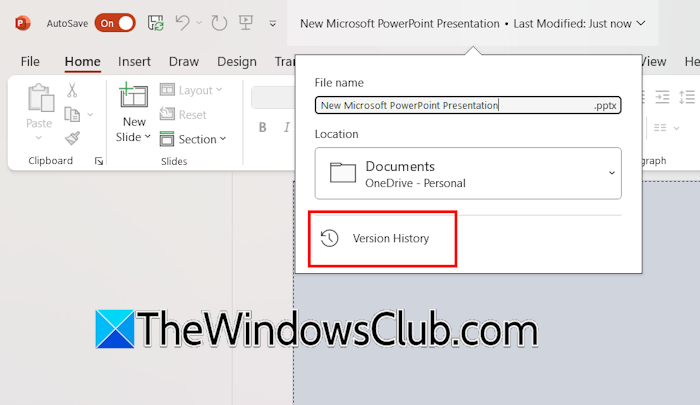
To view the Version History of your PowerPoint file, open it and click on the file name on the ribbon. You will see the Version History option there. Click on it and select any previous version of the file.
6] Use the Reuse Slide option
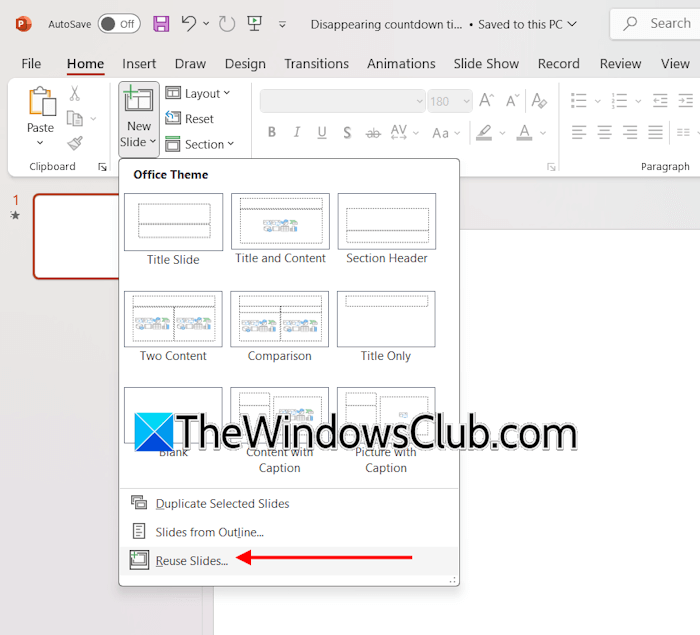
If some slides are blank in your PowerPoint presentation, you can use the Reuse slide option and see if it works. Open the affected PowerPoint file and click New Slide > Reuse Slide. Now, click Browse and select the same PowerPoint presentation. If it shows all the slides, you can select the missing slide and insert it into your presentation.
7] Change the image format (if applicable)
If the pages containing the images are blank in your presentation, change the image format. Use PNG or JPEG image format. You can use any third-party image converter tool or the built-in Paint software to convert your image formats. Open the image in Microsoft Paint, click File > Save As, and select PNG or JPEG.
8] Repair Office

If the issue persists, repair Microsoft Office. Select the Online Repair option while repairing the Microsoft Office suite.
9] Roll Back or Reinstall Office
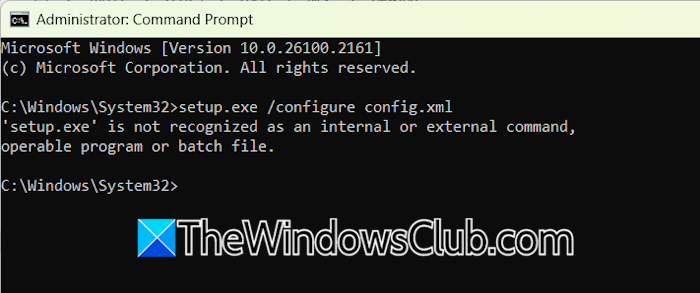
You can also roll back Office to the previous version. By default, the Automatic update option is enabled in the Microsoft Office suite. Hence, Office installs the update automatically. A recent Office update might be causing this problem. Roll Back Office suite to the earlier version and see if it fixes the issue. If this does not work, try uninstalling and reinstalling Office. Before performing this step, ensure you have the activation key.
Why is my PowerPoint presentation blank?
If PowerPoint opens a blank presentation on startup, it might be due to the change in default settings. Check this in PowerPoint Options. Other reasons for this issue include a corrupted PowerPoint file, conflicting add-ins, hidden slides, etc.
When you open a blank presentation, it opens with one slide available. What is the layout of this slide?
The default slide layout that PowerPoint displays when you open a new presentation is the Title Slide. If you want to change the slide layout, click the New Slide drop-down and select the desired slide layout.
Read next: How to insert a drop-down menu in PowerPoint.
