
If PowerPoint keeps typing in capital letters, this article will help you resolve the issue. This issue is frustrating because you have to change the text formatting to Sentence Case on every slide. There can be many causes of this issue, such as incorrect PowerPoint settings, a faulty keyboard, a particular PowerPoint template, etc.
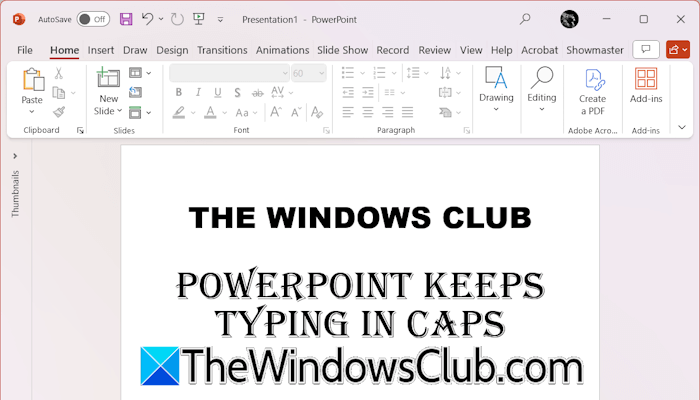
PowerPoint keeps typing in capital letters
Use the following fixes if PowerPoint keeps typing in capital letters on your Windows PC. Before proceeding, I suggest you restart PowerPoint and see if the issue occurs. Additionally, you can also check for Office updates manually. If an update is available, install it and restart the application.
- Check the Text Formatting
- Check your keyboard
- Change your PowerPoint template and Font style
- Change the settings in the Slide Master
- Repair Office
All these fixes are explained below in detail.
1] Check the Text Formatting
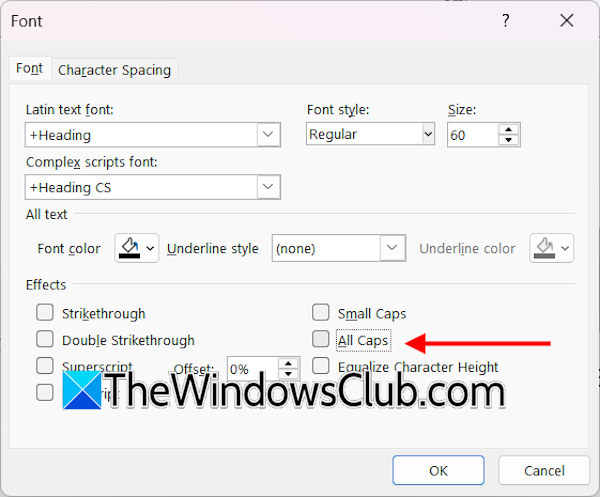
The first step is to check the text formatting. The All Caps option might be enabled for your text. Select the text, right-click on the selected text, and select Font. Under the Font tab, the All Caps checkbox should not be selected. If so, deselect it and click OK to save changes.
2] Check your keyboard
The issue might be associated with your keyboard. To confirm this, connect another keyboard and see what happens. If the issue disappears, the problem is with your keyboard. Check if the Shift key is stuck.

Sometimes, the caps lock indicator does not work, so you do not realize that the caps lock is ON.
3] Change your PowerPoint template and Font style
Some PowerPoint templates are designed to type all text in Caps. This might be the case with you. Change your PowerPoint template and see if the issue persists. If this works, you need not worry about the issue because it was the template’s feature.
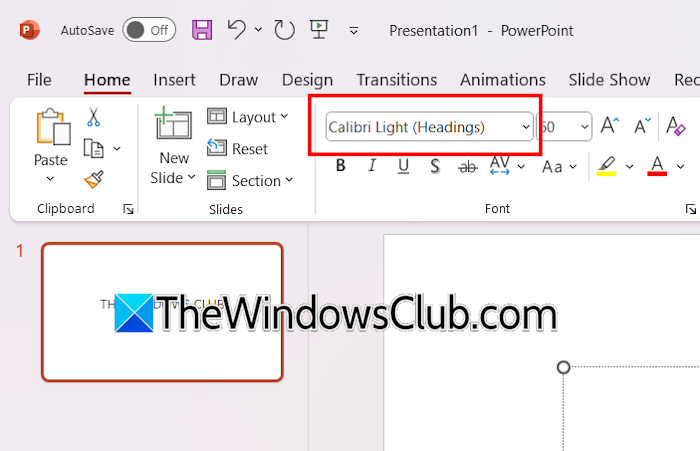
Similarly, some Fonts are designed to be typed in capital letters. You can check this by changing the font style. To change the font style, select the text and then select another font under the Home tab.
4] Change the settings in the Slide Master
Does the issue occur with a particular slide layout? If not, you might have misconfigured your slide settings. Check this in the Slide Master.
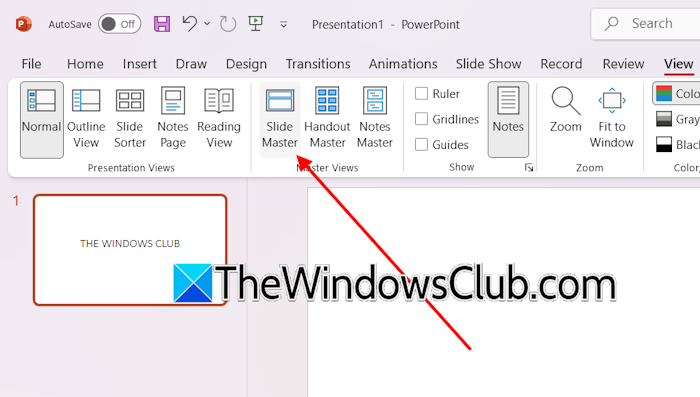
Follow these steps:
- Select the View tab.
- Click Slide Master in the Master Views group.
- Select the text in the affected slide layout and right-click on the selected text.
- Select Font and uncheck the All Caps option under the Font tab.
- Click Close Master View.
This should work.
5] Repair Office

If the issue still persists, repair your Office suite. To do this, close all Office applications and run an online repair. This process takes time but fixes all corrupt Office files.
That’s it. I hope this helps.
Why is my PowerPoint typing in all caps?
There can be many reasons why PowerPoint is typing everything in caps. The problem might be associated with your keyboard or the Caps Lock key. Also, you might have mistakenly enabled the All Caps feature for a particular slide. Check this in the Master Slide.
Why is my keyboard typing all caps when the caps lock is off?
If your keyboard keeps typing in caps even when the caps lock is off, the Shift key might be stuck. Check this by connecting another keyboard. Sometimes, the issue is associated with a particular application due to incorrect settings.
Read next: The file is corrupt and cannot be opened.
