
When you add new files or folders to a SharePoint document library, Power Query sometimes fails to detect them even When you add new files or folders to a SharePoint document library, Power Query sometimes fails to detect them even after refreshing the query. In this post, we are going to see what to do if Power Query’s new files and folders are not showing in SharePoint.
Power Query new files and folders not showing in SharePoint
Power Query caches metadata (file lists, folder structures) from SharePoint to improve performance. When you connect via From SharePoint Folder, Power Query stores a local snapshot of the library’s contents. New files or folders may not appear because the cache is not invalidated automatically, or because the underlying SharePoint connector uses an outdated view that excludes recent items. Additionally, privacy-level settings and how Power Query resolves folder paths (e.g., using a library URL vs. a site URL) can cause it to miss changes. In some cases, the SharePoint REST API response is paginated, and Power Query’s default handling only retrieves the first batch of items, skipping newer ones.
If new Power Query files and folders are not showing in SharePoint, you need to talk to your IT admin first to make sure you have the privilege to access them. In case the issue is not related to permission, follow the solutions mentioned below.
- Clear Power Query Cache
- Connect using the site root URL instead of your library URL
- Use ShrePoint REST API from Web.Content
Let us talk about them in detail.
1] Clear Power Query cache
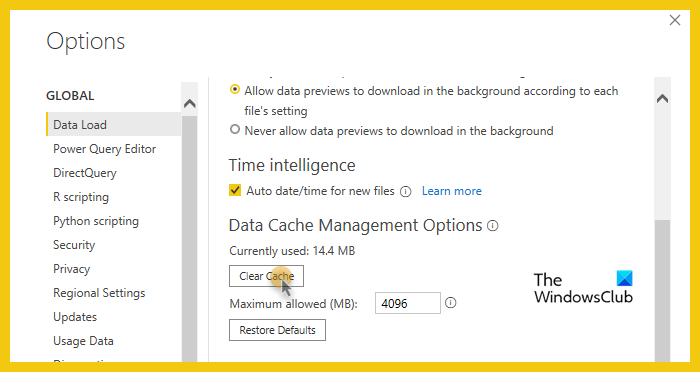
Power Query stores a local cache of folder and file listings. Clearing this cache forces a complete fresh retrieval from SharePoint, removing any stale references to old folder structures or missing files. Follow the steps mentioned below to do the same.
Power BI
- Launch the Power BI app.
- Navigate to File > Options and settings > Options.
- Click on Data Load tab from the Global section.
- Click on Clear Cache.
- Open Excel.
- Go to Options > Save.
- Navigate to the Cache settings.
- Click on Delete cached files, again click on Delete Cached Files.
Hopefully, this will do the job for you.
2] Connect using the site root URL instead of the library URL

If you give Power Query the full web address of a folder inside SharePoint (like the one you see in your browser), it sometimes remembers an old list of files. But if you give it only the main site address (the homepage of your SharePoint site), Power Query is forced to ask SharePoint what’s inside right now? and gets the fresh, complete list every time.
Power BI
- Open Power BI Desktop.
- Click Home tab > Get Data > More… (if needed, search “SharePoint folder”).
- In the Get Data window, search for SharePoint folder in the search box.
- Select SharePoint folder from the list.
- Click Connect.
- In the SharePoint folder dialog, paste your site root URL:
https://yourcompany.sharepoint.com/sites/YourSiteName (nothing after that). - Click OK.
- In the Navigator, check the box next to your document library (e.g., “Shared Documents”).
- Then click Transform Data.
- In the Power Query Editor, click Home tab > Refresh Preview. Confirm new items appear.
- Click Close & Apply.
Excel
- Open Excel.
- Click the Data tab.
- Click Get Data > From File > From SharePoint Folder. If you don’t see that, click Get Data > From Online Services > From SharePoint Folder.
- In the SharePoint Folder window, delete anything in the Site URL box and type exactly:
https://yourcompany.sharepoint.com/sites/YourSiteName
(Replace with your real site address; nothing after /sites/YourSiteName) - Click OK.
- In the Navigator window that opens, on the left side, click once on your document library (e.g., “Shared Documents” or “Documents”).
- Do not click Load yet. Click the Transform Data button.
- In the Power Query Editor, click the Home tab > Refresh Preview (circle arrow).
- Verify your new files/folders appear.
- Then click Close & Load.
FInally, check if the issue persists.
3] Use SharePoint REST API with Web.Contents
The REST API endpoint returns the current folder structure every time the query runs, bypassing Power Query’s internal folder caching entirely.
If you are using Excel, click on Data tab > Get Data > From Other Sources > Blank Query.
In the Power Query Editor, click on the Home tab > Advanced Editor.
Delete everything in the editor and paste this code (replace the three placeholder values).
let
siteUrl = "https://yourtenant.sharepoint.com/sites/yoursite",
relativePath = "/sites/yoursite/Shared Documents",
apiUrl = siteUrl & "/_api/web/GetFolderByServerRelativeUrl('" & relativePath & "')/Files",
response = Json.Document(Web.Contents(apiUrl, [Headers=[Accept="application/json;odata=verbose"]])),
files = response[value][results]
in
files
Note: Change yourtenant, yoursite, and the folder path to match your SharePoint.
If you are Power BI user, go to Home > Get Data > Blank Query (or Blank Query at the bottom of the list). Then, in the Power Query Editor, navigate to Home > Advanced Editor; clear everything and paste the aforementioned code. Click Done.
Finally, go to Home > Refresh Preview > Close & Apply.
That’s it!
Read: How to split Data into Rows using Power Query
Why can’t I add a new folder in SharePoint?
This typically happens due to insufficient permissions or column validation rules blocking the action. If your library has unique permissions, ensure your account has at least Contribute level access. Also, check if any column validation formula exists, as this can prevent new folder creation entirely. A quick workaround is to use the Files tab and select New Folder instead of the +New button, which sometimes bypasses the restriction.
Read: Excel Power Query keeps crashing with Error 0xC000026F
Why are my folders not syncing with SharePoint?
Sync failures usually occur when you have both a synced library and a OneDrive shortcut to the same location, creating a conflict. The solution is to remove the shortcut from OneDrive online, then unlink and re-link your OneDrive account. Additionally, check that your OneDrive client is updated and pause/resume syncing from the system tray icon to force a refresh.
Also Read: Manage Data Model is missing in Excel.
