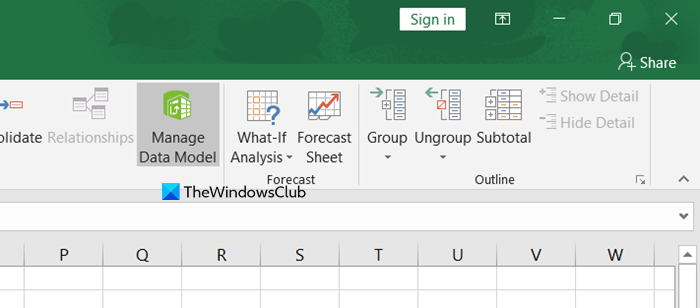
The Data Model is Excel’s in-memory analytics engine, a powerful but often invisible layer that supercharges your worksheets. However, we have noticed that the Manage Data Model tab is missing in Excel for some users. In this post, we are going to see how to fix this issue.
Fix Manage Data Model is missing in Excel
The Manage Data Model button may be missing for several reasons. You might be using an unsupported Excel version, such as Excel for the web or a one-time retail purchase. The Power Pivot add-in could be disabled, or the workbook may not have an initialized Data Model. Additionally, regional system conflicts might affect its visibility. Check these factors if you can’t find the button.
Since the Manage Data Model is missing in Excel, follow the solutions below.
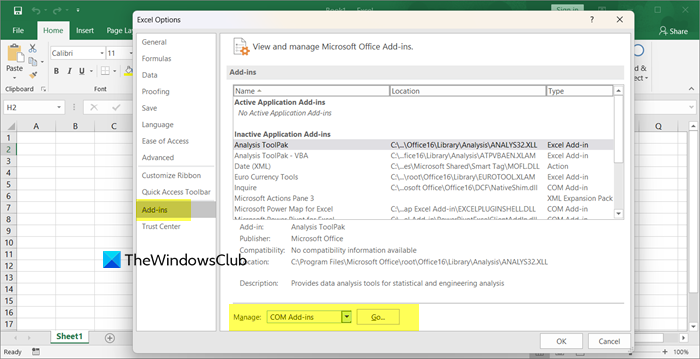
- Enable the Power Pivot Add-in
- Force-create a Data Model via the “Add to Data Model” Command
- Use the Data tab or Power Pivot Window Shortcut
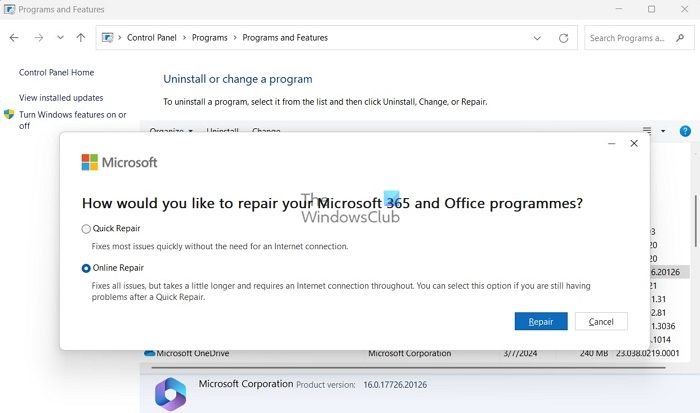
- Check Excel version and repair the installation
Let us talk about them in detail.
1] Enable the Power Pivot Add-in