
When the Design Mode button in Excel’s Developer tab is greyed out, it’s usually because the feature has nothing to act upon or needs a simple action to activate it. However, there are other reasons, including misconfiguration and file corruption. In this post, we will discuss the issue and explore solutions for when the Design Mode is greyed out in Excel, as well as steps to enable it.

Why is design mode greyed out in Excel?
The Design Mode button is greyed out because it only works when there is an object on your worksheet, like an ActiveX control. If your sheet does not have any of these controls, the button will stay greyed out. Sometimes, the button may not respond, but you can fix this by refreshing the ribbon commands. However, there are other reasons and solutions that we will discuss in this post.
Design Mode greyed out in Excel
Is Design Mode greyed out in Excel? To enable Design Mode in Excel, follow the solutions and workarounds mentioned below.
- Insert a control
- Refresh Record Macro’s Ribbon Interface
- Use View Code or Properties
- Check ActiveX Security Settings
- Repair Office.
1] Insert a control
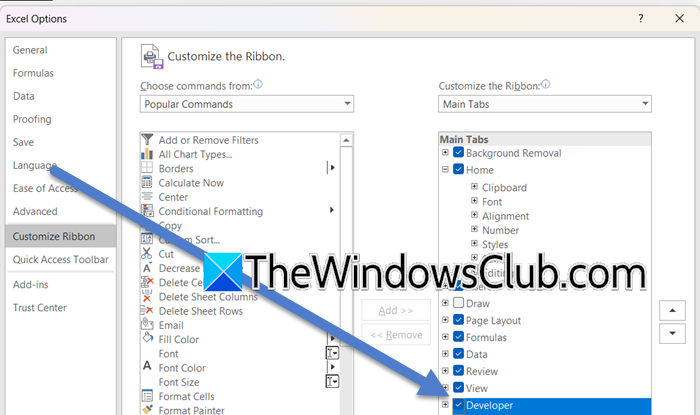
Inserting a control works because the Design Mode button in Excel only becomes active when there is an object in your workbook, like an ActiveX control, for it to act upon. Adding such a control provides the necessary context for the button to become usable.
Follow the steps below to complete the same task.
- First, we need to ensure that the Developer tab is active. For that, go to File > Options > Customize Ribbon, and under Main Tabs, check the Developer box (if it is already enabled and available, untick Developer, restart Excel, and check it again).
- Now, go to the Developer tab.
- In the Controls group, click on Insert.
- In the menu that appears, find the section for ActiveX Controls and select a control, such as a Command Button, a Checkbox, or a List Box.
- Then, click and drag the control on the worksheet to position it where you want it to appear. After placing the control, the Design Mode button in the Controls group should become active and no longer be grayed out.
After inserting a control, you can click the Design Mode button to turn it on (it will appear highlighted) and then select, move, or edit the properties of your ActiveX controls. Now, check if the issue is resolved.
2] Refresh Record Macro’s Ribbon Interface
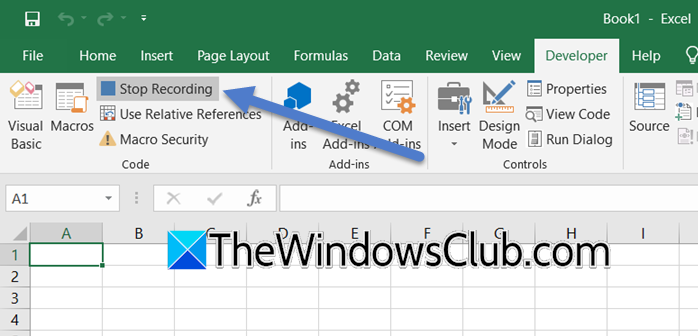
The issue can be due to temporary glitches that can make the Design Mode button unresponsive. By clicking Record Macro, we can force Excel to refresh its ribbon interface commands. To achieve the same, follow the steps outlined below.
- Go to the Developer tab in Excel.
- Then, go to the Code section and click on Record Macro.
- A small dialog will appear; you do not need to configure anything. Immediately click Stop Recording.
- A small dialog will appear; you do not need to configure anything.
- Immediately click Stop Recording once the recording starts.
- Check if the Design Mode button is now active and no longer grayed out.
Finally, check if the issue is resolved.
3] Use View Code or Properties
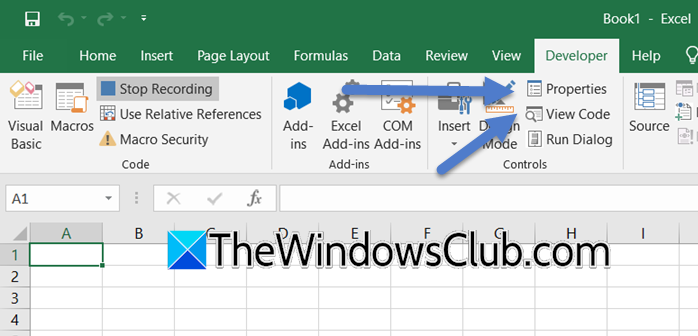
You can enable Design Mode in Excel by using different developer features. When you click View Code or Properties, Excel understands that you are working with controls, which usually unlocks the Design button. This makes it easier for you to customize and manage your forms and controls in the application. You can follow the steps mentioned to do the same.
- First of all, go to the Developer tab.
- Click on View Code to open the VBS editor or Properties from the Controls section.
- If the VBA editor opens, simply close it. If the Properties pane opens, you can close it as well.
- Return to the Controls group and check if the Design Mode button has become available.
Hopefully, this would do the job for you.
4] Check ActiveX Security Settings
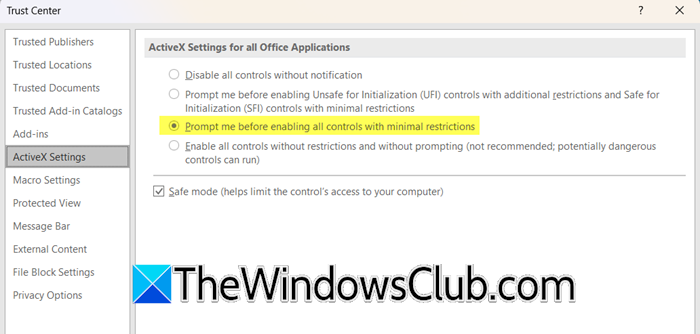
Restrictive macro security settings can turn off all ActiveX features, including Design Mode. To make the button work, you need to adjust these settings to allow Excel to use controls. You can do that using the steps given below.
- In Excel, go to File > Options > Trust Center.
- Click the Trust Center Settings… button.
- Select the ActiveX Settings tab on the left.
- Choose the option Prompt me before enabling all controls with minimal restrictions.
- Click OK to confirm and close the dialog boxes. Restart Excel and check the button.
You should be able to see the Design Mode button.
Read: Merge and Center button is not working, missing, greyed out Excel
5] Repair Office

If nothing works, our last resort is to repair the Office installation, as the issue can be due to corrupted files. You can perform a Quick Repair, and if that doesn’t work, try an Online Repair.
That’s it!
Read: Save button grayed out in Word, Excel, PowerPoint
How do I enable Design Mode in Excel?
To enable Design Mode in Excel, first ensure the Developer tab is visible by going to File > Options > Customize Ribbon and checking the Developer option. Then, within the Developer tab, simply click the Design Mode button in the Controls group. If it’s greyed out, check out the solutions mentioned here.
Also Read: Signature Line greyed out in Word or Excel.
